Echo is built on a simple premise: your best ideas often come as fleeting thoughts, and they deserve a home where you can find them again. This walkthrough shows you how to go from opening the app to having a searchable, actionable note in under a minute. No complicated menus. No transcription delays. Just tap, speak, and let Echo handle the rest.
Your First Launch
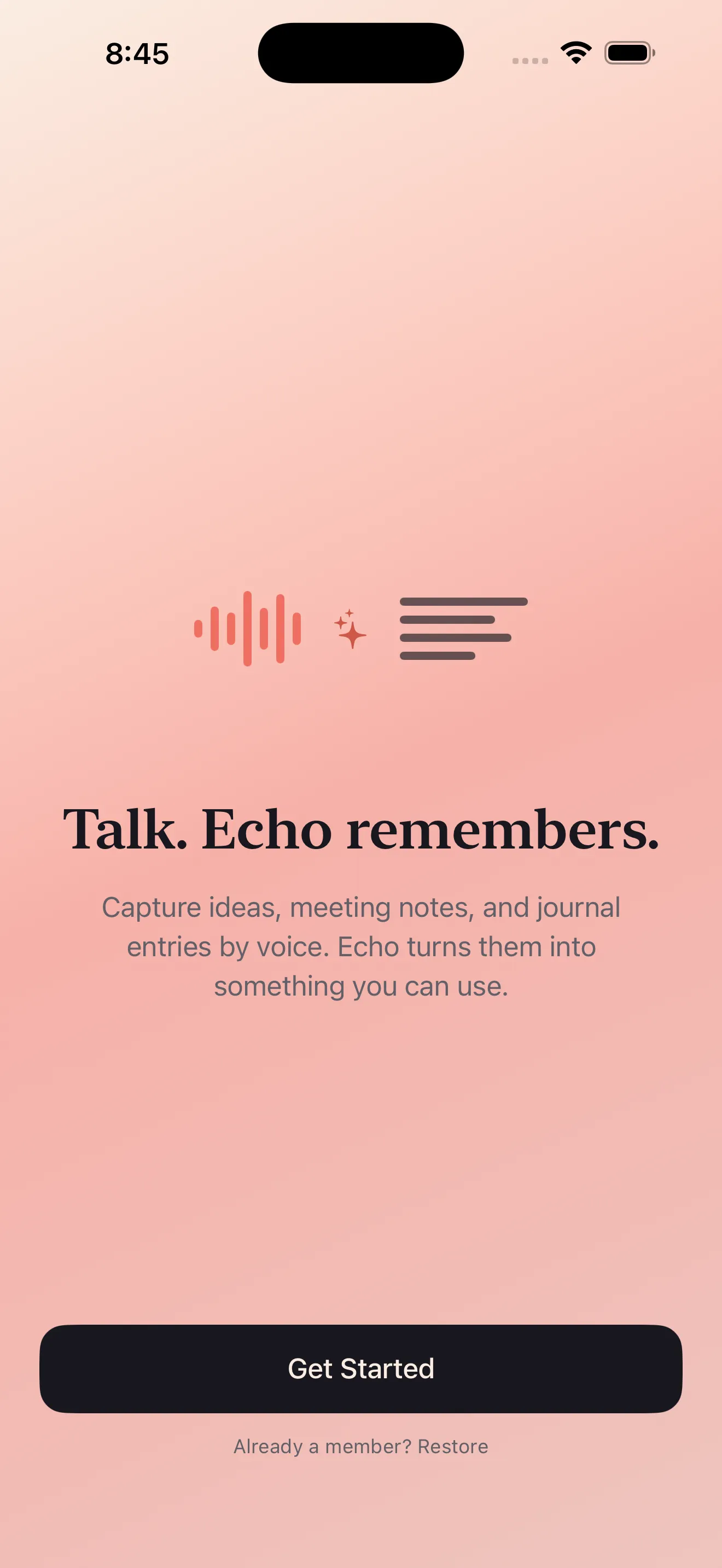
When you open Echo for the first time, you'll see a brief onboarding sequence that explains what the app does. It takes about 30 seconds. The app asks for microphone permission—this is essential, so grant it when prompted. Echo processes audio on your device, not on remote servers, so your voice stays private.
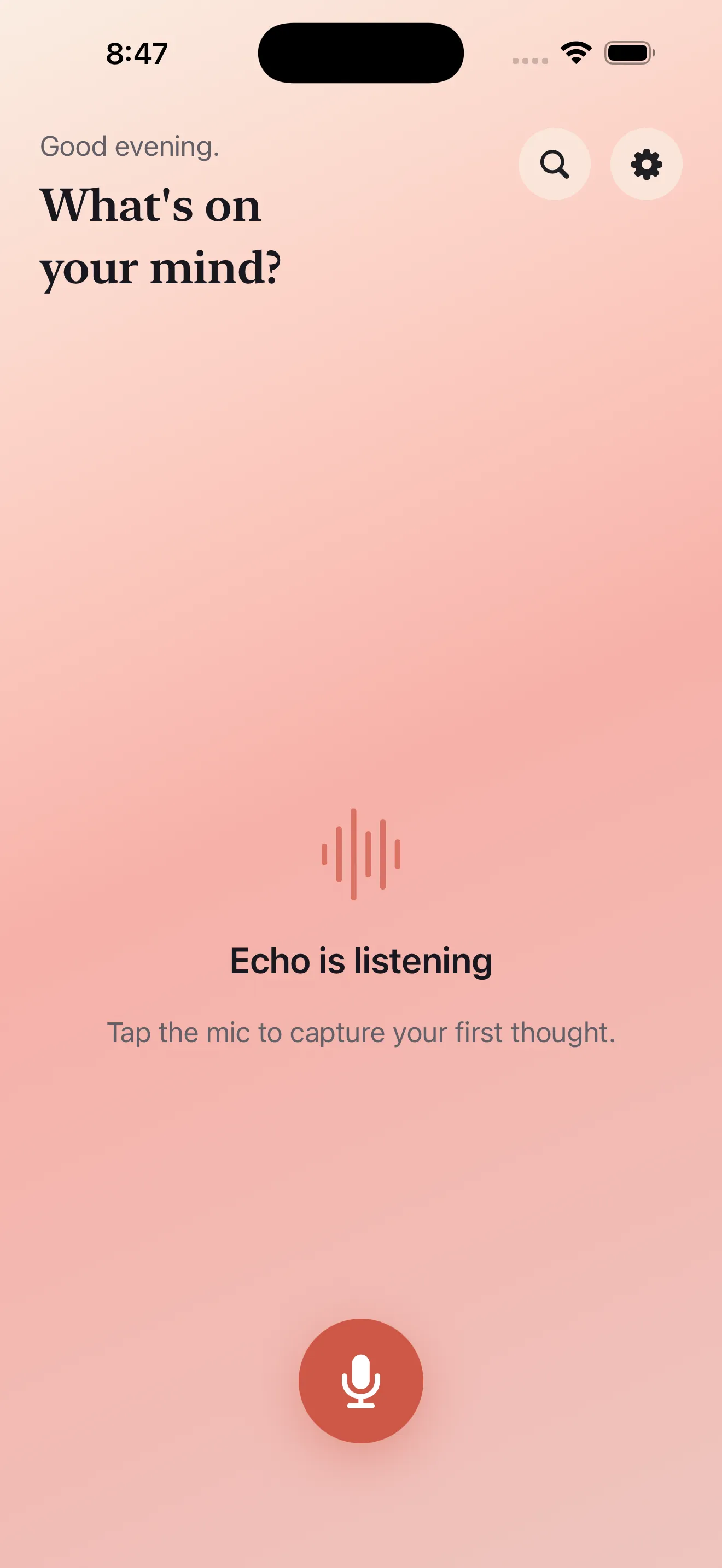
After onboarding, you'll land on the Echo dashboard. This is your home view—it shows today's recordings at the top and recent notes below. For now, it's empty. That's where you come in.
Recording Your First Thought
The mic button is hard to miss. It's large and centered on the screen. Tap it once, and recording starts immediately. Echo is designed to get out of the way so you don't lose your thought to setup screens or menu taps. You can speak naturally. Pause if you need to think. Keep going if the idea flows. Echo captures it all.
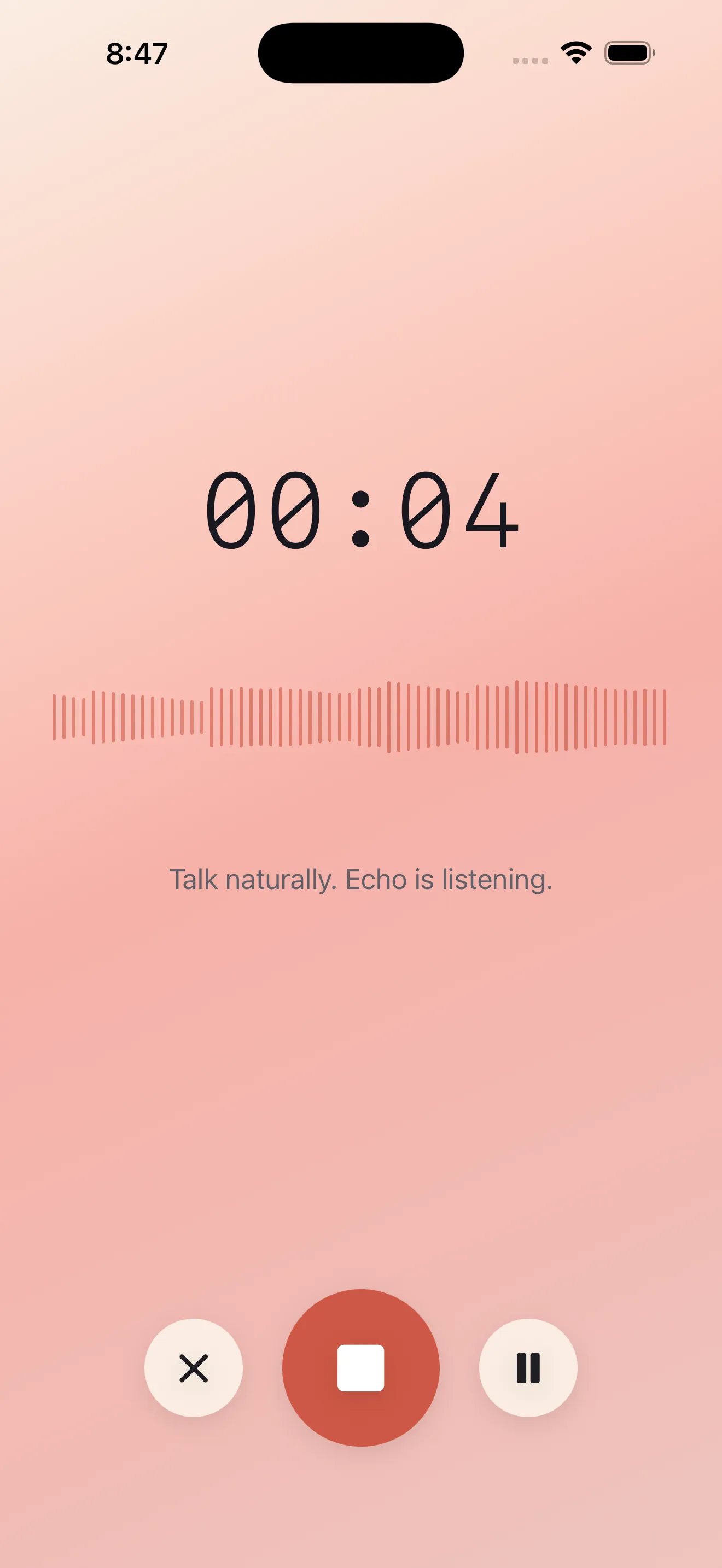
While you're recording, you'll see a waveform animating to show audio input. Tap the mic button again to stop. If you need to keep your phone in your pocket or let the screen lock, that's fine too—Echo supports long background recordings, so your thought won't get cut off if the screen goes dark.
Echo captures long background recordings without dropping a single word, even when your screen is locked or the app is backgrounded.
From Recording to Transcript
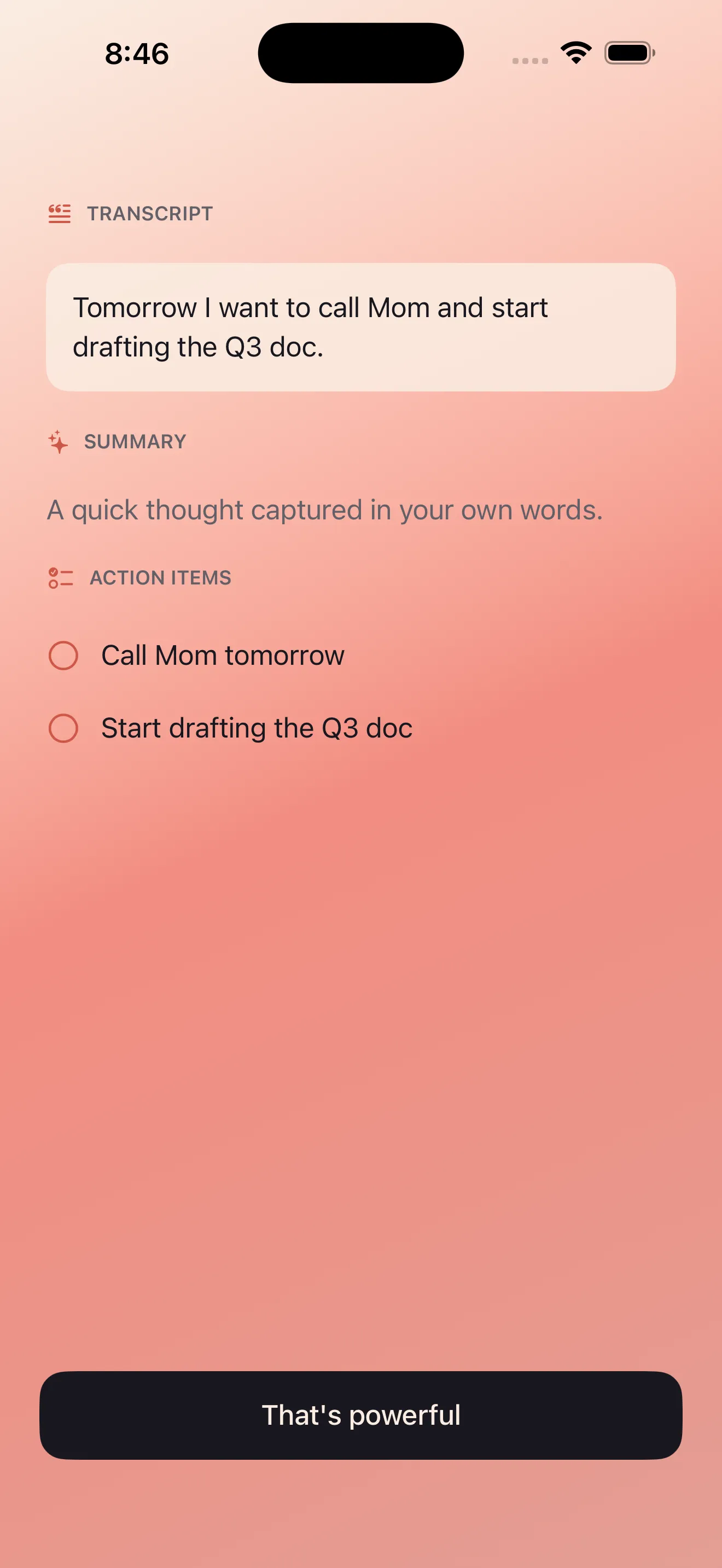
Hit stop, and Echo gets to work. You'll see the recording appear in your dashboard with a spinner, showing that transcription is in progress. On modern devices, this happens quickly—usually within seconds. The transcript appears right below the recording.
Getting Summaries and Action Items
Below the transcript, Echo automatically generates two helpful artifacts: a summary and a list of action items. The summary is a concise version of what you said—useful if you want a quick reminder later. The action items are the specific tasks or ideas Echo detected in your voice note. These aren't perfect every time, but they give you a head start on turning spoken thoughts into actual next steps.
Using What You Captured
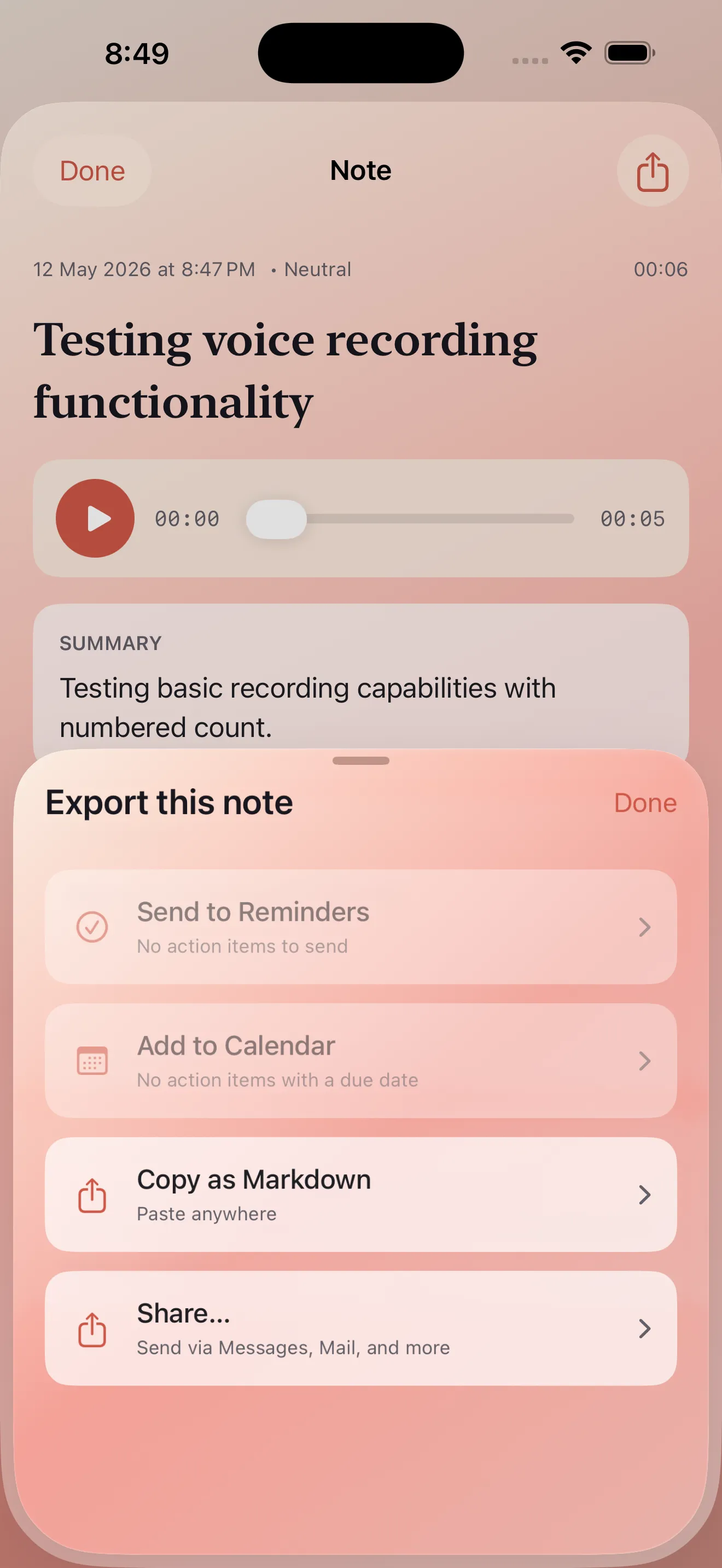
Once you have a transcript and actions, Echo gives you options. You can save action items as reminders, add them to your calendar, or send the transcript to your notes app, email, or any text service you use. The note itself lives in Echo and becomes instantly searchable—type a keyword in the dashboard search, and older recordings bubble up. If you want a deeper dive on capturing and organizing voice notes, check out our Echo tips guide for advanced workflows.
Language Support and Privacy
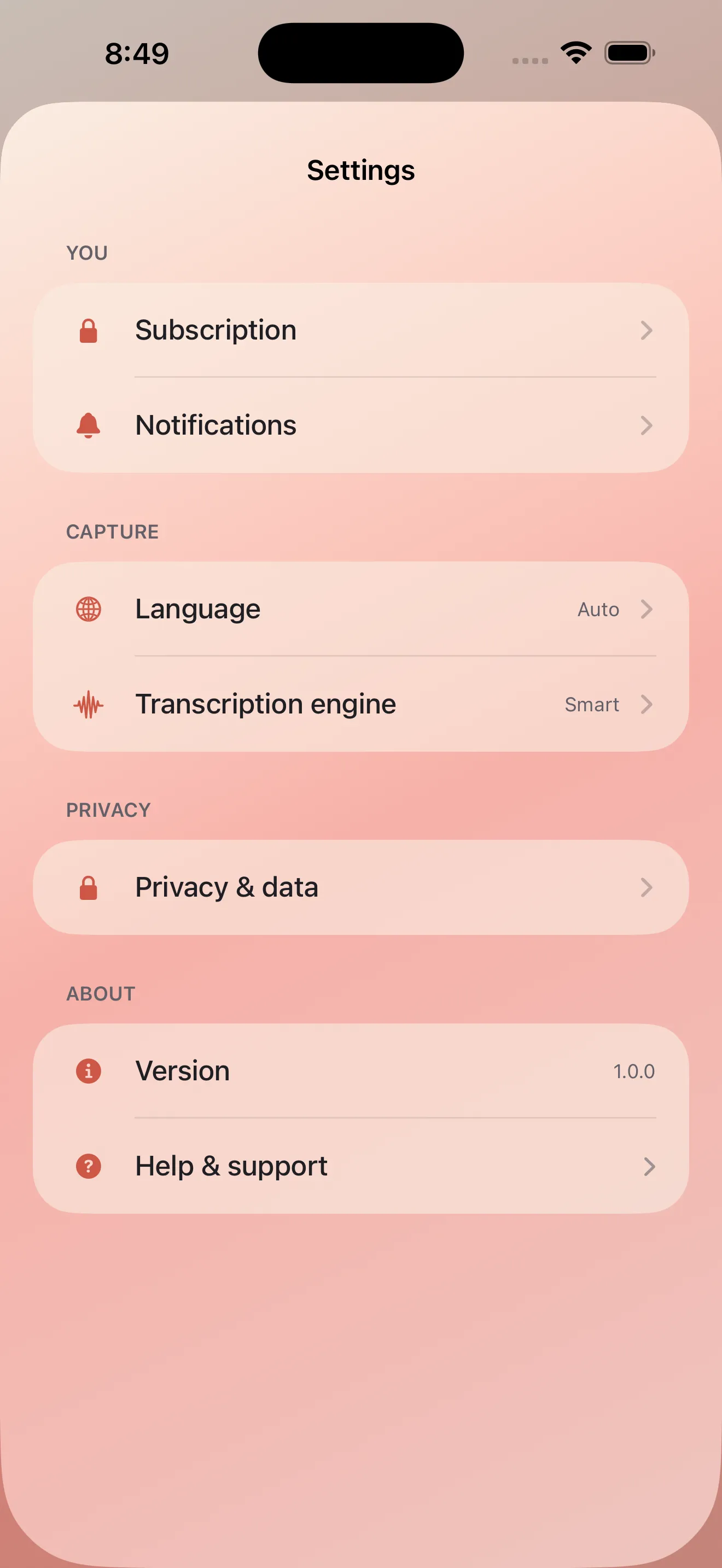
Echo works beautifully with English and Arabic. If you switch between languages or mix them in a single recording, Echo handles both. RTL (right-to-left) text renders correctly, and transcription, summarization, and action extraction all respect the language you're using. All audio processing happens on your device. Echo never sends your voice to a remote server, so your ideas remain private. You can verify this in settings if you want confirmation.
If you're comparing Echo to other voice note options, our voice notes comparison breaks down where Echo fits and what makes it different.
This article was drafted with AI assistance and reviewed by a human editor before publishing.