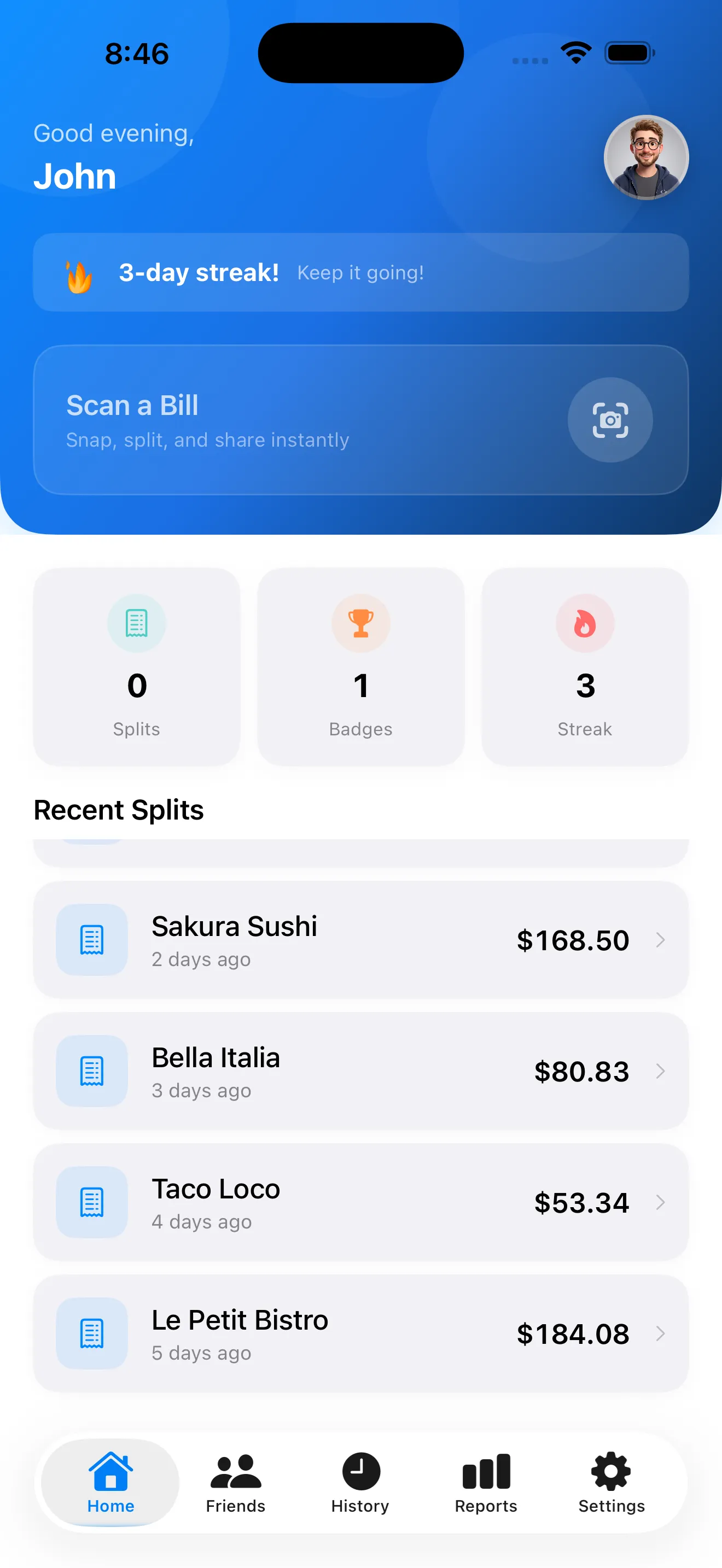
SplitSnap takes the friction out of splitting bills. Point your camera at a receipt, let Claude's AI handle the heavy lifting, and you're done. But there's more to it than just tapping the scan button. Whether you're settling a restaurant bill with coworkers or tracking group trip expenses, these tips will help you get the fastest, most accurate splits every time.
Position Your Receipt for Perfect Scans
The faster your scan, the faster you split. For best results, place your receipt on a flat, well-lit surface before opening SplitSnap. Make sure all four corners are visible and the text isn't blurry or shadowed. If you're at a dim restaurant, use your phone's flashlight or step outside for a moment. The AI works best when it can read every line cleanly — even the small tax and tip amounts matter.
Review Before You Assign
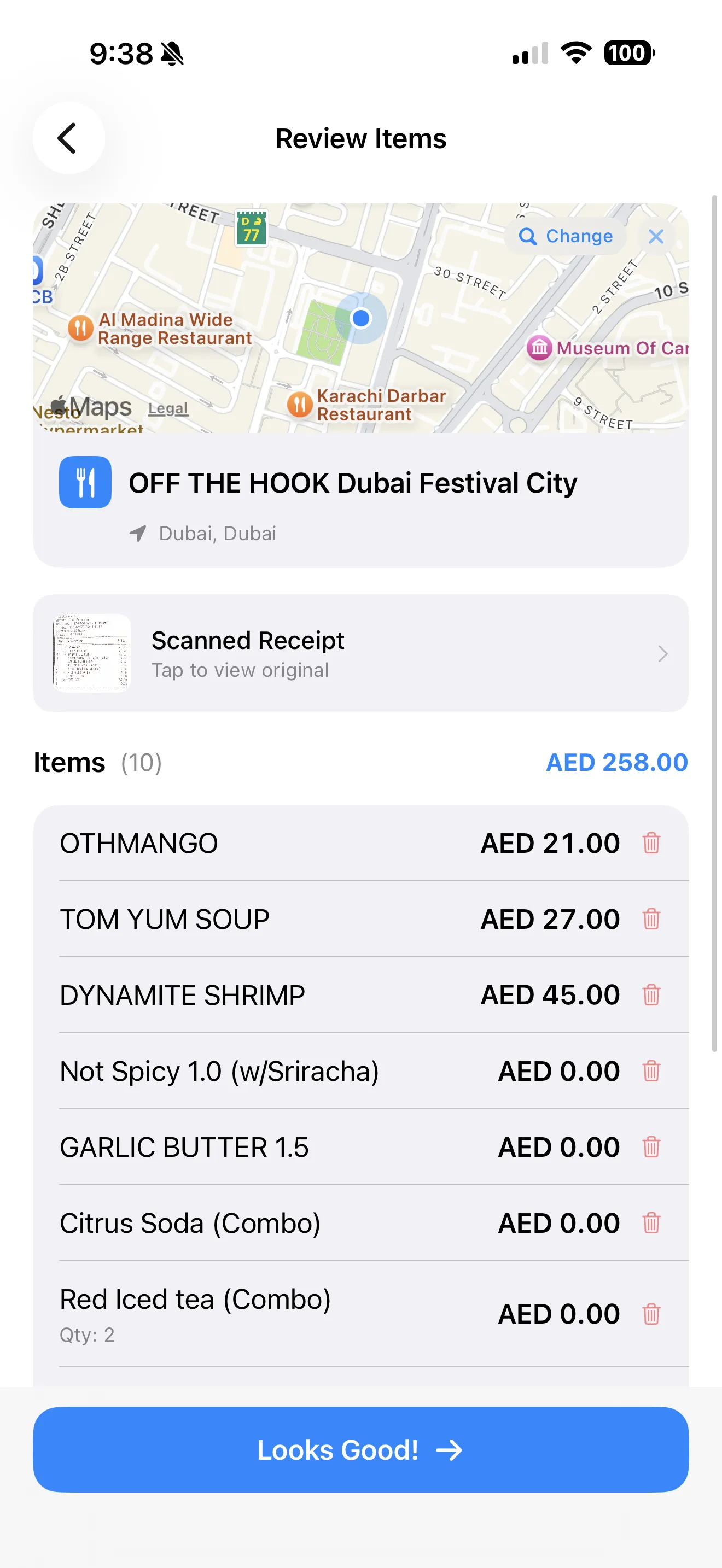
After scanning, SplitSnap shows you exactly what the AI read. Take a second to verify the items, prices, tax, and tip are correct. Occasionally an item might need a small tweak — maybe a menu name got shortened or a modifier didn't come through perfectly. Catching these before you assign items to people saves time and prevents disputes later.
Add People Once, Reuse Forever
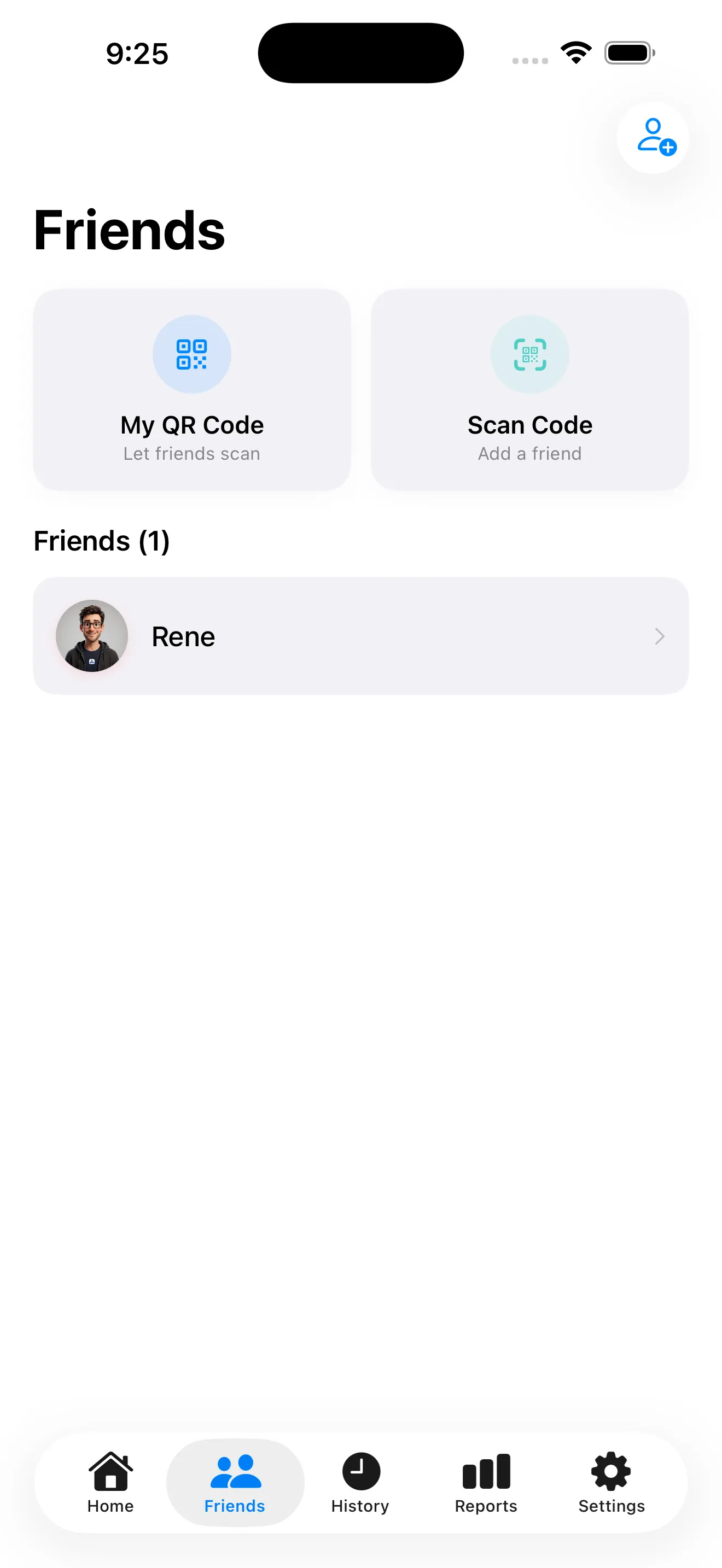
The first time you split with a friend or group, add everyone's name. SplitSnap remembers them. Next time you scan a receipt with the same people, they're already there waiting for you. You can build a friends list for your regular crew — whether that's your roommate, your partner, or your monthly dinner club. This turns what could be a multi-step process into a few taps.
Use Color Chips to Assign Items Faster
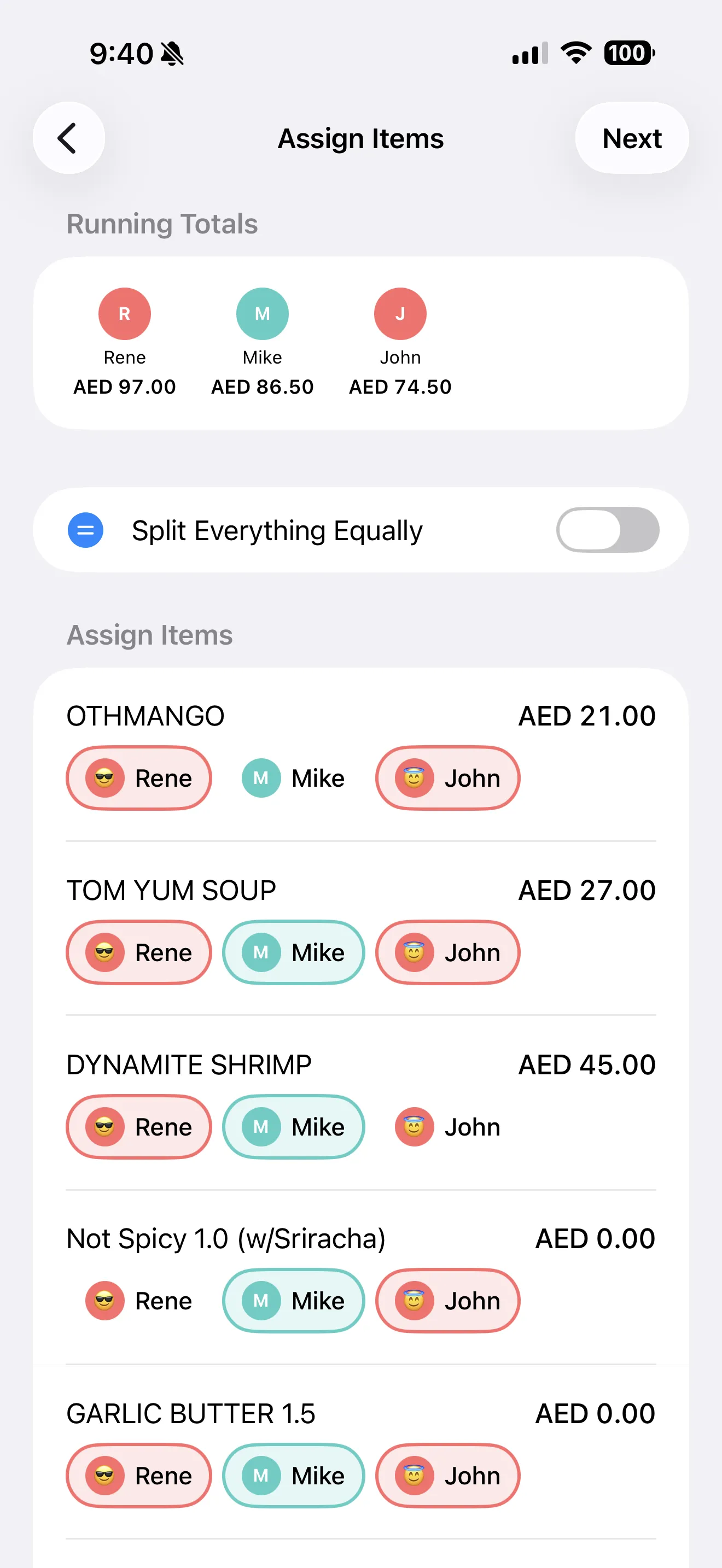
When assigning items to people, SplitSnap gives each person a unique color chip. Instead of reading names every time, you can skim by color — it's a much faster way to assign a long list of items. Tap the colored chip next to each item and assign it. For shared items like appetizers or desserts, you can split a single item across multiple people in seconds.
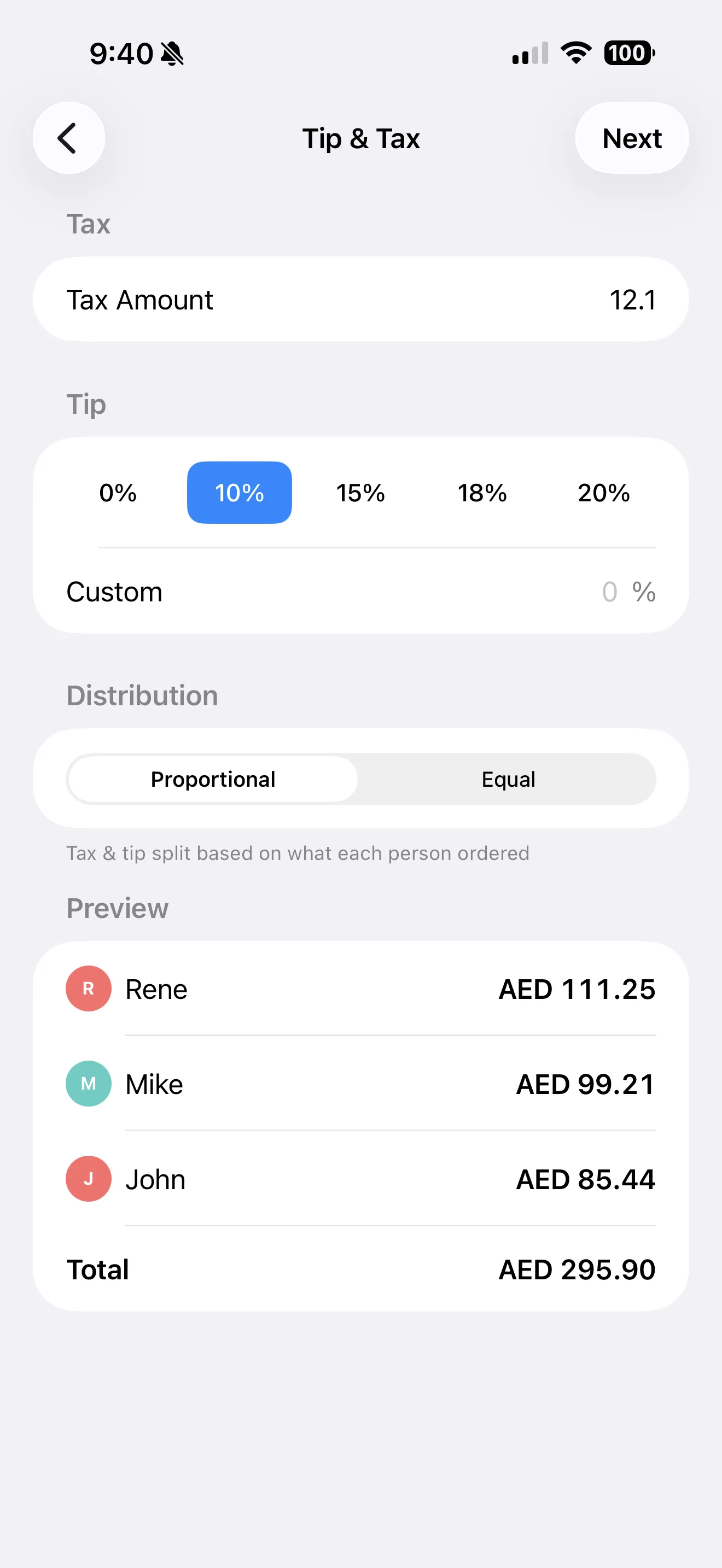
SplitSnap handles tax and tip distribution automatically, so you don't have to do the mental math.
Let Auto Tax & Tip Do the Math
One of the biggest sources of confusion when splitting bills is tax and tip. SplitSnap scans both from the receipt and distributes them proportionally based on what each person ordered. You don't calculate percentages or round weirdly. Everyone pays their fair share automatically. If someone wants to adjust the tip amount before finalizing, you can do that too.
Share the Split Card, Not Just Numbers
Once you've assigned items and everything's calculated, SplitSnap generates a shareable split card. Send it to the group via text, email, or any messaging app. Everyone sees a clean breakdown of who ordered what and what they owe. It's transparent and removes any chance of disagreement. The card includes the original receipt, itemized amounts, and each person's total.
Keep Your Split History for Tax and Travel
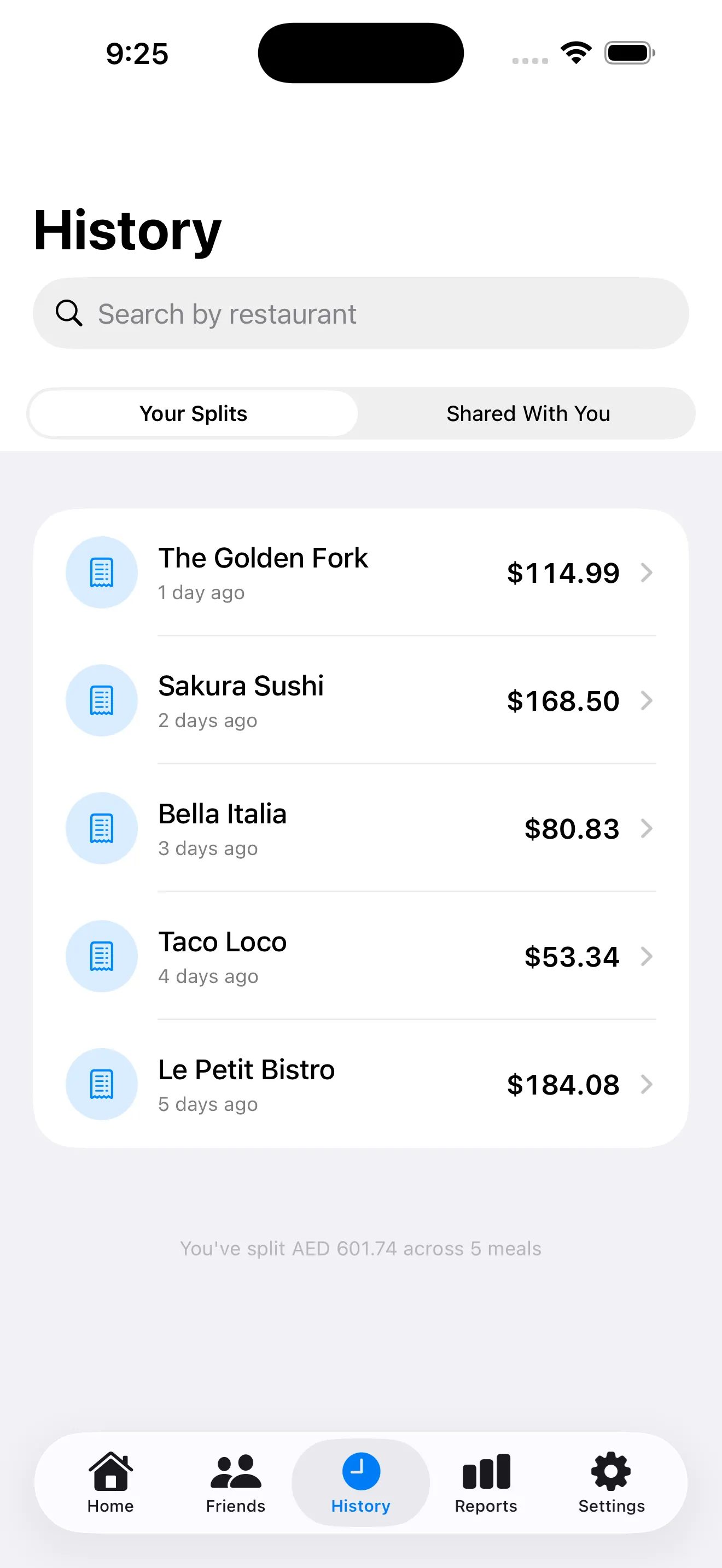
SplitSnap saves every split you make. Scroll through your history to find past receipts, revisit who split what, or re-share a split card if someone missed it. For frequent travelers, this becomes invaluable — you can track group trip expenses across multiple currencies and see exactly who paid for what throughout your journey.
This article was drafted with AI assistance and reviewed by a human editor before publishing.