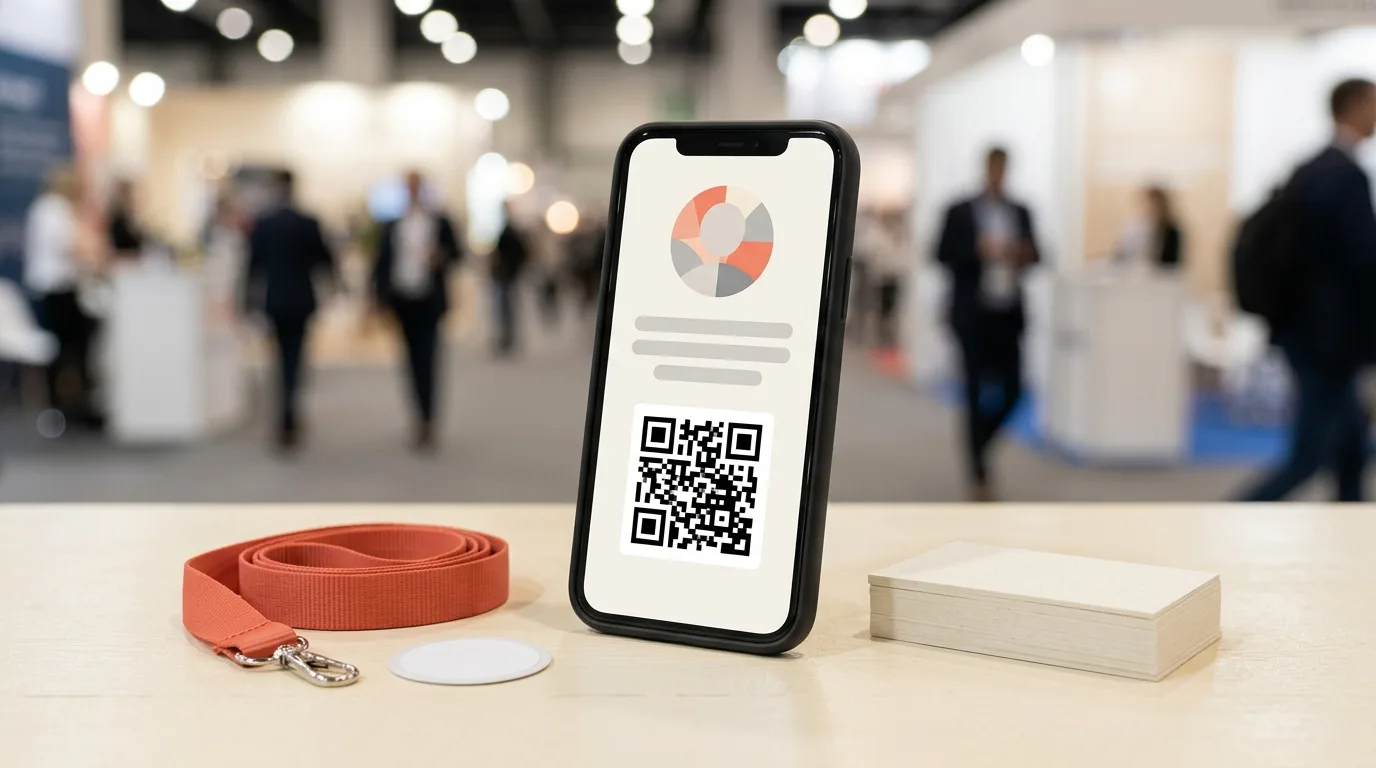
At GITEX (7 to 11 December) you'll hit one of two moments. Either your paper cards run out by the second afternoon, or you meet someone who never carried any in the first place. Both end the same way: a friendly chat, a promise to connect on LinkedIn, and no contact details on your phone.
A digital business card fixes half of that. They scan the QR on your Lock Screen or in Apple Wallet, open your card in their browser and save it. With MeetStack, the other half happens too: they can send their details straight back from the same page, with no app to install. Nobody types anything, and you both walk away with a contact. Here's how to set it up on iPhone before the show and which share method to use when.
Why one-way cards leave you empty-handed
Most digital business card apps stop at "they got your card." That feels like progress, but look at who ended up with what. They have your name, number and email. You have a memory of a nice conversation and maybe a first name.
That's backwards for anyone working a trade show. The whole reason you're in the aisle is to leave with people you can follow up. A one-way share hands the follow-up to the other person and hopes they remember you next week.
A two-way digital business card exchange closes that gap. You share once, and the exchange can come back to you. In MeetStack, the contact that comes back doesn't sit in a separate inbox. It lands in the same list as the paper cards you've scanned, with the same reminders and the same warm, cooling or cold status.
The scan was never the hard part. The follow-up is, and you can't follow up with someone whose details you never got.
How the two-way exchange works
From the other person's side, it's short:
They scan your QR code, tap your NFC tag or open your link.
Your card opens in their phone's browser. There's nothing to install and no sign-up.
They save your details, and if they want to, send their own details straight back from the same page.
On your side, you get a notification and a new contact straight away. It's the same kind of contact you'd create by scanning a paper card, so everything else in MeetStack works on it from the start.
Set up your card before the show
Do this once at your desk, not in the aisle. Open My QR. Your code sits at the top, with three actions right below it:
Share, to send your card through any app on your phone.
Add to Wallet, to keep your card in Apple Wallet.
Copy link, to paste your card into a message, an email or a chat.
Then make the code quick to reach:
Add the MeetStack Lock Screen widget, so your card's QR code is one tap away instead of buried in the app.
Add your card to Apple Wallet. Your QR code is there even without signal, which matters in a packed exhibition hall.
Try the Siri shortcut: "Hey Siri, show my MeetStack card." It's handy when one hand is holding a coffee and the other a brochure.
While you're there, check the card itself. Make sure your title, company, email and phone are current. For what to include on a shareable card, see our guide to digital business cards on iPhone.
Pick the share method for the moment
Different moments at a show call for different ways to share. Here are the three you'll use most, plus the backup for a dead-signal hall.
The QR in the aisle
You're standing, it's loud, and the conversation might last ninety seconds. Wake your phone, tap the Lock Screen widget and hold up the QR. They point their camera at it and they're on your card. This is the fastest option and works with any phone that can scan a QR code.
An NFC tag across the table
For seated meetings, a booth counter or a laptop lid, program an NFC tag or sticker with your digital card from inside MeetStack. Put it where people naturally reach, and they tap it with their phone to open your card. No app is needed on the other phone. It's a tag you program yourself, not a phone-to-phone tap.
The link after the show
Some people you meet at dinner, on a panel or in a queue, where holding up a phone feels odd. Tap Copy link on My QR and send it by WhatsApp or email afterwards with a short note about what you talked about. They open the same card and can send their details back just the same.
No signal? Use Wallet
Exhibition-hall signal can disappear at the busiest hour. Because your card is in Apple Wallet, your QR code still shows without signal, so you always have something to hold up. If you're worried about capturing paper cards offline too, see how MeetStack handles offline trade show lead capture.
After they send their details
When someone sends their details back, they show up in your contact list next to everyone else you've met. That's where the two-way exchange pays off, because you can treat them like any other lead:
Check for duplicates. If you already scanned their paper card or met them before, MeetStack warns you about duplicates and merges them, keeping the best details from each.
Tag them with the show, the hall or the product you discussed, so you can filter later.
Tap Add Voice Memo and talk for twenty seconds about what you discussed. It's transcribed on your iPhone and saved to the contact, and the audio is deleted.
Set a follow-up reminder. Home's Today list shows who's due, and every contact is marked warm, cooling or cold so you can see who's slipping.
Export when you're back. CSV and vCard export are on every plan, including Free.
If your team uses a CRM, Business can push contacts to HubSpot or Pipedrive, and CSV covers the rest. Our guide to importing a trade show leads CSV into Salesforce and HubSpot walks through it. For more ways to keep the list tidy, see these MeetStack tips.
One-to-one card vs event Join QR
Your digital card is built for one-to-one exchanges: one person, one conversation, one contact. It isn't the right tool for a room full of people.
If you're hosting a breakfast, a workshop or a booth demo for a group, use a MeetStack event instead. Attendees scan your event's Join QR once, and their details are shared only with their explicit consent. It's a different flow with different settings, explained in our guide to running a networking event with Join QR.
A simple rule for the week: your card for conversations, an event for crowds.
Free vs Pro for digital cards
You don't need to upgrade to use a digital business card. The digital card is part of MeetStack Free, along with contacts, CSV and vCard export, voice memos and follow-up templates.
Pro adds two things that matter for your card:
Premium themes, so your card can match your brand more closely.
Card Analytics, which shows views, saves and exchanges for your card across QR, NFC, Wallet and links.
Business includes everything in Pro, plus Business-only card themes and HubSpot and Pipedrive export. Prices are shown in the app before you subscribe.
GITEX-week setup checklist
Give this ten minutes before you fly in or drive to the show:
Update your card in My QR: title, company, email and phone.
Add your card to Apple Wallet and add the Lock Screen widget.
Program an NFC tag or sticker if you'll be at a booth or doing seated meetings.
Say "Hey Siri, show my MeetStack card" once to make sure it works.
Send your card link to a colleague, send your details back from their phone, and check that the new contact and notification arrive.
If you're scanning paper cards too, run through the networking checklist as well. New to MeetStack? Start with the beginner's guide. Expecting a lot of bilingual cards in Dubai? Here's how to scan Arabic and English business cards.
FAQ
Does the other person need MeetStack?
No. Your card opens in their phone's browser, and they can save it and send their details back with no app and no sign-up.
Does it work with no signal?
If you've added your card to Apple Wallet, your QR code shows even without signal, so you can still share it.
Can I use NFC?
Yes, with an NFC tag or sticker that you program from the MeetStack app. The other person taps the tag with their phone to open your card. It isn't a phone-to-phone tap.
Is it free?
Yes. The digital card is included in MeetStack Free. Premium themes and Card Analytics are part of Pro.
Set your card up tonight, test it with a colleague, and GITEX week gets simpler: every conversation can end with both of you holding a contact. For more guides, browse the MeetStack articles.
This article was drafted with AI assistance and reviewed by a human editor before publishing.