Loopd makes it easy to keep everyone in sync—whether you're managing a household, coordinating with roommates, or just keeping a friend group organized. But getting started is the first step. This checklist walks you through creating your first Circle, inviting people who matter, setting up shared tasks, and turning coordination into something fun with achievements and leaderboards.
Before You Begin
- Download Loopd from the App Store
- Create your Loopd account with email or sign-in method of choice
- Open the app and complete your profile (name, photo optional but nice to have)
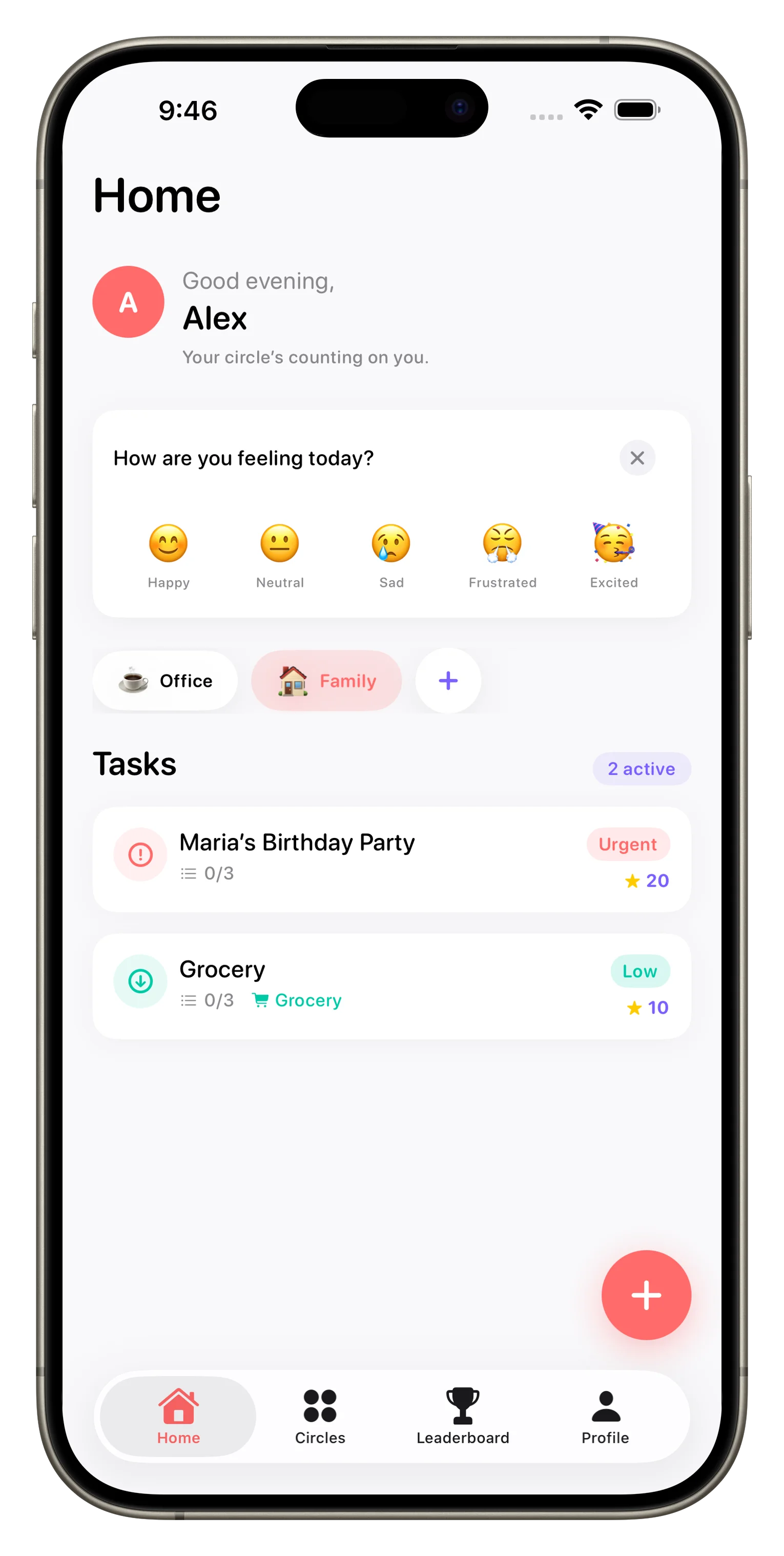
Create Your First Circle
A Circle is how Loopd organizes groups. You might have one for your household, another for roommates, and another for a specific project or friend group. Start with one and add more as needed.
- Tap the Circle picker or the plus icon from your home screen
- Select 'Create a new Circle'
- Give it a name (e.g., 'My Household', 'Roommates', 'Trip Planning')
- Choose a color or emoji icon to make it visually distinct
- Confirm and you're ready to invite members
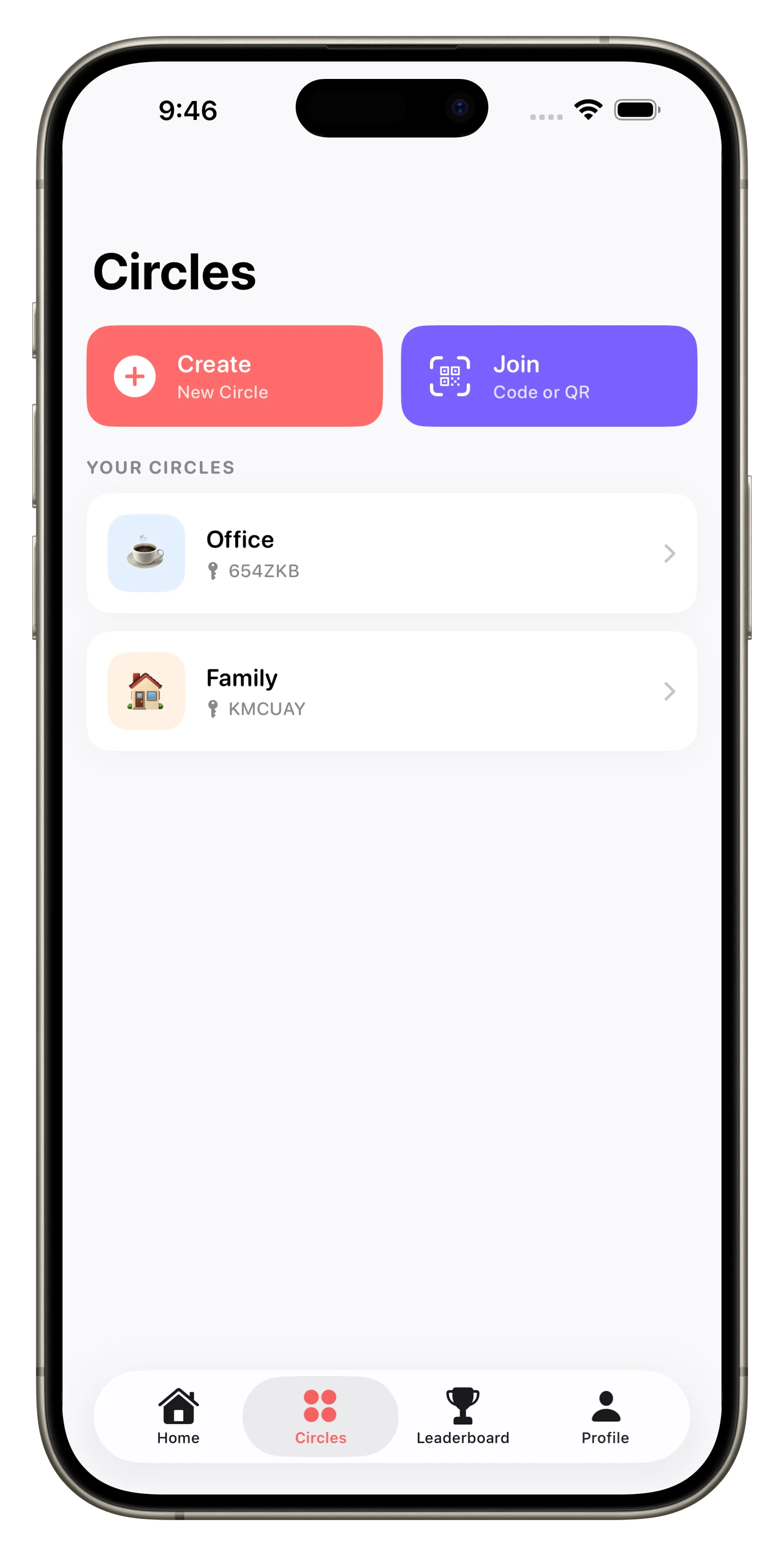
Invite Members
Your Circle needs people. Loopd lets you invite family, friends, roommates, or colleagues—up to 3 on the free plan, unlimited on Plus.
- Open your Circle and tap 'Members' or the settings icon
- Tap 'Add Member' or 'Invite'
- Enter their email address or share your unique Circle invite link
- They'll receive a notification and can join with one tap
- Once they join, they'll see all shared tasks and activity in real time
Real-time sync means when one person checks off a task, everyone else sees it instantly—no more 'Wait, did someone already do that?'
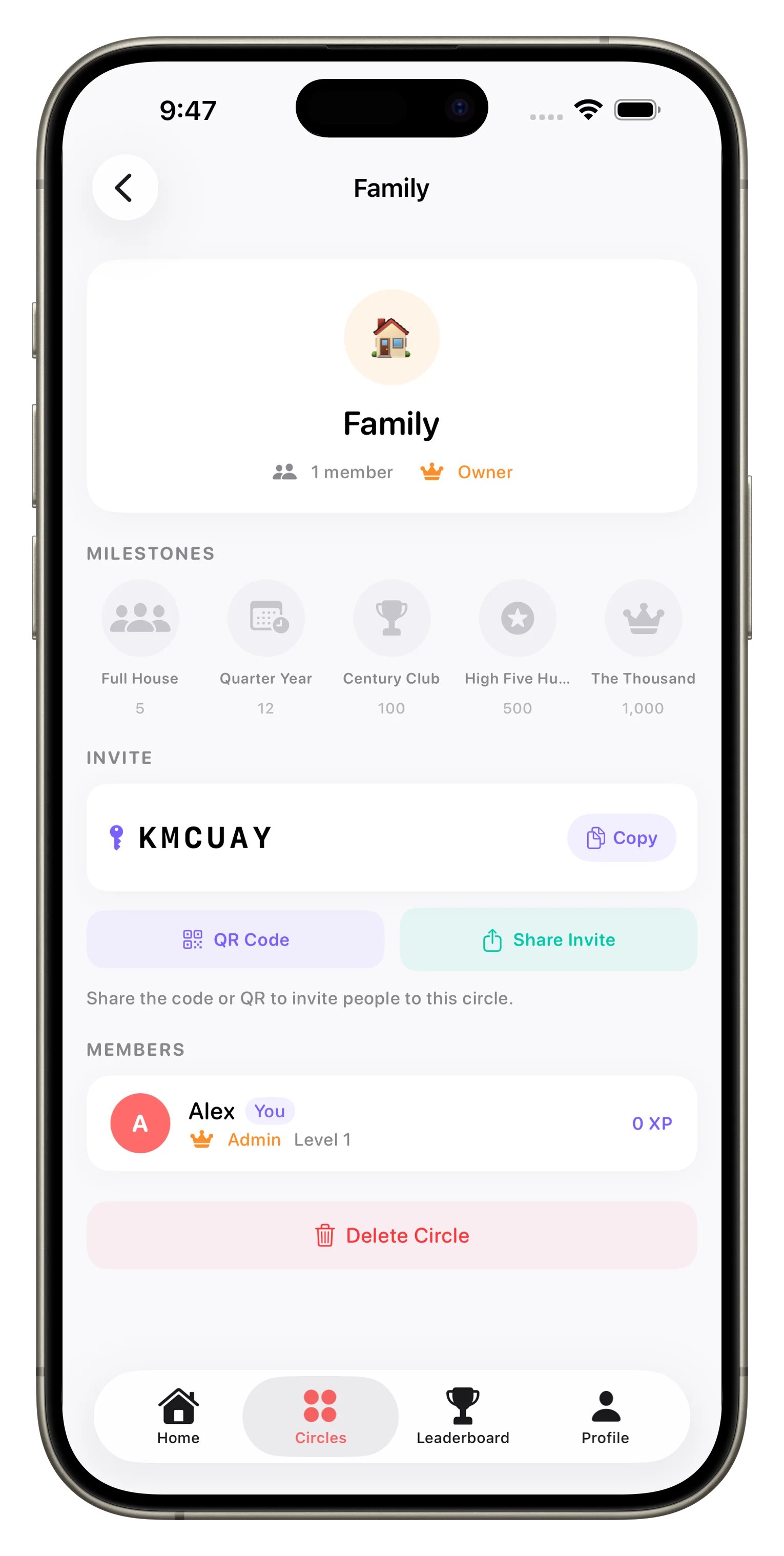
Set Up Your First Tasks
Tasks are the heart of coordination. Start with what matters most—groceries, chores, errands, or anything else your group needs to track together.
Creating a Task
- Tap the plus icon or 'New Task' from your Circle
- Write a clear task name (e.g., 'Buy groceries', 'Vacuum living room')
- Select a category (Chore, Errand, Grocery, etc.)
- Set priority (Low, Medium, High)
- Assign it to one or more people in your Circle
- Add a due date if needed
- Include notes or details for clarity
- Tap 'Create' and watch it sync instantly
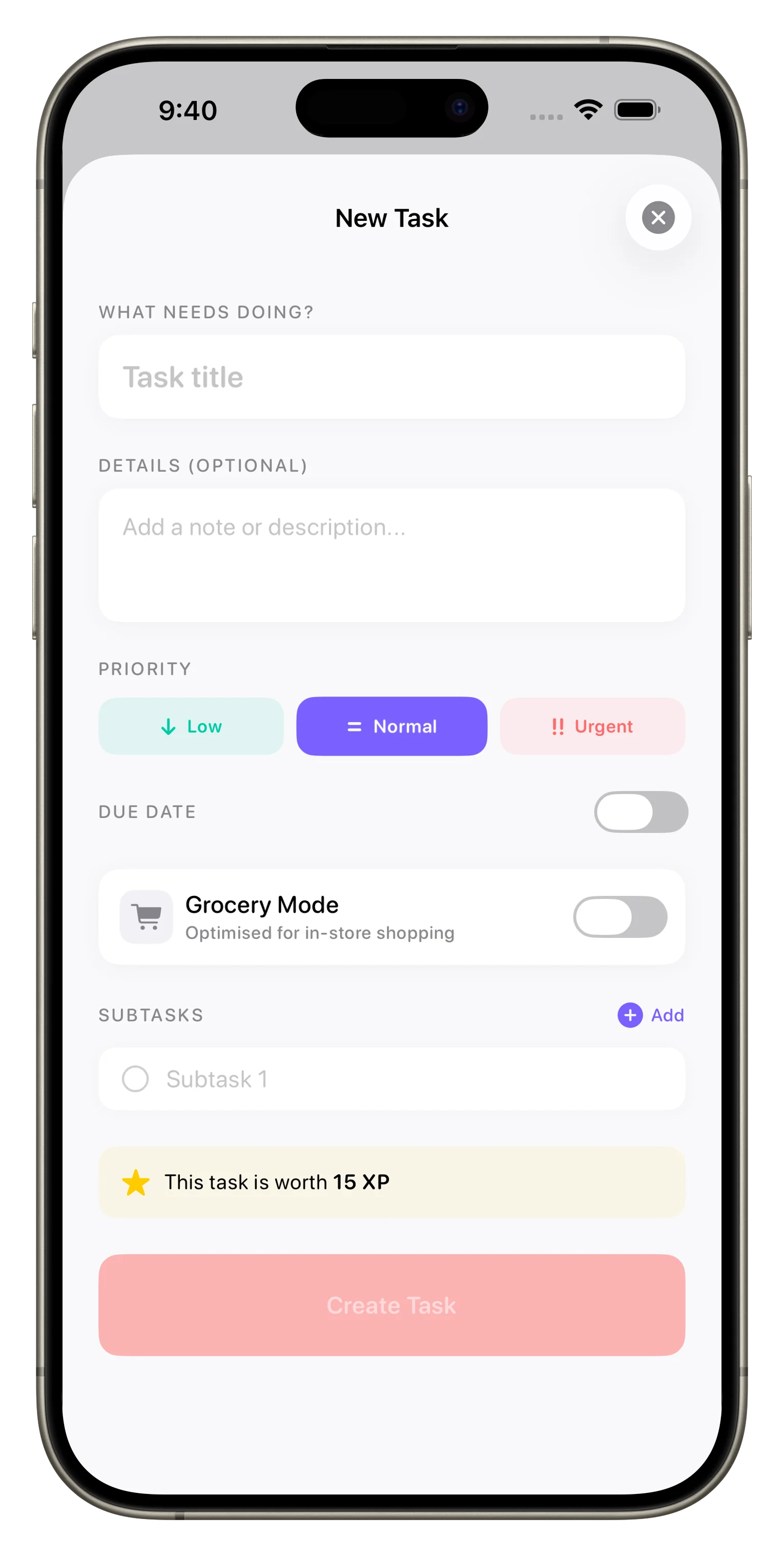
Adding Context with Photos and Comments
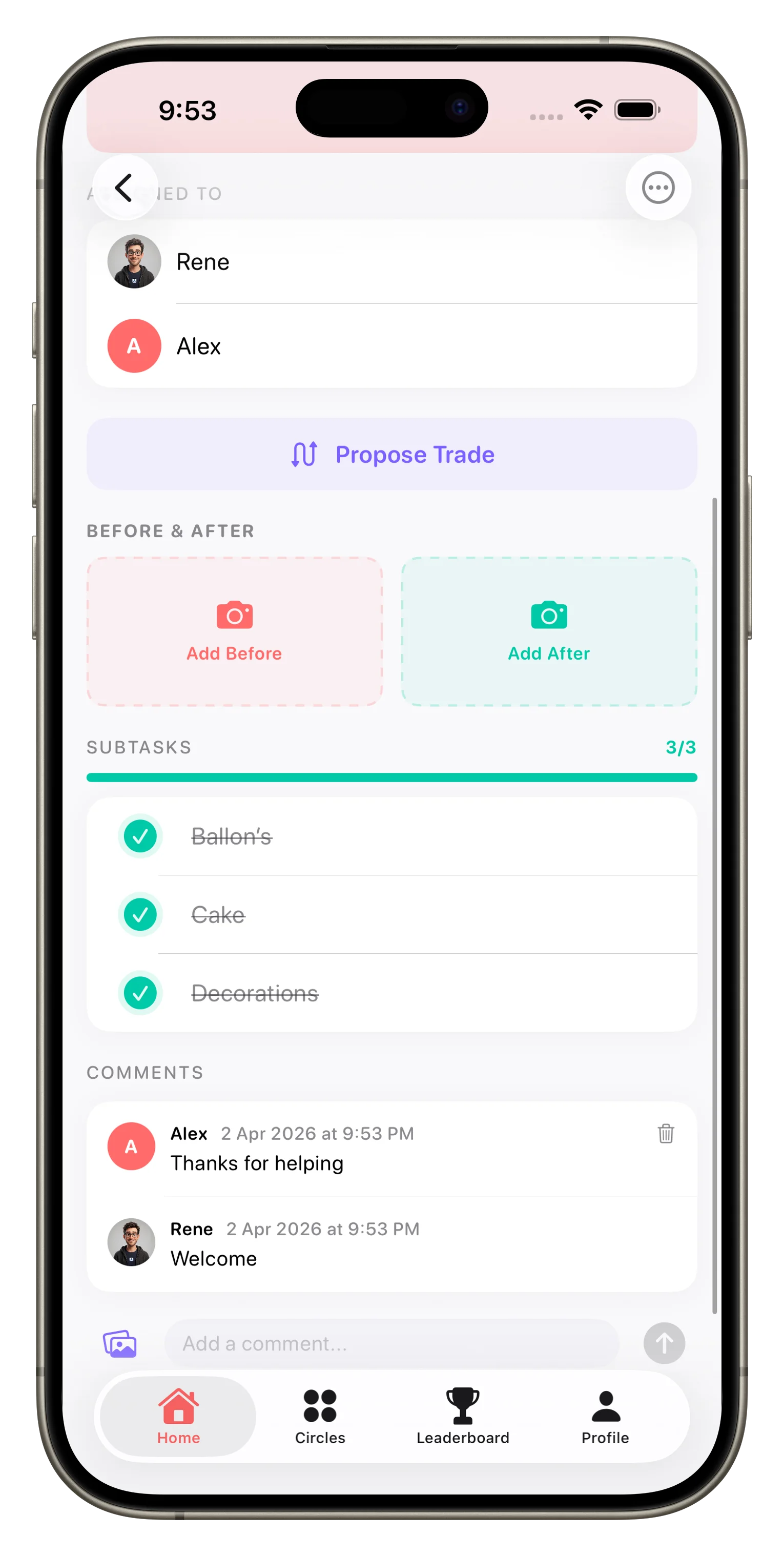
- Once a task is created, tap it to open details
- Add a photo (attach a reference image, a grocery list photo, etc.)
- Leave a comment with instructions, questions, or progress updates
- Mention team members by name for quick communication without leaving Loopd
Unlock Gamification and Build Momentum
One of Loopd's best features is how it turns coordination into something fun. As your team completes tasks, everyone earns XP, streaks, and achievements. This small nudge can be surprisingly motivating.
Understanding XP and Streaks
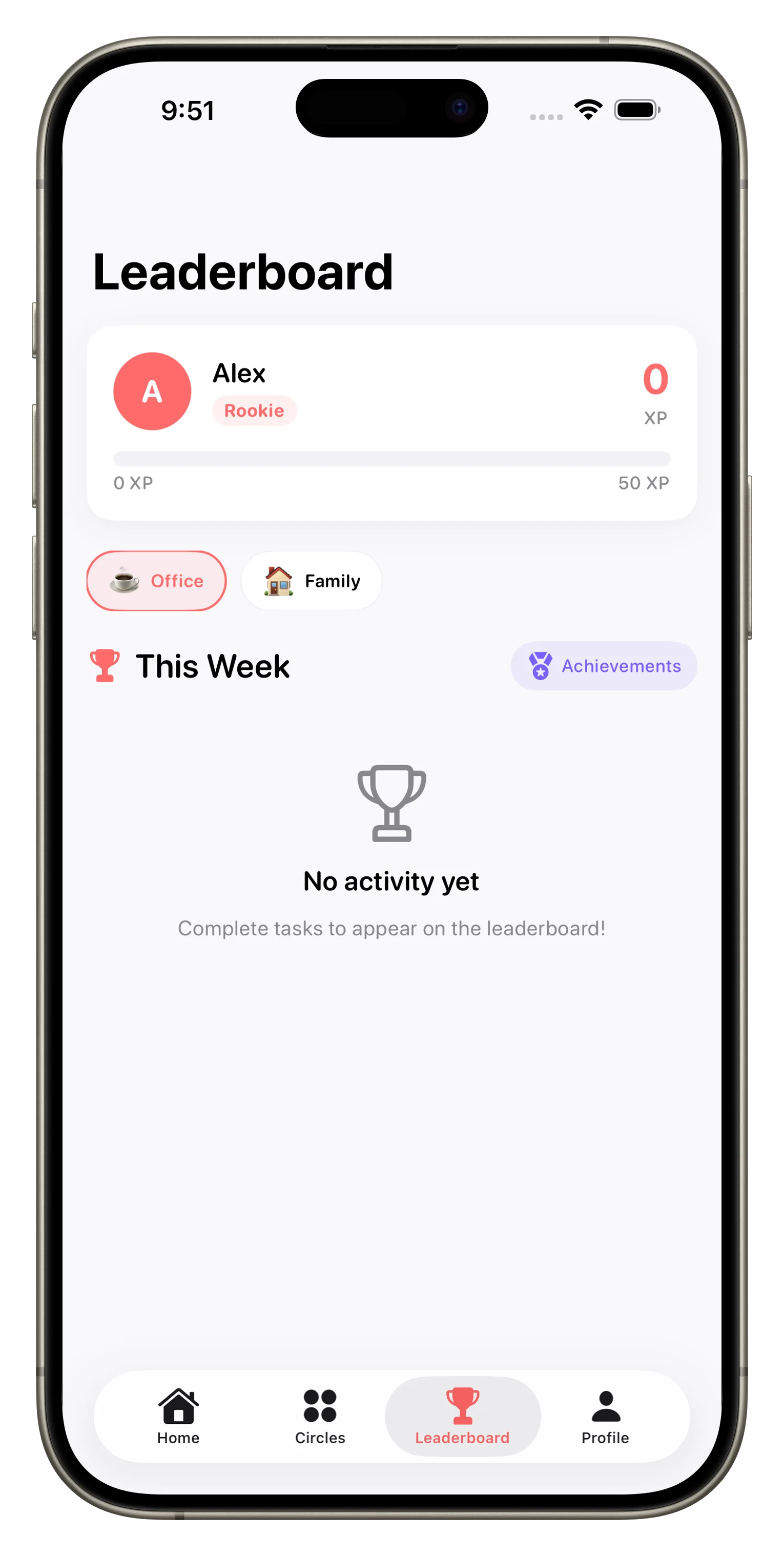
- Every task completion awards XP to the person who finished it
- Higher-priority tasks and those with tighter deadlines earn more XP
- Streaks reward consistent participation (completing tasks daily or weekly)
- View the leaderboard to see who's leading this week
Checking Achievements
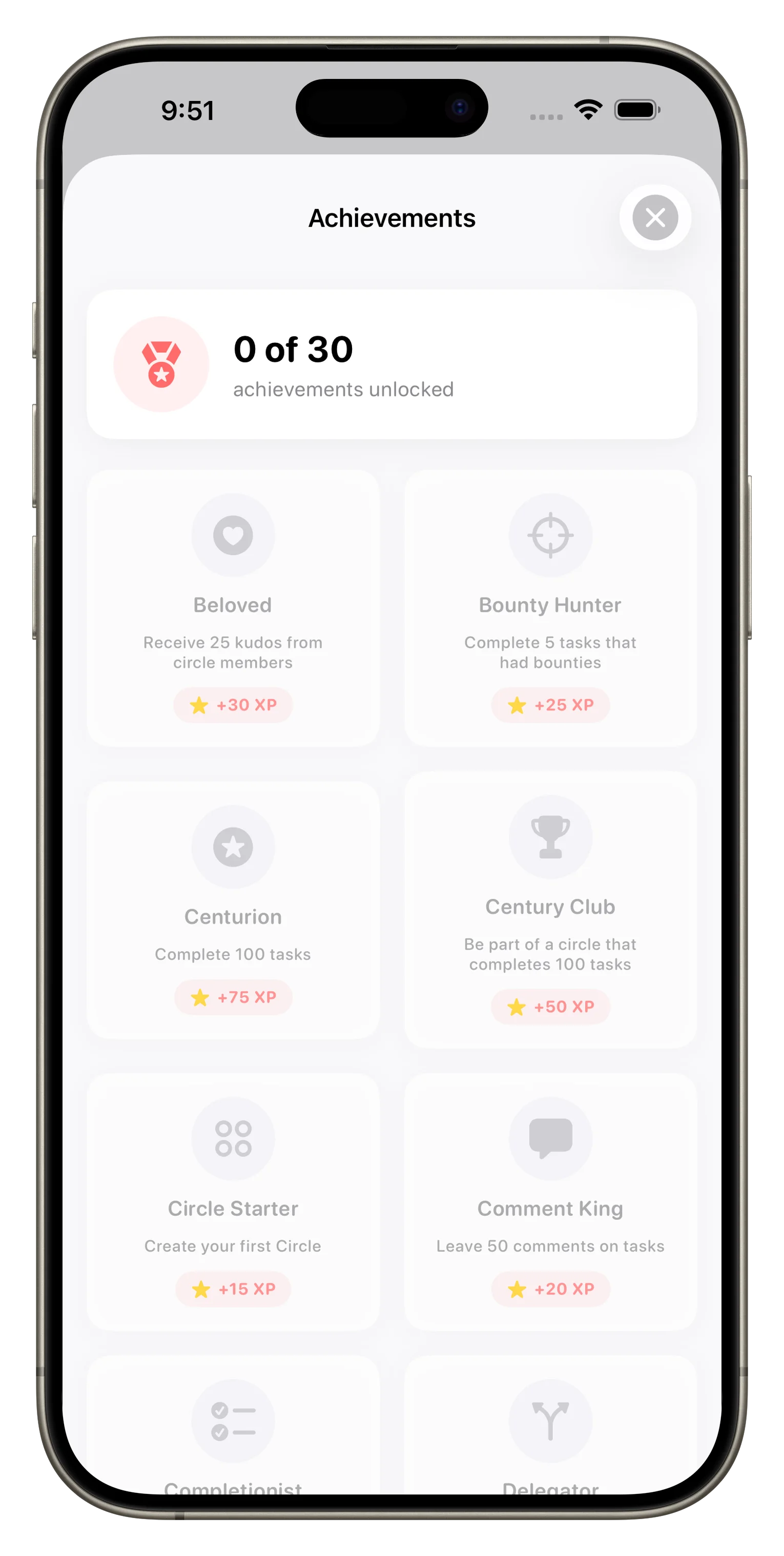
- Tap your profile or the Achievements section
- Unlock badges by hitting milestones (e.g., 'Complete 10 tasks', 'Win the leaderboard')
- Share achievements with your Circle to celebrate wins
- Work toward bigger challenges to unlock rare badges
For more insights into how Loopd's gamification works, check out how Loopd turns family coordination into a game. You might also find it helpful to read how to keep your family on the same page for broader coordination strategies.
Customize Your Experience
- Go to your profile settings and adjust notifications (which tasks alert you, frequency, quiet hours)
- Turn on smart reminders to get nudged at the right time
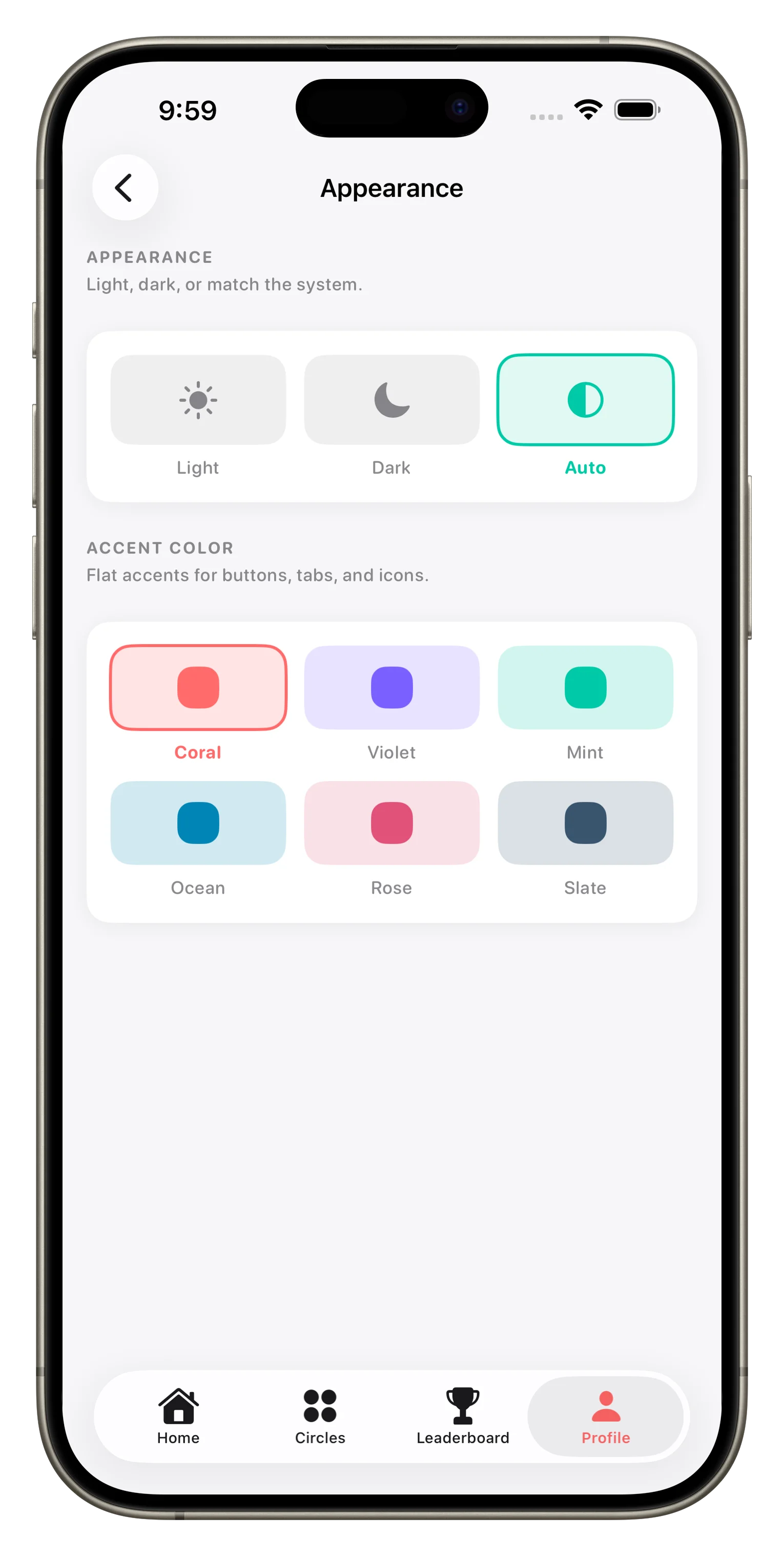
- Set your theme and accent color in appearance settings for a personalized feel
- Enable location triggers if you want reminders based on where you are
Go Beyond the Basics
Once you're comfortable with your first Circle, explore these features to get even more out of Loopd.
- Create task templates for recurring work (weekly groceries, monthly deep clean)
- Set up location triggers so tasks remind you when you're near the store or home
- Create a second Circle for a different group (work project, friend trip planning)
- Explore the Plus plan if you want unlimited members, photo attachments, and shared billing
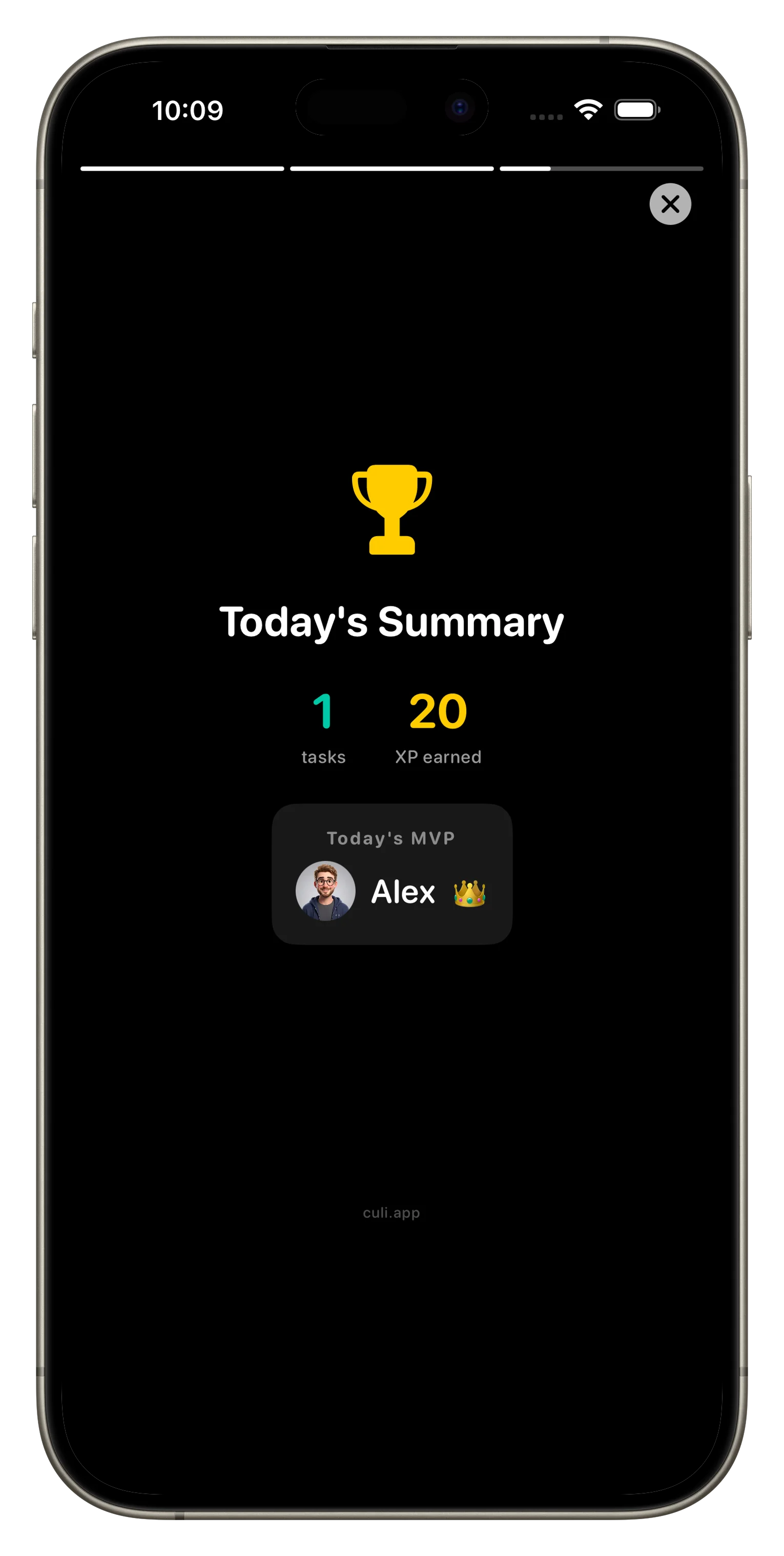
- Use the daily story card to recap your team's progress and streak status
This article was drafted with AI assistance and reviewed by a human editor before publishing.