Little Lapse turns a simple weekly photo habit into a stunning record of your entire pregnancy—without requiring an account, sacrificing privacy, or watching ads. Every photo stays on your device, and built-in alignment tools do the heavy lifting so your bump stays in the same spot week after week. Whether you're documenting your journey for yourself or creating a keepsake to share, this guide walks you through everything you need to know to get started.
What is Little Lapse?
Little Lapse is a pregnancy photo journal app designed around one core idea: capture one photo each week, and the app automatically lines them up into a time-lapse that shows your bump growing from week one to delivery. Think of it as a visual diary that plays back like a short film. The app doesn't ask for your email, doesn't track you, and doesn't sell your data. Your photos and notes live only on your phone unless you choose to back them up to your own iCloud account.
How the Alignment Works
The magic of a good time-lapse is consistency. If each photo is taken from a different angle or distance, the final video looks jerky and awkward. Little Lapse solves this with three layers of alignment help. First, a ghost overlay shows you where last week's photo was taken—so you can stand in nearly the same spot. Second, a grid helps you frame the shot identically each time. Third, and most importantly, Little Lapse uses on-device Smart Align technology to automatically shift and scale each new photo so your bump stays centered and at the same size throughout the video.
You don't need to be a photographer or memorize exact positions. The app handles the technical work.
What to Expect in Your First Week
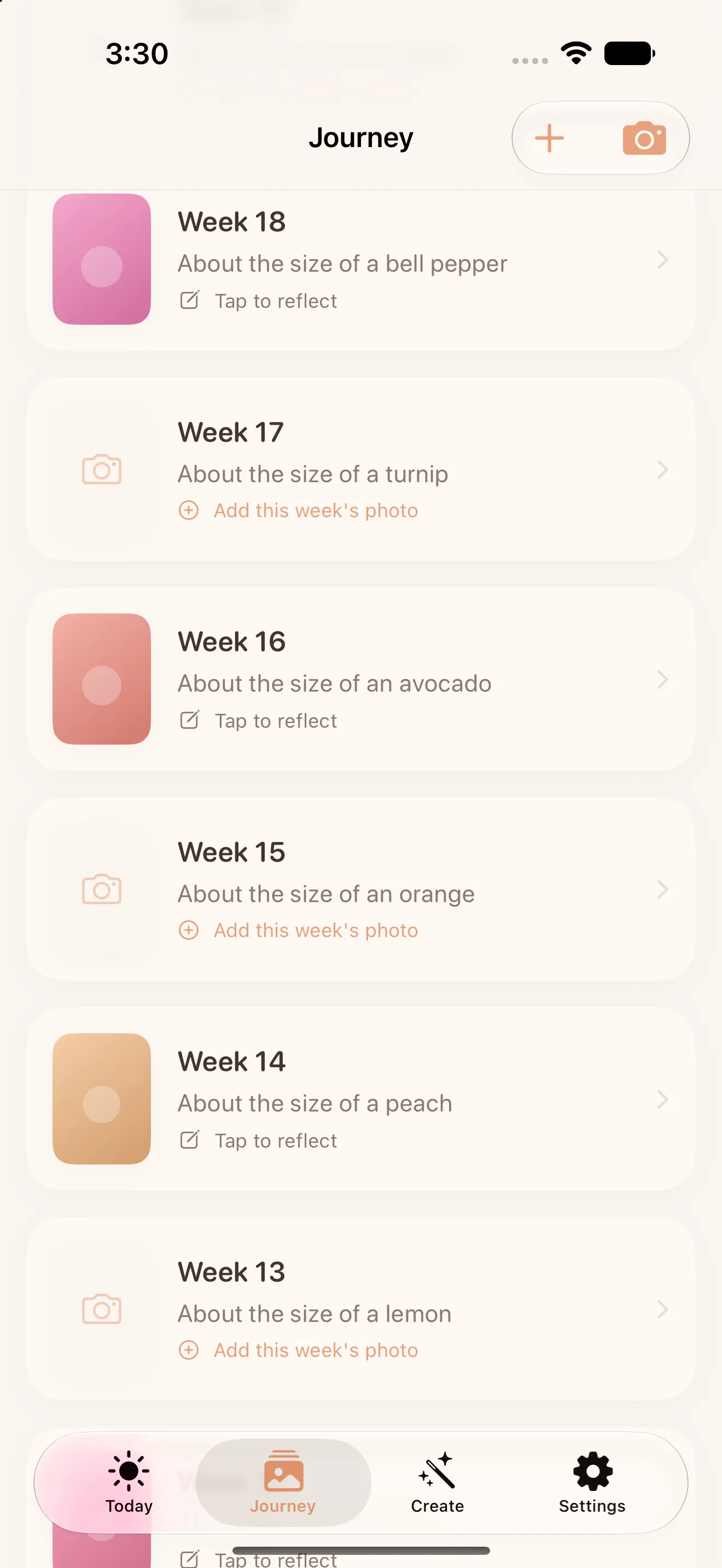
When you open Little Lapse for the first time, you'll see a simple interface: a button to take your first photo, and a blank timeline waiting to be filled. There's no login, no permission requests beyond camera access, and no ads. Take your first photo whenever you want—many people shoot in the morning in consistent lighting. The app will save it and show you your week-by-week progress as you continue. If you've already taken pregnancy photos before downloading, you can backfill them from your photo library so your time-lapse starts from day one.
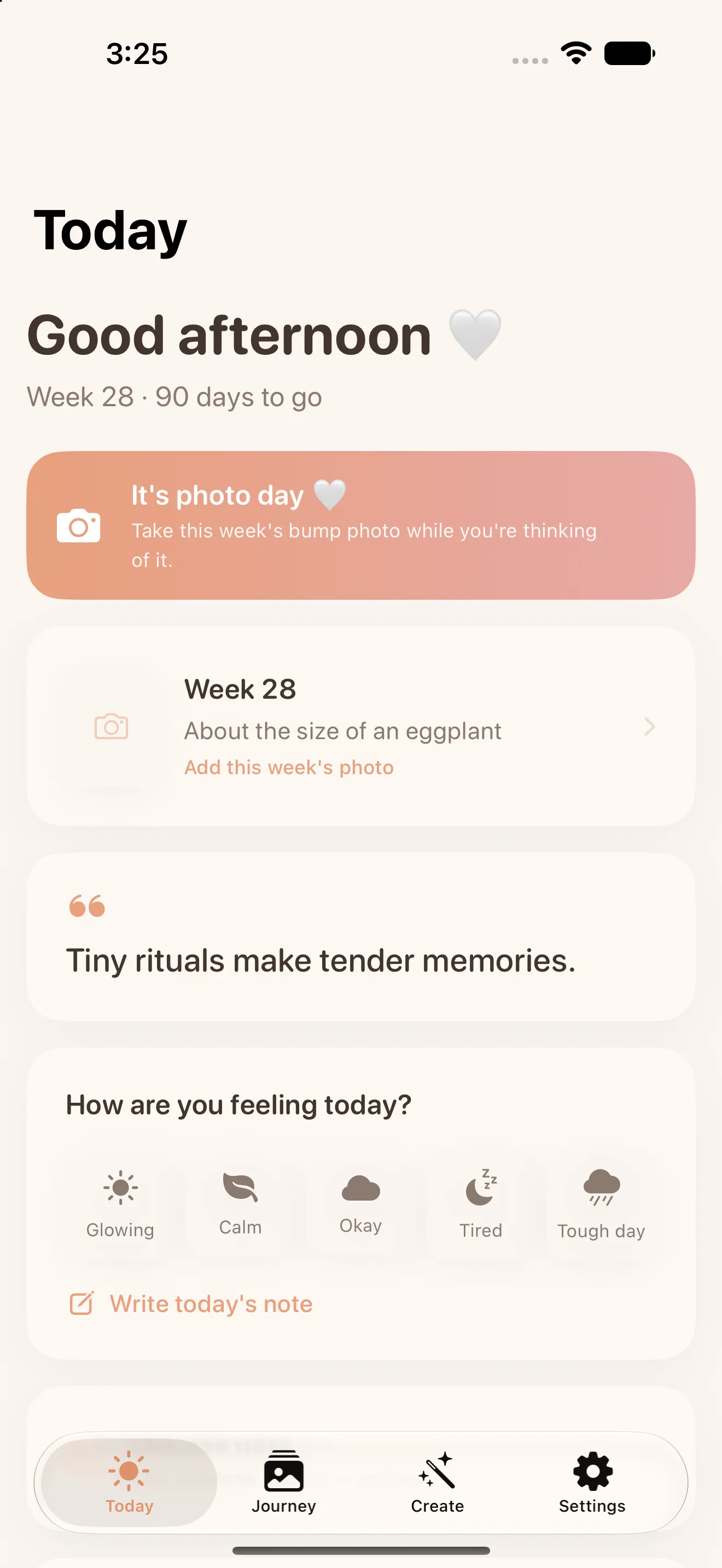
- Week 1: Take your first photo. The app creates your timeline.
- Weeks 2–4: Keep shooting weekly. The ghost overlay guides your positioning.
- Week 5+: Watch the time-lapse preview build. Smart Align keeps everything lined up.
Privacy and Storage
Everything stays on your phone by default. Your photos, notes, and entire pregnancy timeline never touch Little Lapse's servers. If you want a backup, you can use iCloud, but that backup is encrypted and controlled by you—not the app company. There are no ads, no tracking pixels, and no data selling. This is a genuinely private corner of your digital life.
Missed a Week? No Problem
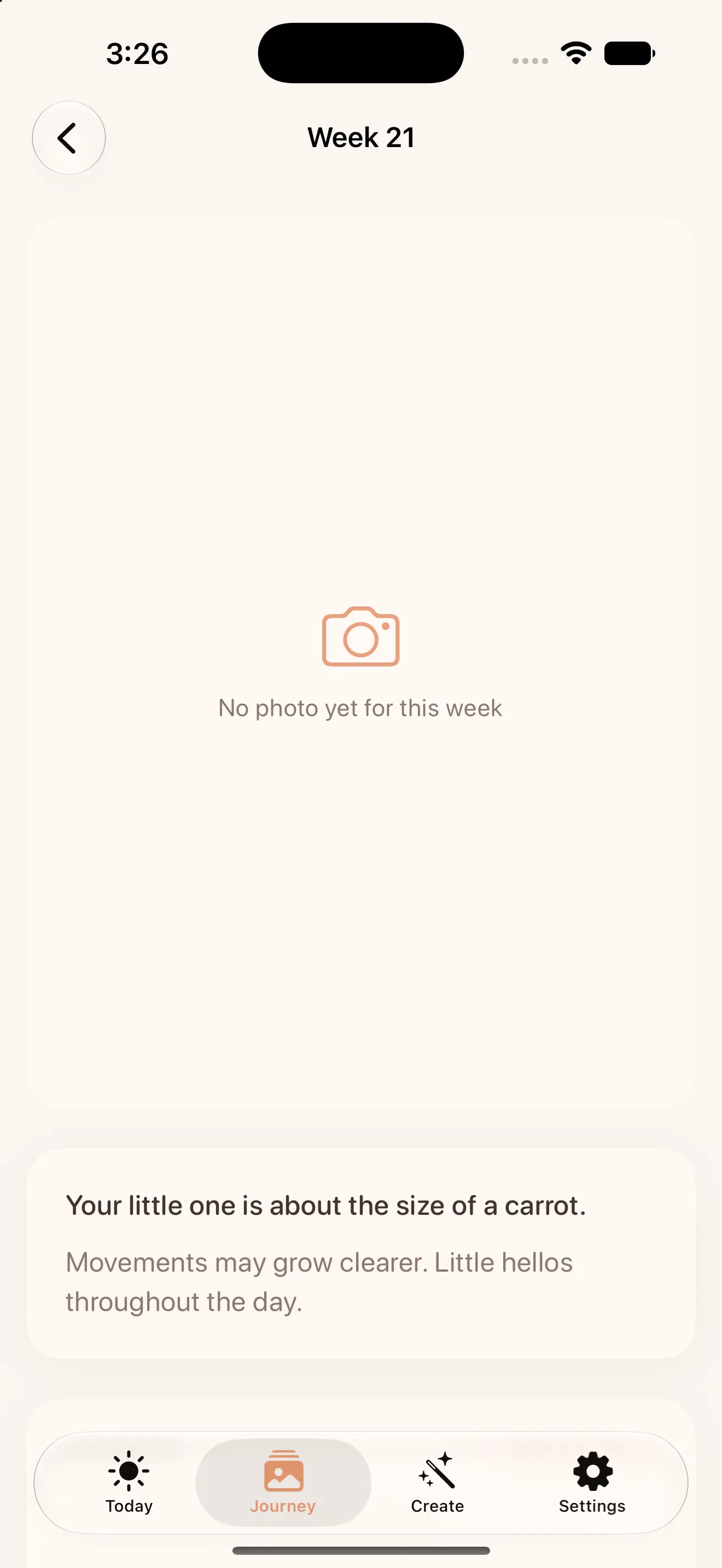
Life happens. Maybe you were traveling, or you simply forgot one week. Little Lapse lets you backfill any gap by selecting photos from your camera roll, even weeks later. You can add multiple past photos at once, and the app will slot them into the right weeks. This flexibility means you don't need perfect discipline—you just need to capture the moments when you can.
The Keepsake: From Free to Keepsake Unlock
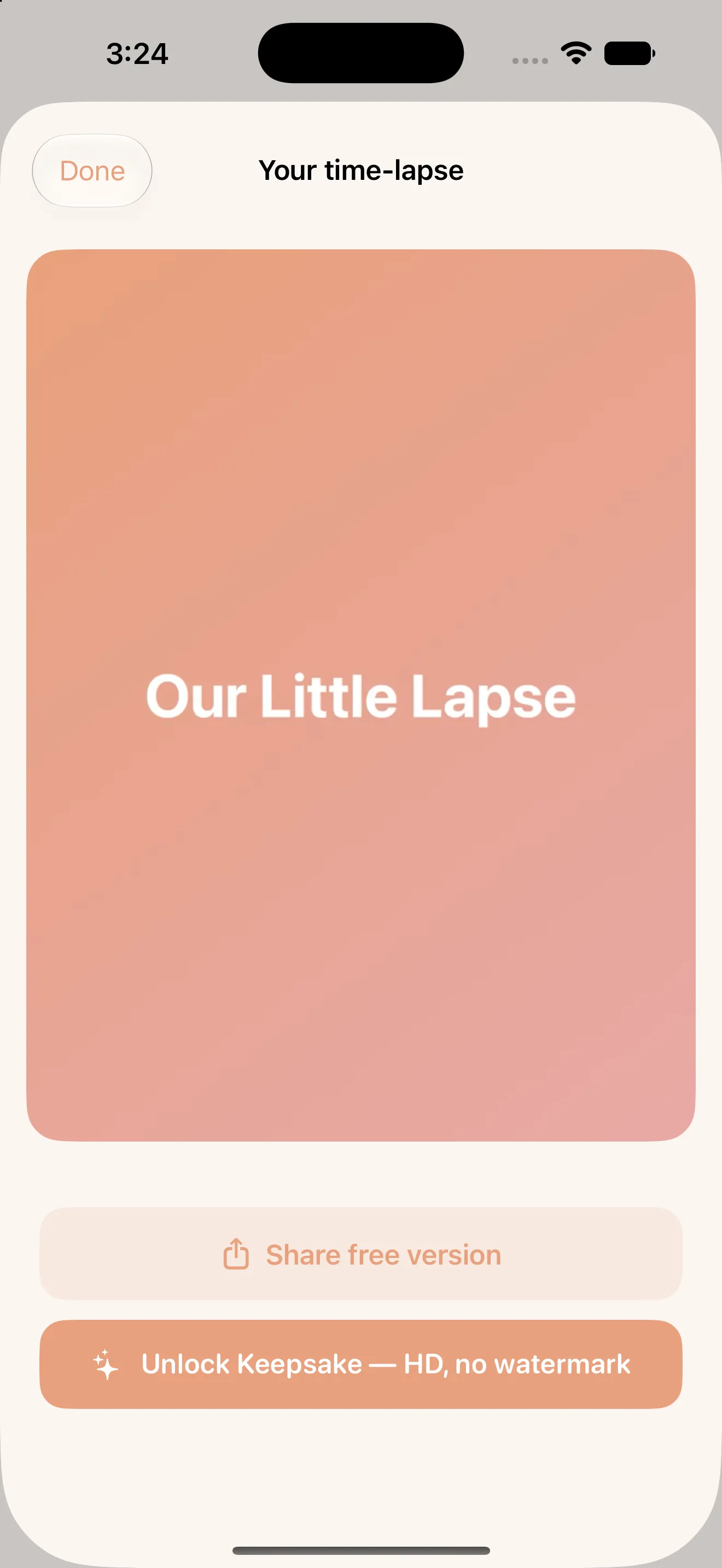
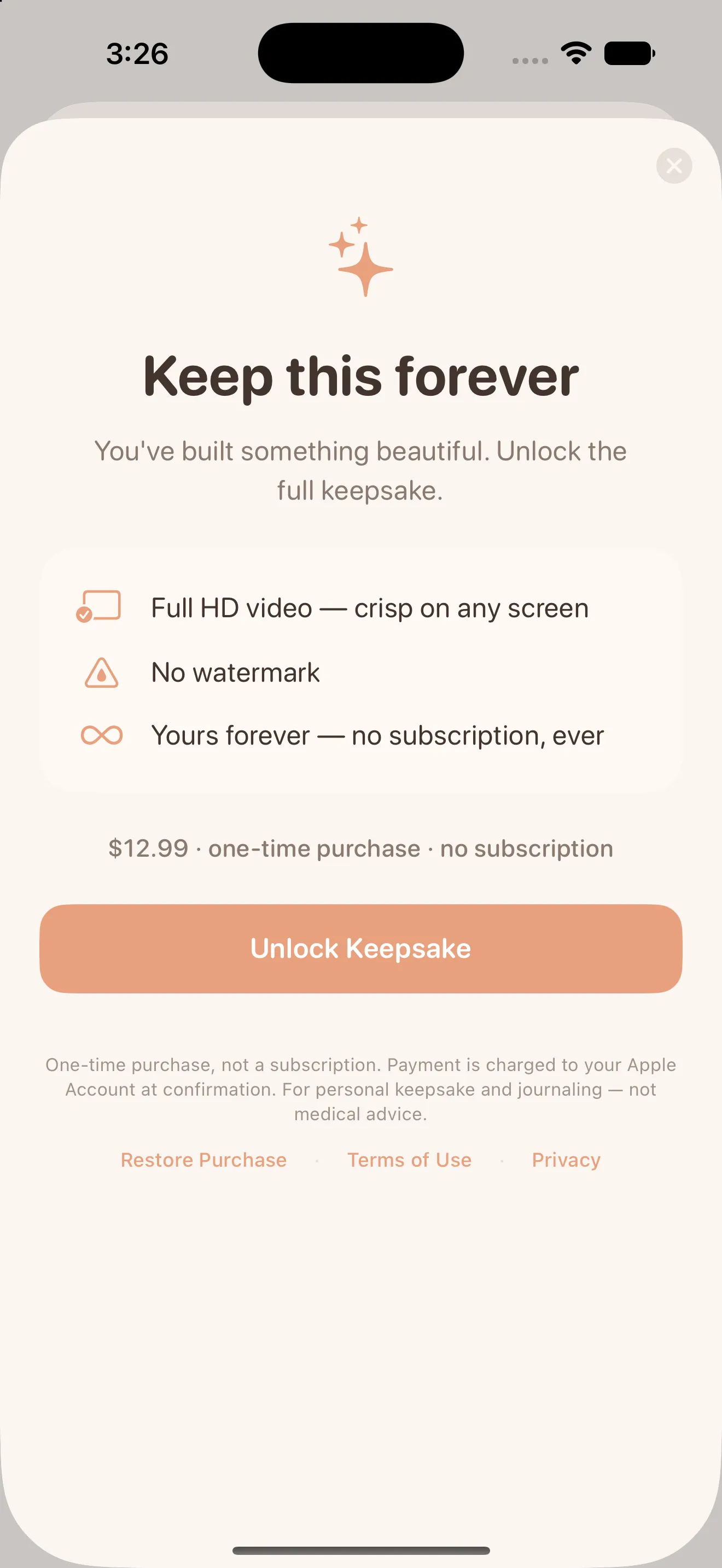
You can use Little Lapse for free indefinitely. Capture as many photos as you want, edit your notes, and preview your time-lapse. The only limitation is that free exports include a watermark. When you're ready to create a final keepsake—a high-definition, watermark-free video of your entire pregnancy—you unlock it with a one-time in-app purchase. No subscription, no recurring charges. You own the video forever.
Your First Steps
- Download Little Lapse from the App Store.
- Open the app and take your first bump photo. Don't worry about perfection—the ghost overlay will help you nail the angle next week.
- Add any existing pregnancy photos from your camera roll if you've already started documenting.
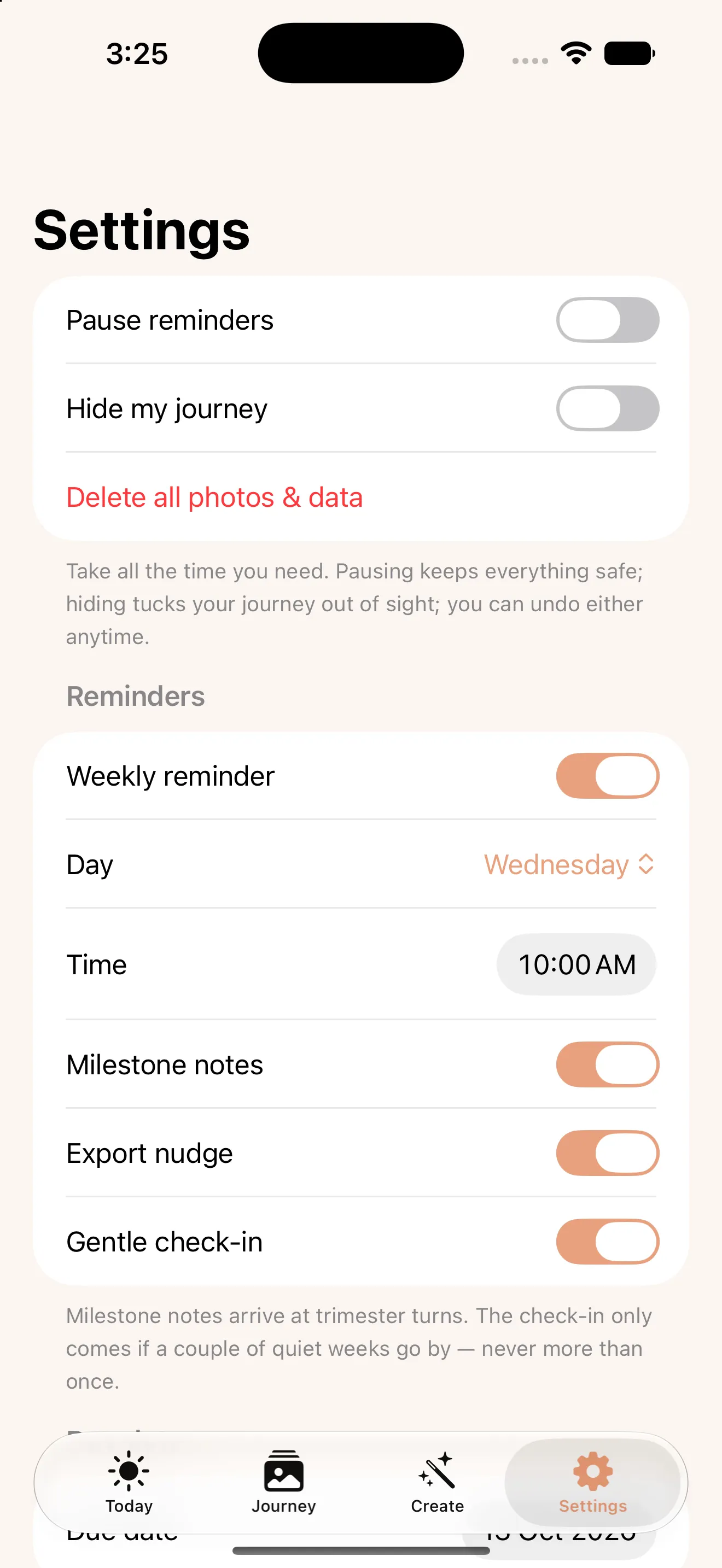
- Set a weekly reminder (calendar, phone alarm, or habit tracker) so you don't forget.
- Check back in a few weeks to see your time-lapse preview building.
- When you're ready, unlock and export your final keepsake.
This article was drafted with AI assistance and reviewed by a human editor before publishing.