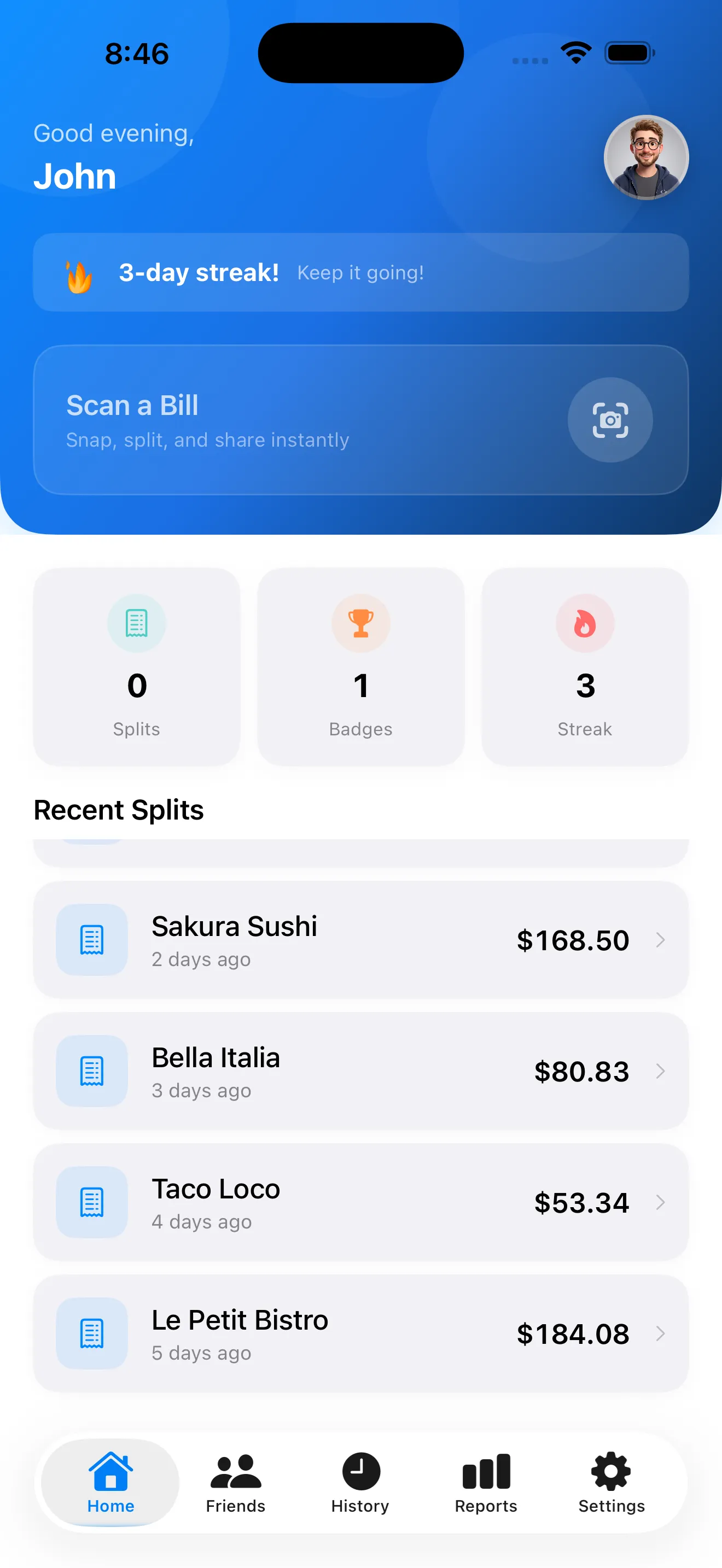
Splitting a bill should be quick and fair. SplitSnap's AI does the heavy lifting—it reads your receipt, extracts every item and price, and handles the math. But there's a right way to use it that makes the experience even smoother. Whether you're splitting lunch with coworkers, dividing dinner with friends, or settling up after a group trip, these tips will help you get accurate splits faster and avoid the awkward money conversations entirely.
Capture the Receipt at the Right Angle
The faster your scan, the faster your split. SplitSnap's AI reads receipts in 1–3 seconds, but that depends on a clear capture. Hold your phone steady and aim for a flat, well-lit angle. Make sure all text is in frame—especially the totals, tax, and tip lines at the bottom. Avoid glare and shadows; natural light works best. If the receipt is crumpled or faded, smooth it out slightly before scanning. A good first scan saves you from having to re-scan or manually correct items later.
Review and Edit Items Before Splitting
After the AI extracts your receipt, you'll see every item and price. Take 10 seconds to scan the list. Look for typos—especially item names—and check that prices match what you see on the receipt. If something is off, you can edit it right there. This step is crucial because once items are extracted correctly, assigning them to people becomes nearly automatic. Think of it as proofing before you commit.
Add Everyone Before Assigning Items
Set up all the people splitting the bill before you start assigning items. SplitSnap shows colorful name chips that make it easy to tap and assign items. If you add names as you go, you'll waste time switching back and forth. Add everyone upfront, then work through the items methodically. SplitSnap even saves your frequent splitting partners so you can reuse them on future bills.
Use Smart Item Assignment for Shared Dishes
When someone orders an appetizer or drink to share, don't split it manually in your head. Instead, assign the item to all the people who shared it. SplitSnap will automatically divide the cost equally among them. This approach is faster than trying to remember percentages and reduces arguments about fairness. The split summary at the end shows exactly what each person owes, including their portion of shared items.
Assigning items to multiple people takes seconds and eliminates the awkwardness of 'who actually had the appetizer?'
Let Tax and Tip Distribute Automatically
SplitSnap extracts tax and tip from the receipt and distributes them proportionally based on what each person ordered. You don't need to calculate who pays what share of tax—the app handles it. If you want to adjust the tip after the split (to round up or leave a better percentage), you can do that before finalizing. This automation is one of the biggest timesavers, especially when splitting a complex restaurant bill.
Share the Split Card Instantly
Once the split is done, SplitSnap generates a shareable split card that shows exactly what each person owes. You can send it via message, email, or any other app. The recipient sees a clean breakdown with no confusion. Keep this link handy in a group chat so everyone knows what to pay. The split card also becomes part of your history, so you can reference old splits if questions come up later. For more advanced splitting strategies, check out our full guide.
Keep Your Split History for Future Reference
Every split you create is saved in SplitSnap's history tab. You can re-scan the same receipt later, see who you've split with before, and even re-split a previous bill if the group is the same. This is especially useful for recurring group meals or when you want to track spending over time. The history is also a lifesaver if someone texts weeks later asking 'wait, how much did I owe for that dinner?' You have the proof right in the app. For more on why AI receipt scanning beats manual entry, read our comparison.
Use Manual Entry Only When You Need It
SplitSnap's main strength is its AI scanner, but you can also enter items manually if you don't have a receipt or prefer to type. Manual entry is slower, but it's there as a backup. Save it for situations where you're splitting costs after the fact (like splitting gas on a road trip) or when the receipt is genuinely unreadable. For most restaurant and retail bills, scanning takes just a few seconds and saves you from typing everything by hand.
- Scan in good light with a steady, flat angle
- Review extracted items for accuracy before assigning
- Add all people upfront to speed up assignment
- Assign shared items to multiple people at once
- Let tax and tip distribute automatically
- Share the split card immediately to avoid follow-ups
- Reference your history for spending patterns and past groups
- Use manual entry only when a scan isn't possible
This article was drafted with AI assistance and reviewed by a human editor before publishing.