How to Add a Countdown Widget to Your iPhone Lock Screen
A step-by-step guide to putting a countdown on your iPhone Lock Screen, Home Screen, and StandBy — which widget size to pick, why widgets update at midnight, and how to fix one that looks stuck.
Why the widget is the whole point
A countdown you have to open an app to see is not really a countdown. The feeling people are after — noticing, several times a day, that something good is getting closer — only happens if the number is somewhere you already look. On an iPhone that means the Lock Screen first, the Home Screen second, and StandBy while it charges overnight.
This is also where most people give up. They install a countdown app after seeing one in a video, add an event, close the app, and never get the widget onto a screen. It takes about thirty seconds once you know where the controls are, and they are not especially discoverable.
Lock Screen, step by step
Touch and hold anywhere on your Lock Screen until the Customize button appears, then tap Customize and choose Lock Screen. Tap one of the widget slots below the clock — that opens a list of every app offering Lock Screen widgets.
Find your countdown app, pick a widget, and it drops into the slot. Most countdown widgets then need one more step: tap the widget you just added and choose which countdown it should display, or it will show whichever event is soonest. Tap Done, then Done again, and it is live.
The rectangular Lock Screen widget is the one to pick if you want the event name alongside the number. The small inline slot above the clock fits a day count and little else, which is fine if you only track one thing.
Home Screen and StandBy
For the Home Screen, touch and hold an empty area until the icons jiggle, tap Edit, then Add Widget, and search for the app by name. Pick a size — small shows one countdown cleanly, medium fits the event title and date comfortably — and tap Add Widget. Then touch and hold the widget you just placed and choose Edit Widget to select which countdown it shows.
StandBy needs no separate setup. Once a widget is on your Home Screen, it is available in StandBy: turn your iPhone sideways while it is charging and swipe to the widget panel. It is the best version of a countdown, honestly — a bedside display of the thing you are waiting for.
When a widget looks stuck
Countdown widgets update at midnight in your local time zone, not continuously, because iOS deliberately limits how often a widget may refresh in the background to protect your battery. A day count only needs to change once a day, so this is by design rather than a bug.
If a widget still shows yesterday's number, open the app once — that refreshes the timeline immediately. The same applies after you change time zone on a flight, or after a daylight saving change. If a widget is genuinely blank, remove it and add it again; that rebuilds the timeline from scratch.
Where Soon fits
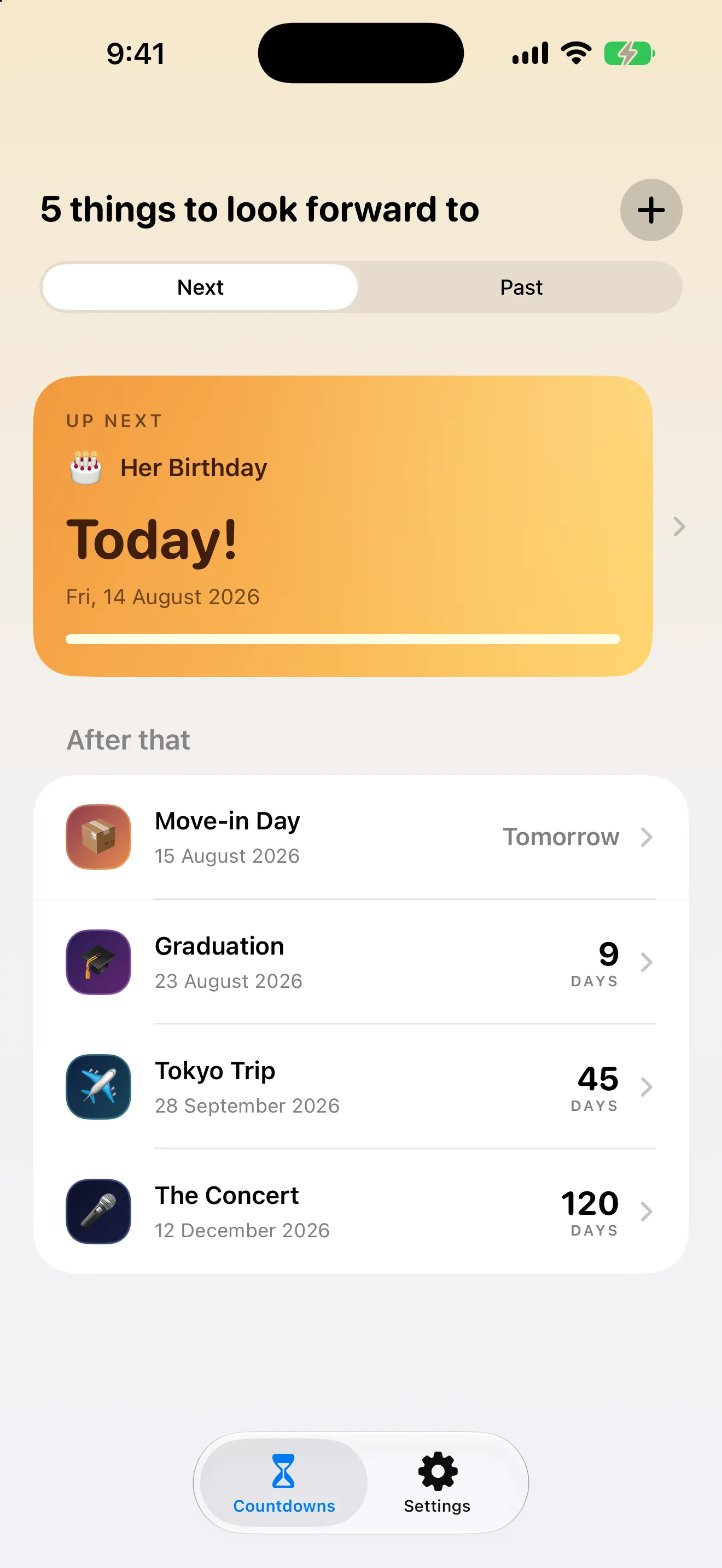
Soon is built around this exact idea: every widget — Home Screen, Lock Screen, StandBy, and Live Activities — is free in every size, because a countdown behind a paywall defeats the point. Add what you are waiting for in about fifteen seconds, pick a theme that changes as the date gets closer, and put it where you will see it.
It also marks the moments on the way — halfway, one month, one week, single digits, tomorrow, today — with a short celebration and a share card rendered on your device. See the Soon product page for screenshots, pricing, and the full privacy policy.