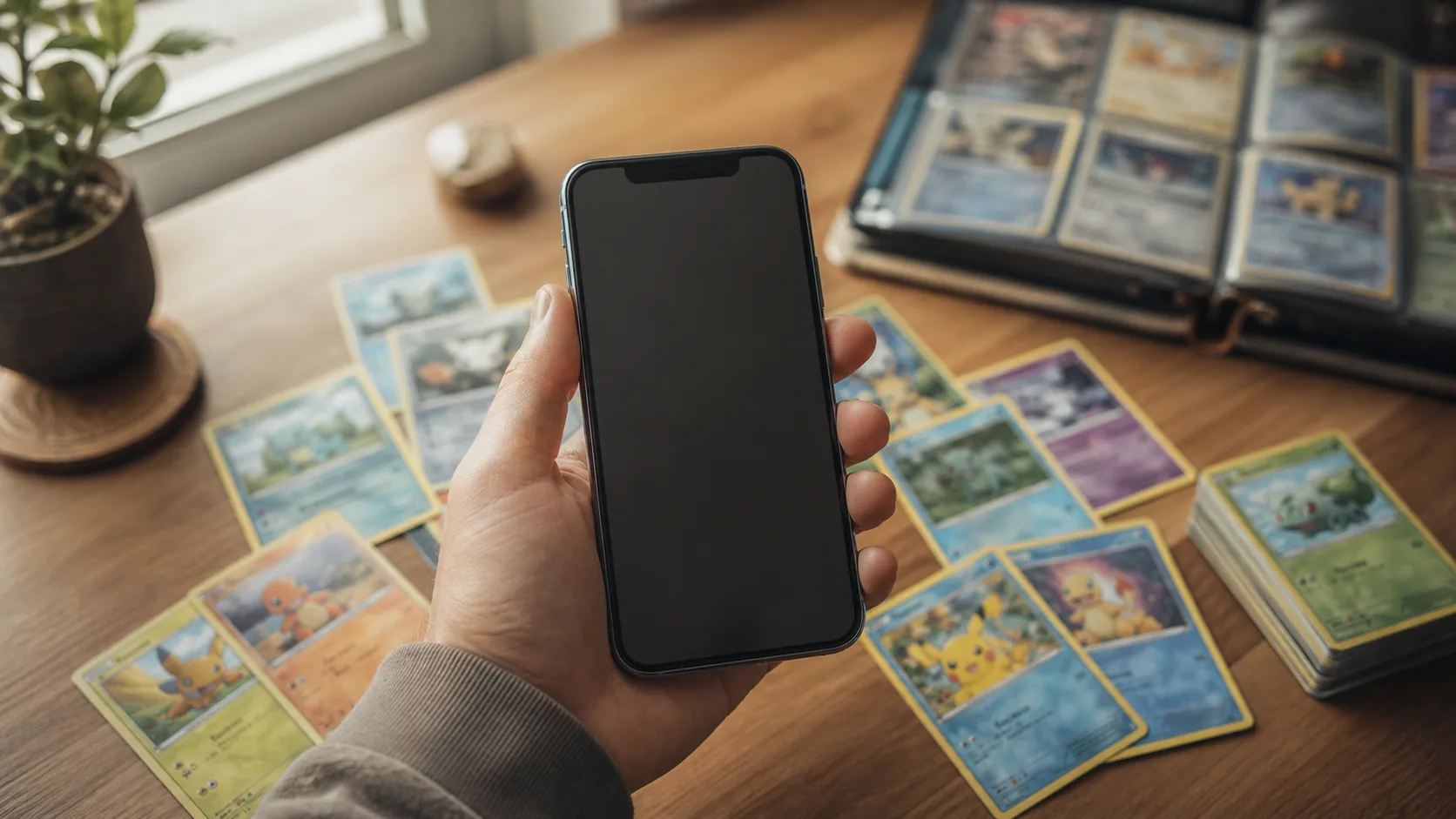
What you'll have after this walkthrough (about 5 minutes)
By the end, you'll have scanned at least one real card, seen its live market value from TCGplayer and Cardmarket, saved it to your collection, and watched your binder's total value appear on the home screen. No account or payment needed to get there.
- An iPhone with CardSnap installed
- A few physical Pokémon cards nearby, any condition
- Decent lighting — a lamp or daylight works fine
- A minute of patience for the first-run onboarding
Step 1: Open the app and get past onboarding
CardSnap opens with a short welcome that explains what it does: scan, identify, and price your cards. Tap through the two intro screens — there's no signup, no email, and no paywall before you reach the camera.
Step 2: Point your camera at a card
The scan screen shows a frame guide. Line up any Pokémon card inside it, hold steady, and let the on-device recognition do its work — you don't need to tap a shutter button or wait for a cloud upload. Good lighting and a flat card make this near-instant.
Step 3: Read the result on the card detail screen
Once recognized, CardSnap pulls up the card's detail page with prices from TCGplayer and Cardmarket side by side, each showing low, market, and high figures with an "as of" date. Check that the set and card number match what's in your hand — CardSnap is built for accuracy, but always eyeball the printed set symbol if a card has reprints.
Step 4: Try a search without scanning
Not every card is in front of you, or maybe the lighting's bad. Tap the search icon and type a name like "Pikachu" — CardSnap returns every printing across every set, so you can browse variants and pick the exact one you own.
Step 5: Save the card to your collection
Back on the card detail screen, tap save to add it to your collection. This is the moment CardSnap stops being a one-off price checker and starts becoming your running inventory — repeat this for every card you want tracked.
Step 6: Check your collection's total value
Open the collection tab to see every saved card in a grid, sortable by value, set, or date added. The running total at the top updates automatically as prices move and as you add more cards — this number is the whole point of CardSnap once you've scanned a handful of cards.
Step 7: Look at your home screen and progress
Head back to the home screen and you'll now see your live collection value front and center instead of a zero. The progress tab tracks scanning streaks and value milestones too, which is a good habit-builder if you're working through a big binder over several sessions.
Common questions
Do I need to create an account to scan cards?
No. Scanning and text search are free and unlimited from the first open, with no account required and no wall before your first scan.
What's different about graded card values?
Graded values for PSA and CGC cards are part of the unlockable features, alongside price history, unlimited collections, price alerts, and CSV export.
Why do I see two different prices for the same card?
CardSnap shows pricing from both TCGplayer and Cardmarket, each with its own low, market, and high figures and an "as of" date, since the two markets can move independently.
Is my collection data stored on the app or somewhere else?
Card recognition happens on-device, and your saved collection stays tied to your CardSnap install — nothing about your binder is required to leave your phone to get a value.
If this first pass left you wanting more depth on pricing accuracy or organizing a large binder, the tips and tricks guide and the collection tracker resource both go further than a first-run walkthrough can.
This article was drafted with AI assistance and reviewed by a human editor before publishing.