MiseMate gives you 2M+ recipes, smart ingredient scaling, AI-powered guidance, and seamless grocery lists all in one app. But to unlock its full potential, you need to set it up intentionally. This checklist walks you through every step—from your first tap to confidently cooking your first meal.
Onboarding & Preferences
The first few screens matter. MiseMate learns from your household size, dietary habits, and cooking skill so it can suggest recipes you'll actually make. Spend two minutes here and the app gets smarter.
- Open MiseMate and tap through the welcome screen
- Select your household size (solo cook, couple, family of four, etc.)
- Choose your cooking skill level—honest answers help the app serve better suggestions
- Add dietary preferences (vegetarian, vegan, gluten-free, keto, etc.)
- Review and confirm any allergies or ingredients to avoid
- Allow notifications if you want reminders for meal prep and cooking

Explore & Build Your Recipe Library
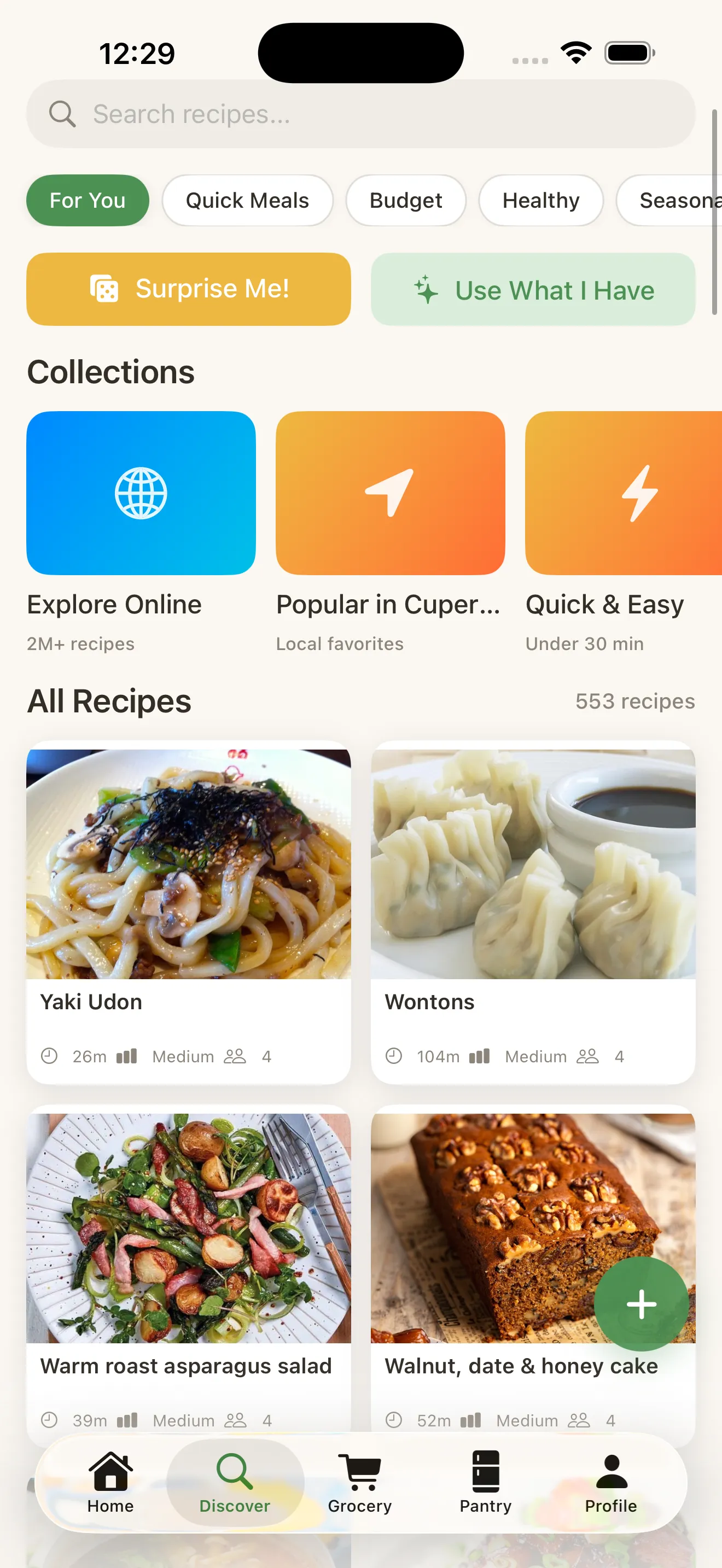
MiseMate includes 276 built-in recipes across 30+ cuisines, plus access to 2 million more online. Start by browsing what's available, then save recipes you want to cook soon.
- Go to Discover and browse curated collections by cuisine, meal type, or season
- Search for a specific recipe or ingredient you have on hand
- Tap into a recipe card to see ingredients, nutrition data, and prep time
- Tap the heart icon to save recipes you want to try—they'll appear in your Favorites
- Save at least 3–5 recipes to test the app's core workflow
Save recipes now, cook with confidence later. Your Favorites list is the starting point for every meal.
Master Ingredient Scaling & Grocery Lists
One of MiseMate's superpowers is scaling. Want to cook for six instead of two? Adjust the yield and every ingredient recalculates instantly. Then build your grocery list without leaving the app.
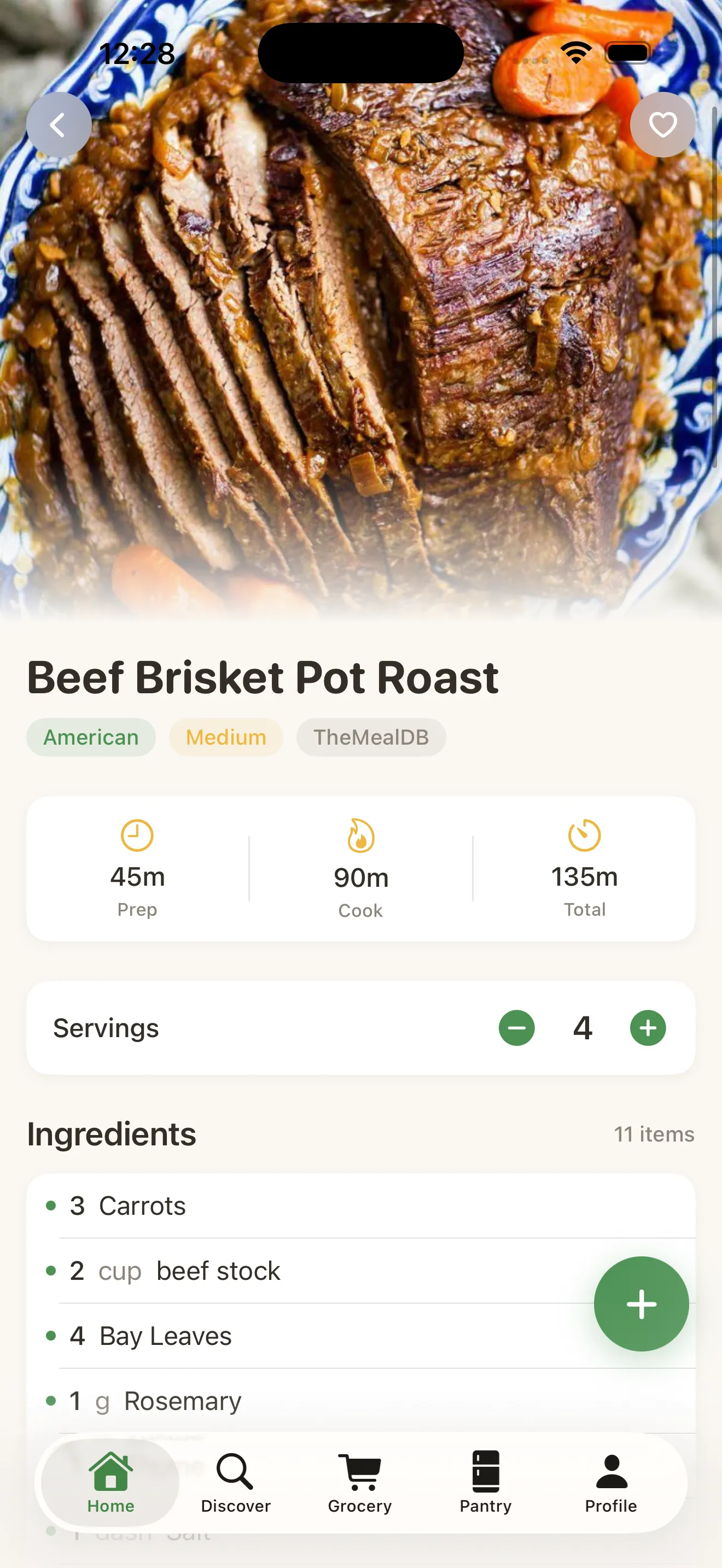
- Open a saved recipe and look for the yield field (usually at the top)
- Tap the yield number and adjust it up or down—watch all ingredient quantities update
- Review the scaled nutrition info to see how macros change
- Tap 'Add to List' to send ingredients straight to your smart grocery list
- Review your grocery list and check off items you already have at home
- Share the list with household members or export to your preferred grocery app
Cook Mode & Step-by-Step Guidance
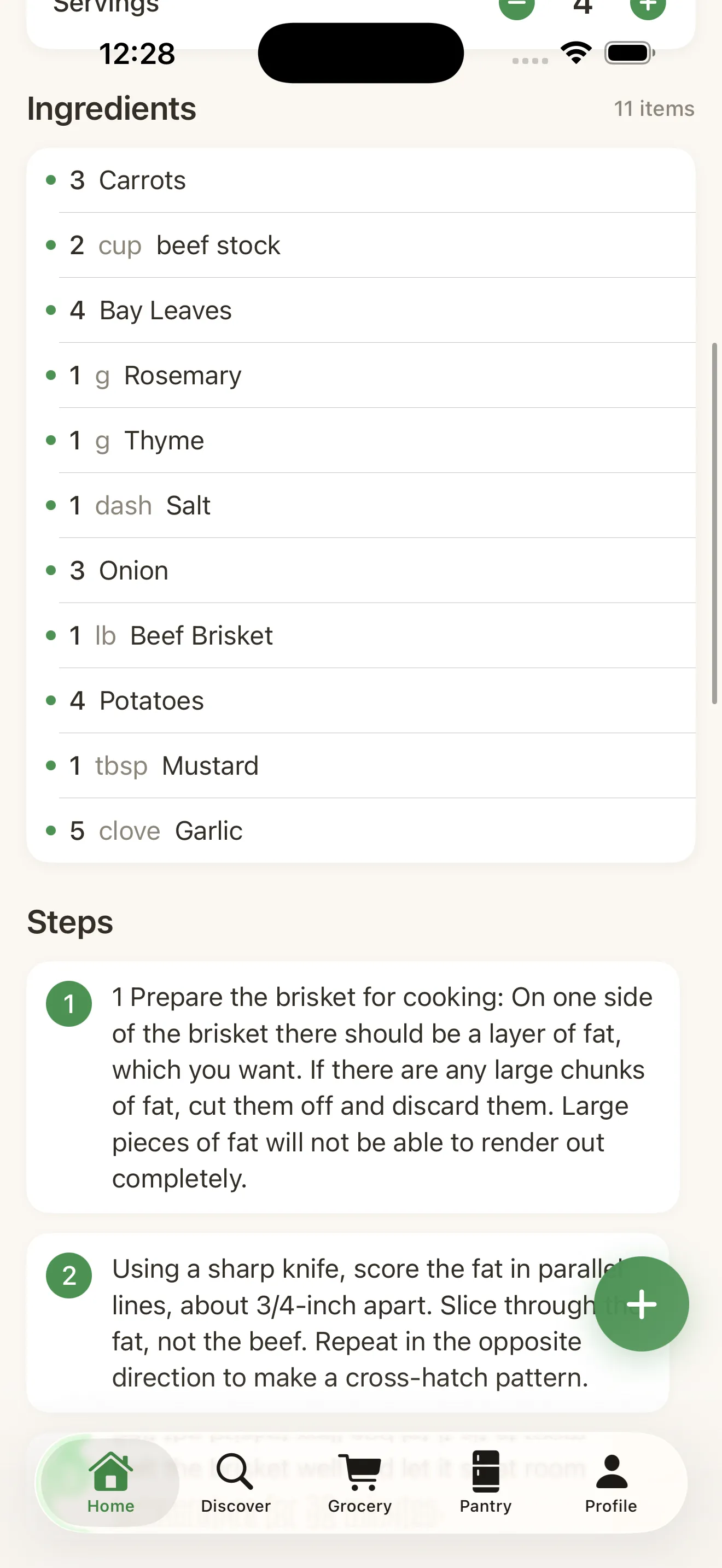
When you're ready to cook, Cook Mode is your kitchen partner. It walks you through every step, keeps timers running, and keeps your phone screen readable even with wet hands.
- From a recipe card, tap 'Start Cooking' to enter Cook Mode
- Read the first step and confirm you're ready
- Tap the timer icon to set automatic countdowns for any step
- Swipe or tap to move through steps at your own pace
- Use voice control or tap to check off steps as you complete them
- Tap the equipment icon to see what you'll need lined up
Unlock AI Features & Meal Planning
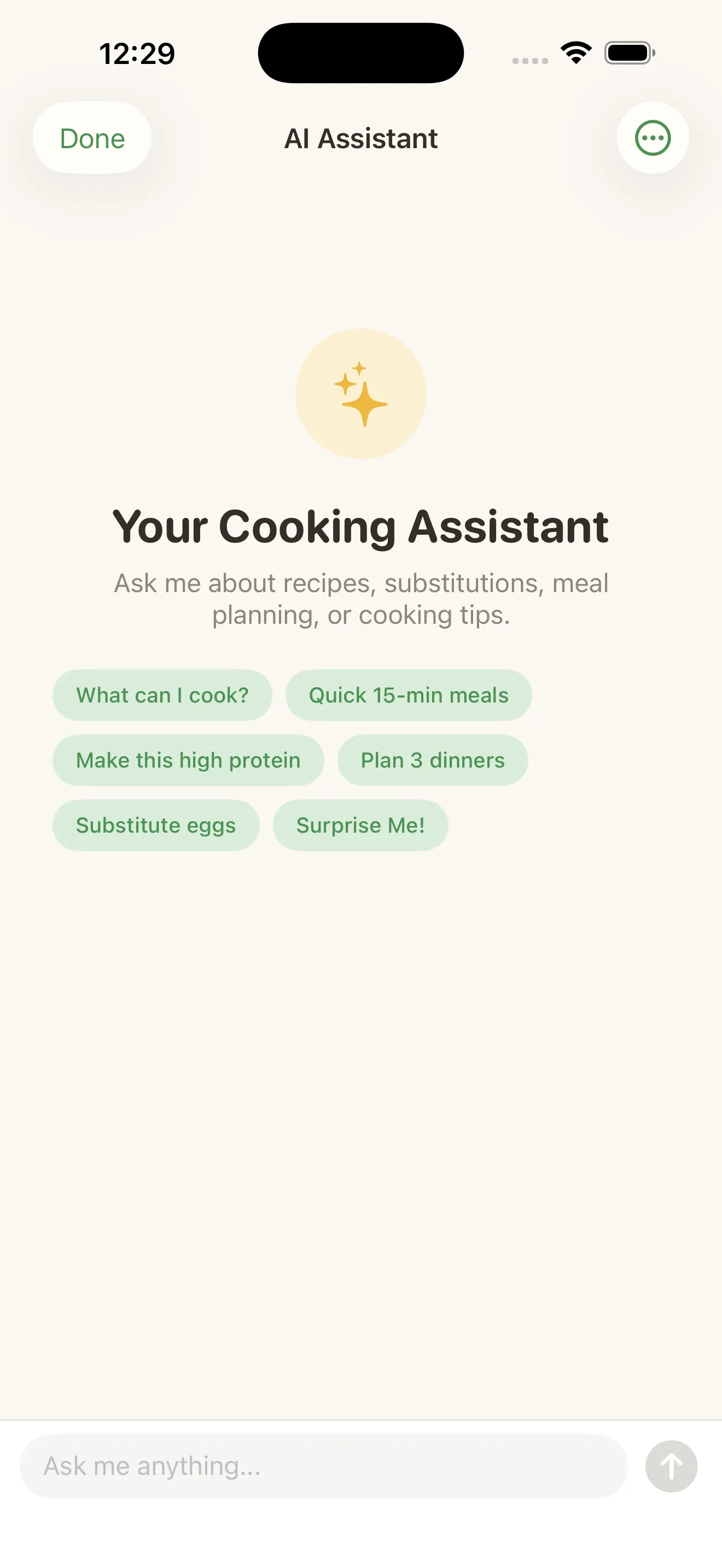
Core features like recipe browsing, ingredient scaling, grocery lists, and cook mode are free. Premium unlocks the AI kitchen assistant and meal planning calendar. If you want recipe suggestions from what's in your pantry or help rewriting recipes for different diets, upgrade to Premium.
- Free tier: Recipe discovery, scaling, grocery lists, cook mode with timers
- Premium: AI recipe suggestions, meal planning calendar, dietary recipe rewrites, cooking coaching, and more
Try the free features first. If you cook regularly and want AI-powered help, premium is worth it. The AI assistant can suggest recipes based on ingredients you have, recommend substitutions, and walk you through technique questions. Learn more about how MiseMate turns recipe chaos into kitchen confidence with its smart features and personalized approach.
Develop Your Cooking Habit
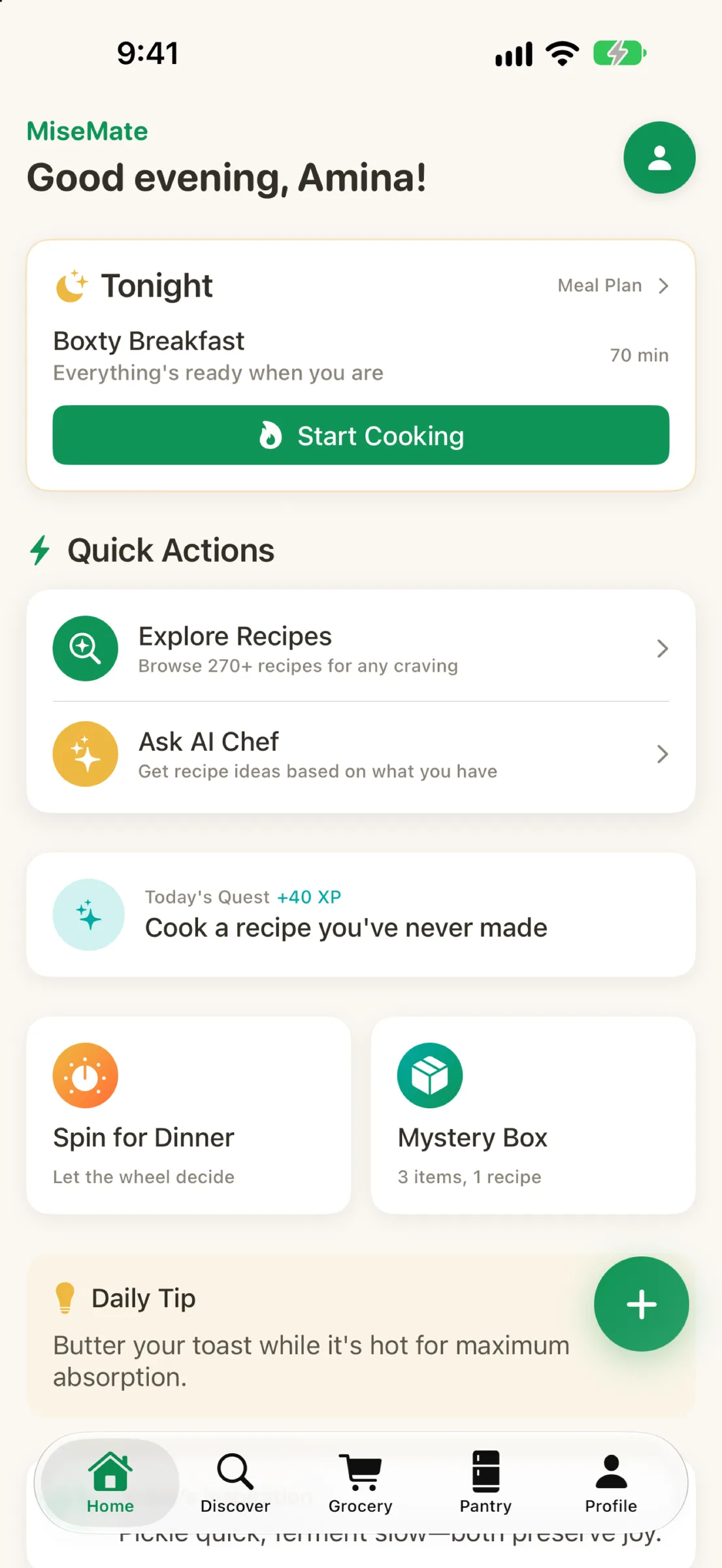
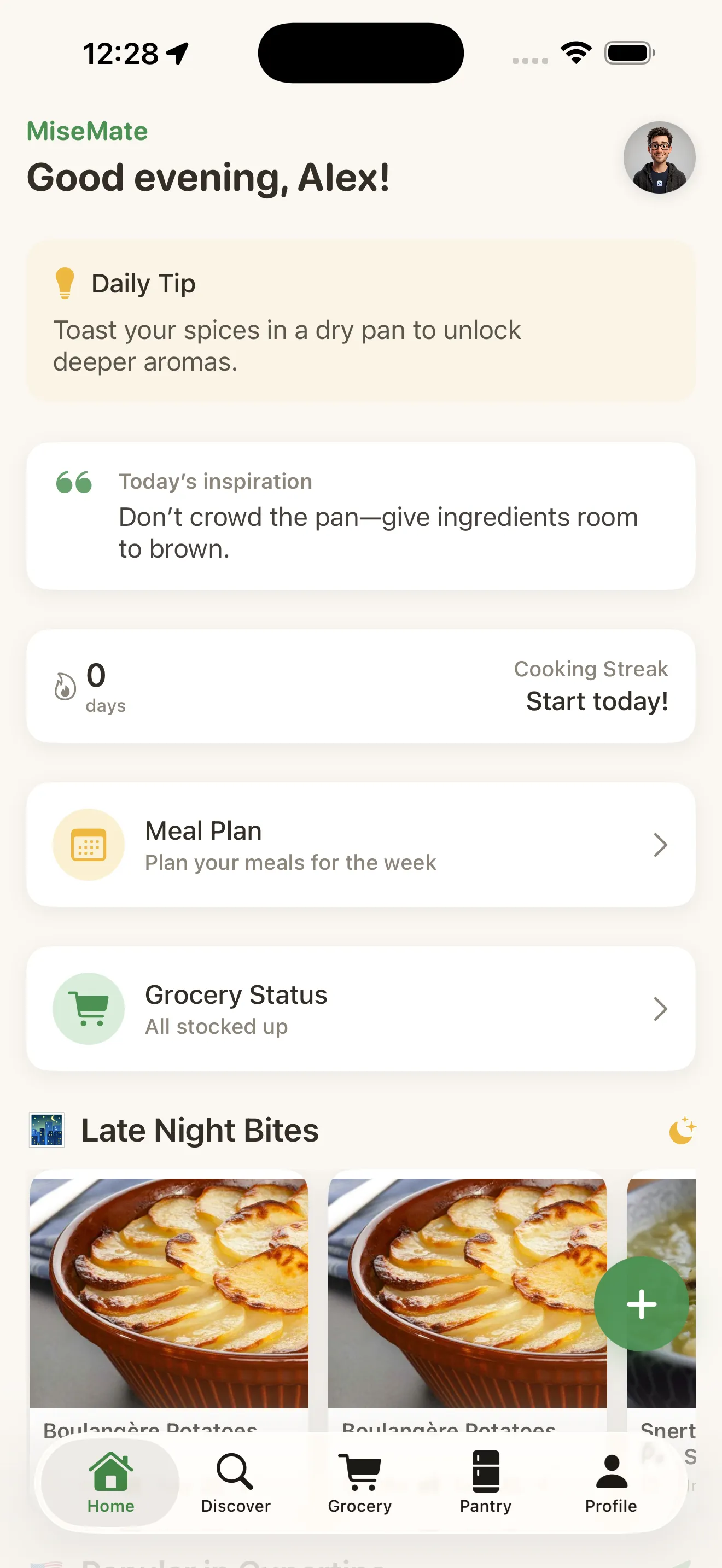
MiseMate tracks your cooking streak and celebrates your progress with badges and stats. Use the home dashboard to see your current streak, upcoming meal suggestions, and favorite recipes. The more you cook, the smarter the app becomes.
- Check your home dashboard daily to see your cooking streak
- Aim to cook at least one recipe this week to start your streak
- Review MiseMate's meal suggestions—they're personalized based on your preferences
- Update your profile with cooking level improvements as you grow
- Revisit your dietary preferences if your habits change
Cook smarter. Shop easier. Waste less.
This article was drafted with AI assistance and reviewed by a human editor before publishing.