If opening your banking app feels like a panic attack, you're not alone. Crashout Calendar is built for people who need bills to feel manageable, not frightening. There's no bank login required, no aggressive alerts, and no shame. Just a soft calendar, a clear view of your breathing room, and step-by-step guides to cancel what you don't need. In this guide, we'll walk you through your first week with the app—what to expect, how to set it up, and how to find calm in your bills.
What Is Crashout Calendar?
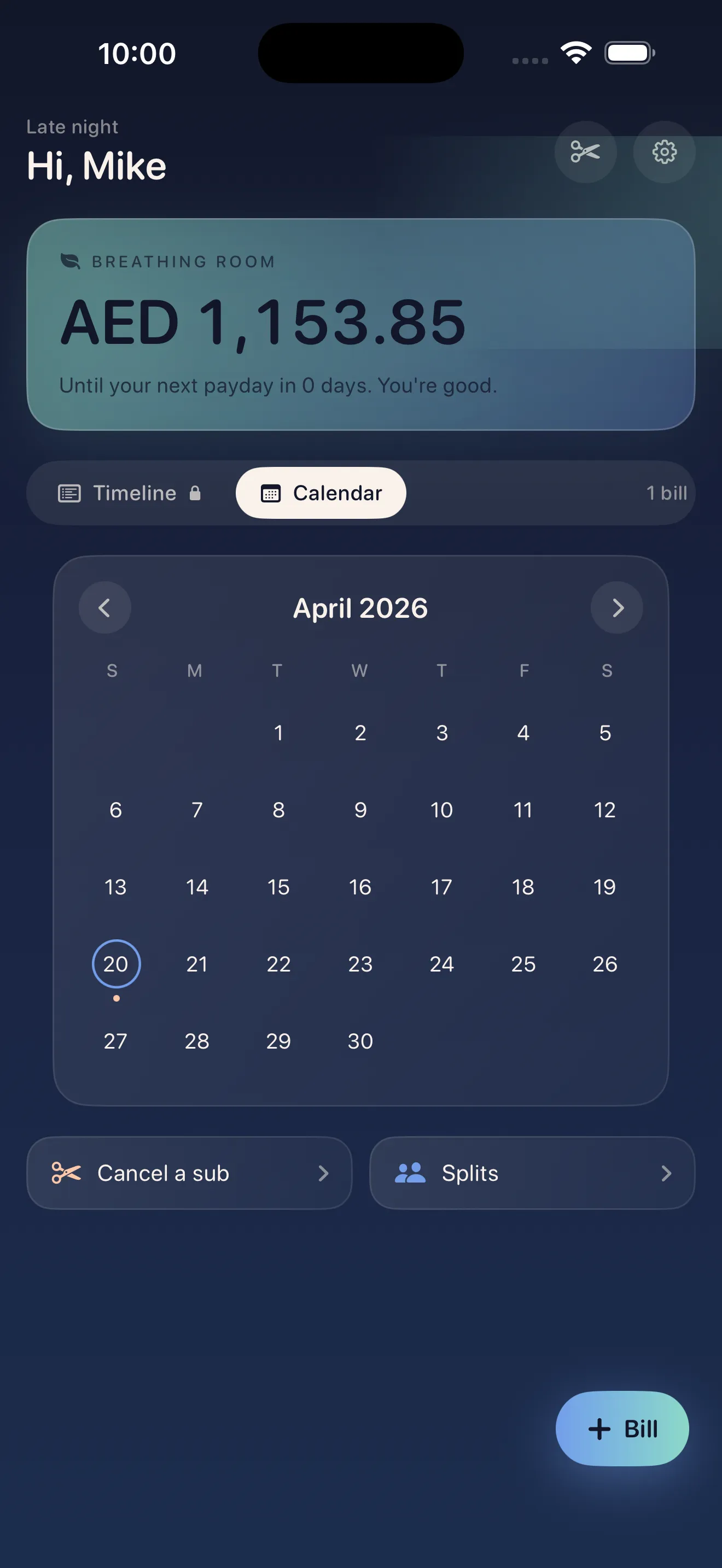
Crashout Calendar is a bill tracker designed with kindness as its core value. Instead of connecting to your bank account (which many finance apps require), you manually add your bills. This keeps everything private, gives you control, and means no app has your banking credentials. The calendar shows you your month at a glance—when bills are due, how much headroom you have before payday, and what you can realistically afford to cancel or reduce.
Bills shouldn't feel like a panic attack.
Your First Week: What to Expect
Setup takes about three minutes. The app walks you through adding your recurring bills—subscriptions, rent, utilities, insurance, and anything else that charges you regularly. Smart categorization and recurrence detection means you won't spend time typing; the app learns as you add bills. By the end of your first session, you'll have a complete picture of your month.
In your first week, you'll likely notice something shift. Instead of dreading the unknown, you'll see exactly when money leaves your account and how much you have left. This is your breathing room—the margin between your bills and your next paycheck. Seeing it clearly often makes the difference between panic and planning.
Key Features You'll Use Right Away
- The soft calendar view. See your entire month at once. No aggressive alerts, just a calm, visual timeline of when bills are due.
- Breathing room. The app calculates how much money sits between your bills and payday—your actual safety net.
- Built-in cancel guides. Found a subscription you don't use? Crashout Calendar includes step-by-step cancellation instructions for Netflix, Spotify, Hulu, HBO, Disney+, and 15+ other services. No concierge fees.
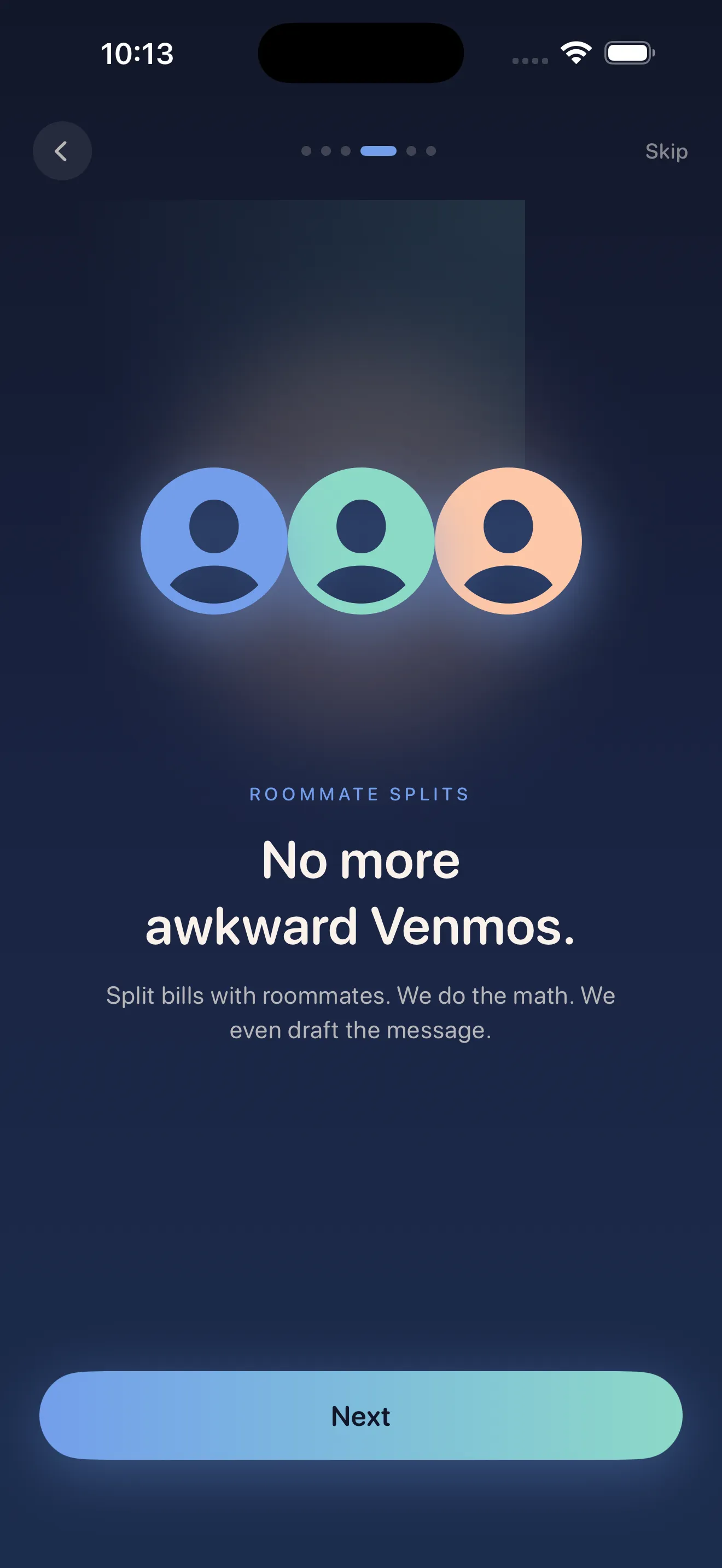
- Split with roommates. If you share rent or utilities, you can add splits and settle them without awkwardness.
- Zero bank logins. Everything stays on your device. No Plaid, no credentials stored in the cloud, no third-party access.
How to Set Up Your First Bills
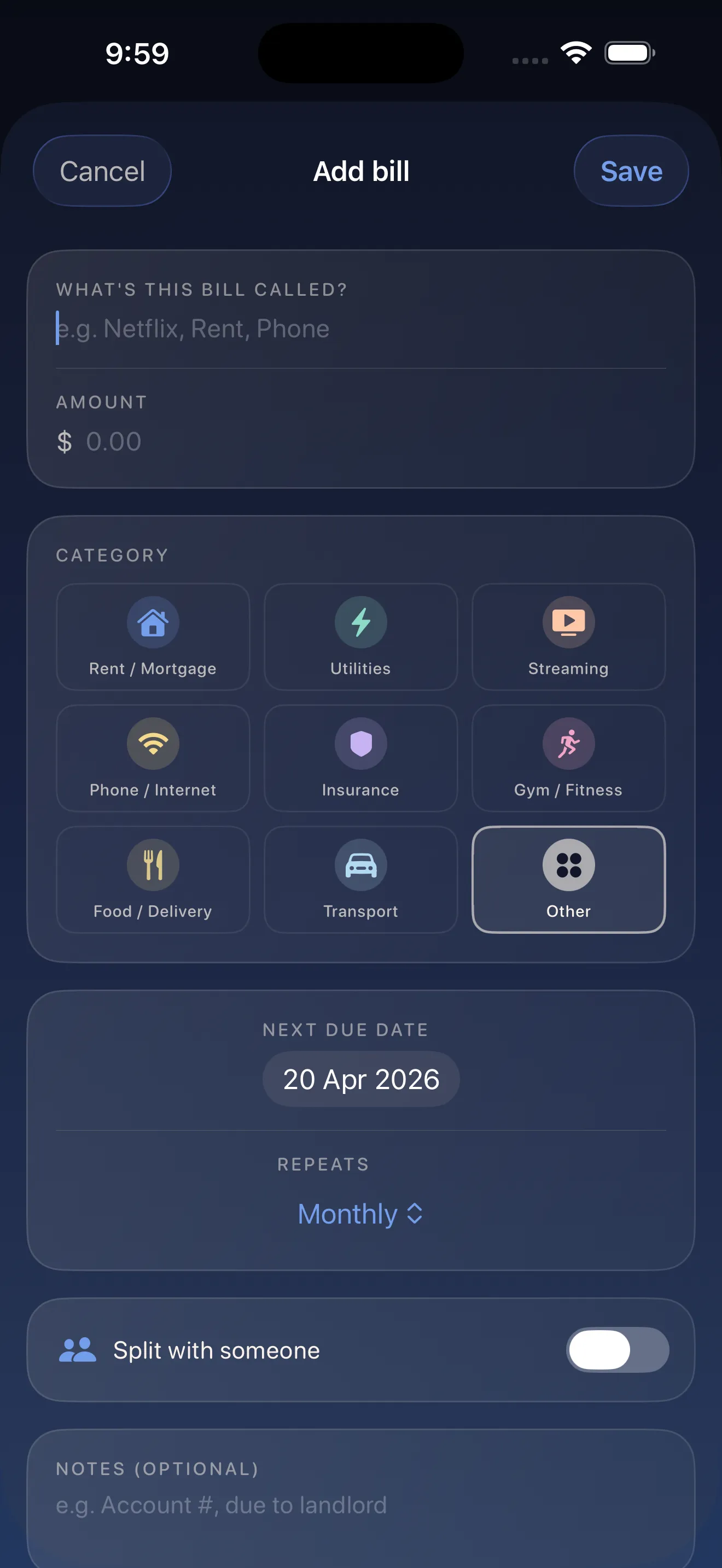
- Open the app and hit 'Add Bill.'
- Type the name (e.g., 'Netflix,' 'Rent,' 'Electric'). The app suggests a category—accept it or change it.
- Enter the amount and due date.
- Select the frequency (monthly, weekly, yearly, etc.). The app remembers patterns, so future bills get faster.
- Repeat for your top 5–8 recurring bills. You can add more anytime.
- Check your calendar. You'll now see your month and your breathing room.
When and Why to Use Cancel Guides
Once you see your breathing room, you might realize some subscriptions aren't worth keeping. Cancelation is often the hard part—companies make it intentionally difficult. Crashout Calendar includes detailed, step-by-step guides for the most common services. No email templates to copy, no mysterious chat queues. Just clear instructions. If you decide to cut a service, the guide is already there in the app.
For deeper guidance on managing subscriptions and splits, our guide to recurring payments and split subscriptions walks you through real-world scenarios. If you want to move faster, get started with Crashout Calendar in 5 minutes covers the essentials.
First Steps
- Download Crashout Calendar from the App Store.
- Spend three minutes adding your top 5–8 recurring bills (rent, subscriptions, utilities, insurance).
- Look at your calendar. Note your breathing room—this is the money you actually have left.
- If a bill feels wrong or unnecessary, tap it and see if a cancel guide exists.
- Come back next week and check what's due. The app will keep your month visible and calm.
This article was drafted with AI assistance and reviewed by a human editor before publishing.