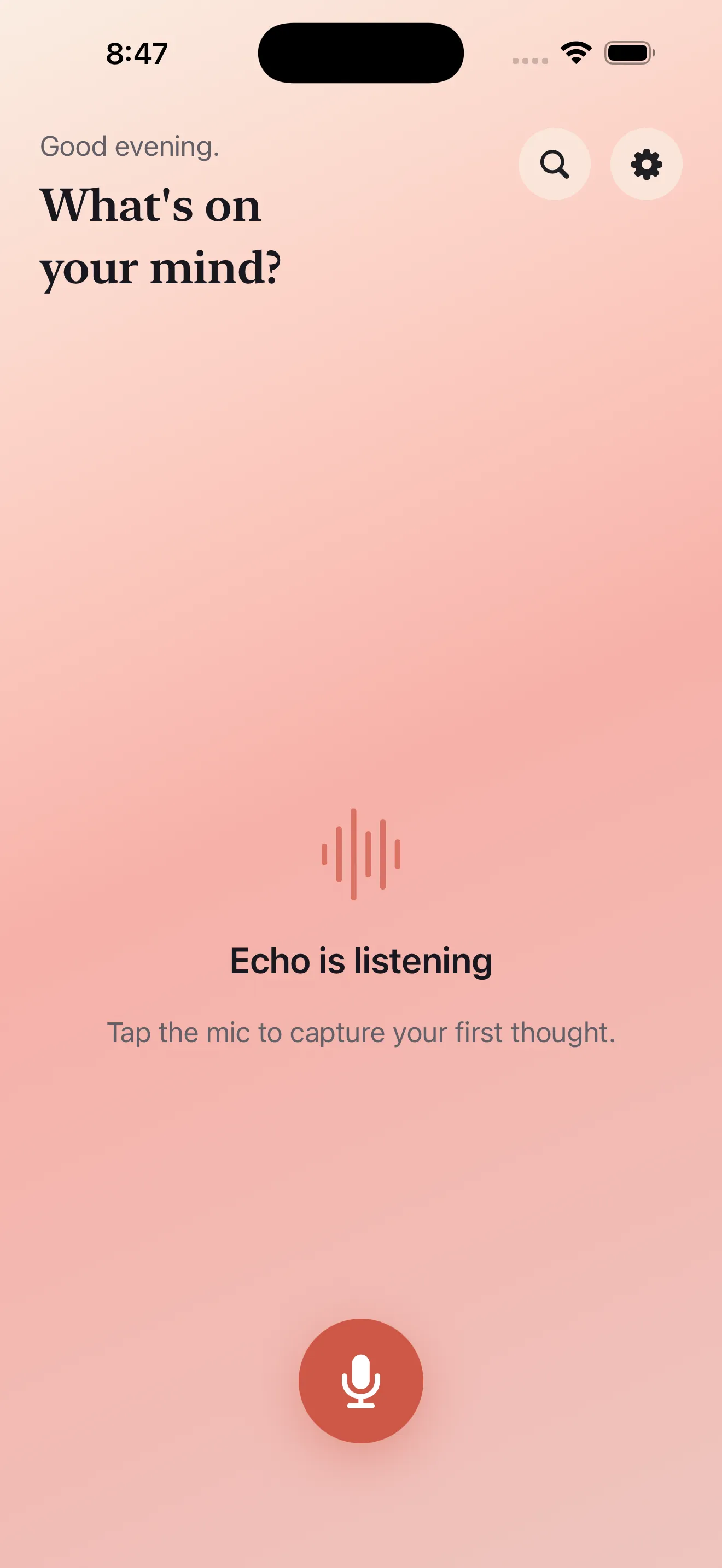
Voice notes should be frictionless. The moment you think of something, you should be able to capture it without wrestling with formatting, folders, or setup screens. Echo is built around that principle. But having a great recording tool is only half the battle. The real value comes from knowing how to use transcripts, summaries, and action items to actually do something with your ideas. Here's how to get the most from Echo.
Start Recording Before You're Ready to Speak
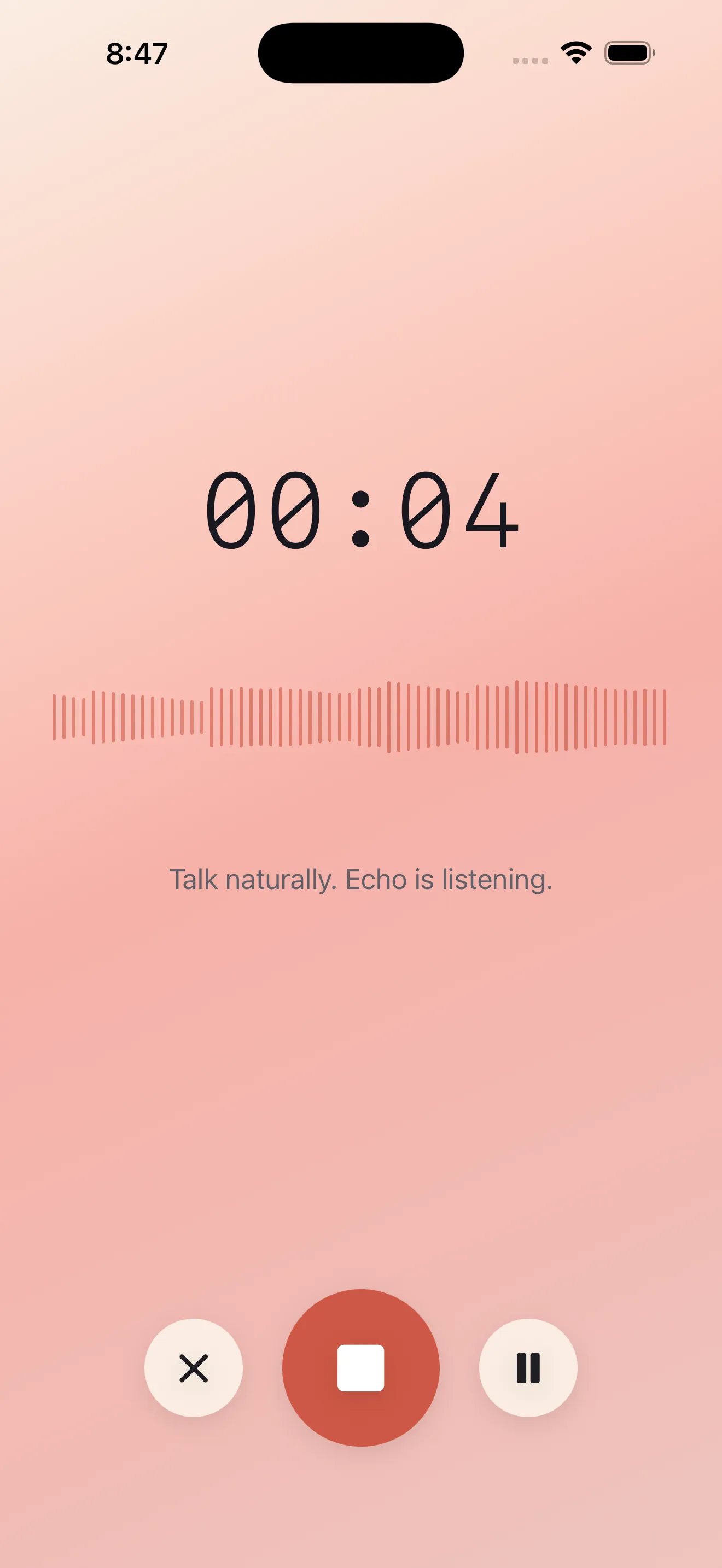
The mic button in Echo is designed to start capture immediately. Tap it and speak naturally—there's no countdown, no "recording in 3, 2, 1." Ideas are fragile. The moment you have to navigate settings or wait for the app to be ready, your thought can evaporate. Tap the mic and talk. Your words are already being captured.
Keep Recording Even When You Step Away
Echo lets you keep the app in the background and even lock your screen while recording. This is useful when you're walking, driving, or just moving between rooms. Your thought doesn't stop when you look at a text message. Recording continues seamlessly in the background, so you can stay in the moment instead of babysitting the app.
Let Summaries Pull Out What Matters
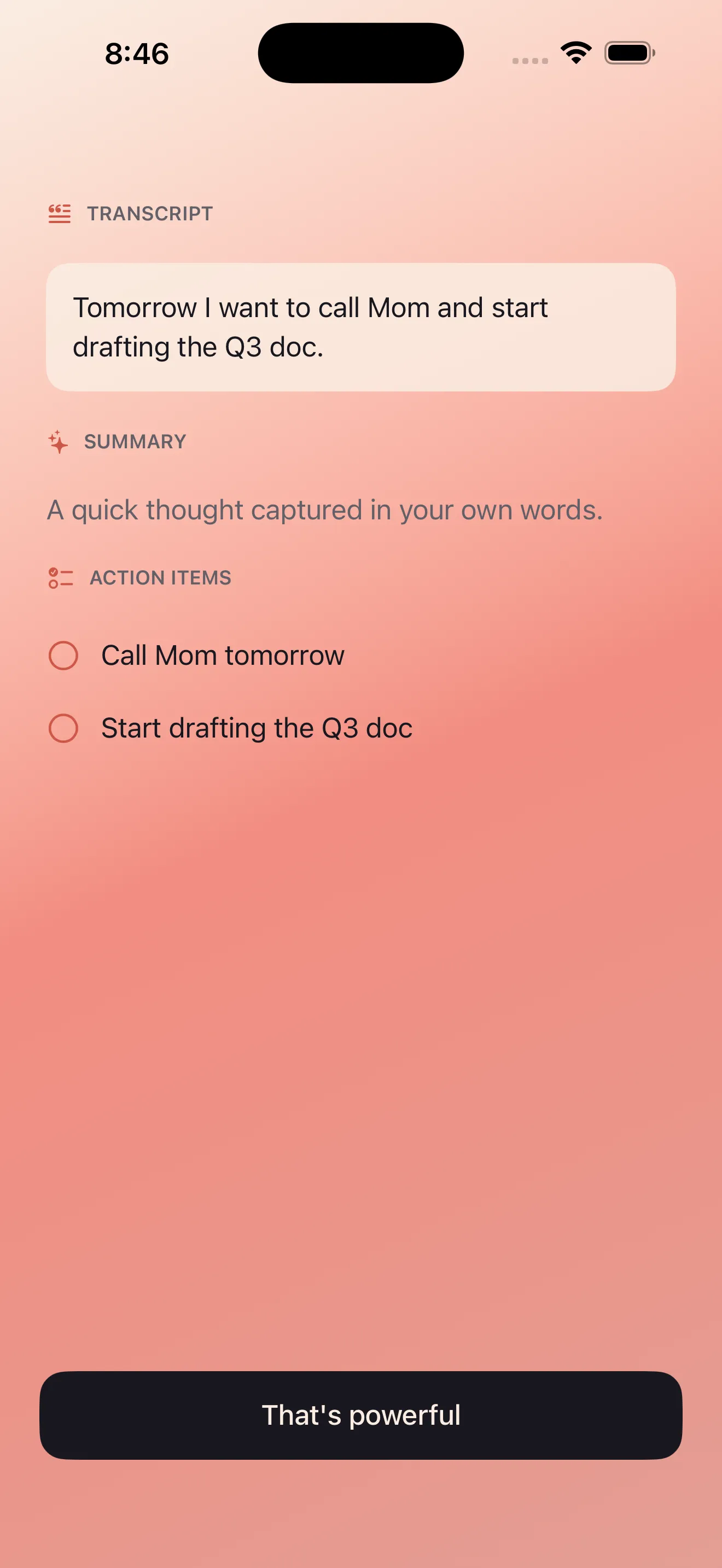
Once Echo transcribes your recording, it automatically generates a summary. You don't have to reread a rambling three-minute voice note to remember the core idea. The summary does that work for you. If you recorded a quick thought about a project, the summary captures the essence. If you rambled through a problem and half-formed solutions, the summary extracts the thread. Skim the summary first; dive into the full transcript only if you need detail.
Convert Ideas Into Action Items
Echo doesn't just transcribe and summarize. It also extracts action items from your notes. If you mentioned "call Sarah about the proposal" or "check the Q3 budget spreadsheet," Echo pulls those out as discrete tasks. You can then turn those action items into reminders or calendar events without typing them out manually. The friction between having an idea and acting on it drops significantly.
- Check the action items Echo extracted after transcription
- Convert key actions into reminders for later today or tomorrow
- Add calendar events for ideas that need a specific time slot
- Review your dashboard to see which notes generated actions
Use Bilingual Notes for Mixed-Language Thinking
If you think or speak in both English and Arabic, Echo handles both languages seamlessly in a single recording. You don't have to start a new note or switch settings. The transcription, summary, and action items all work across both languages, and the text renders correctly in both directions. This is especially valuable if you code-switch or work in bilingual environments.
Your notes should match how you actually think, not force you into a single language.
Organize Notes Where They're Useful
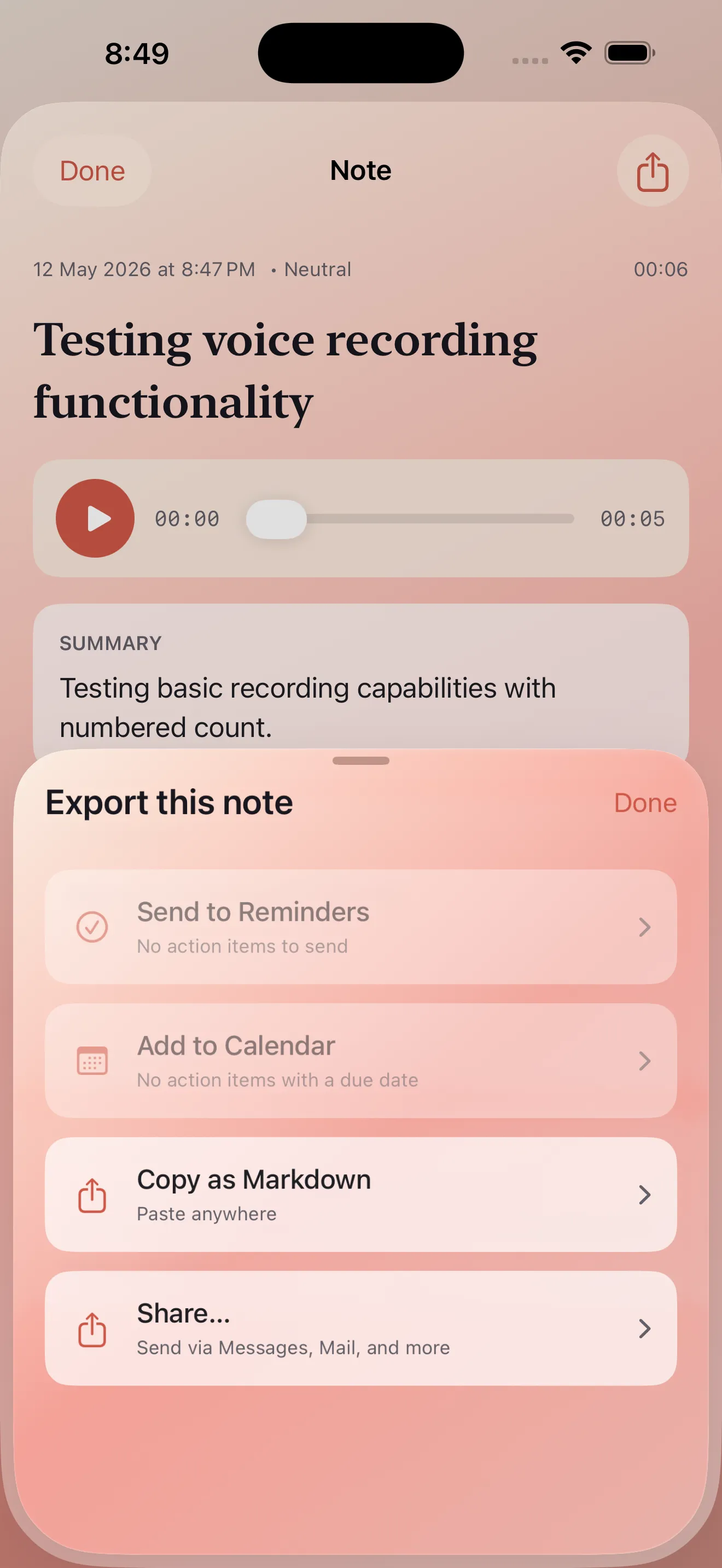
Echo transcripts, summaries, and action items don't need to stay in the app. You can export and share them wherever you work. Copy a summary to your email. Send an action item to Slack. Share a transcript with a colleague. Echo gives you a clean export so your voice notes integrate into the tools you already use. For deeper guidance on organizing your voice captures, check out our complete Echo voice notes walkthrough.
Trust That Your Notes Stay Private
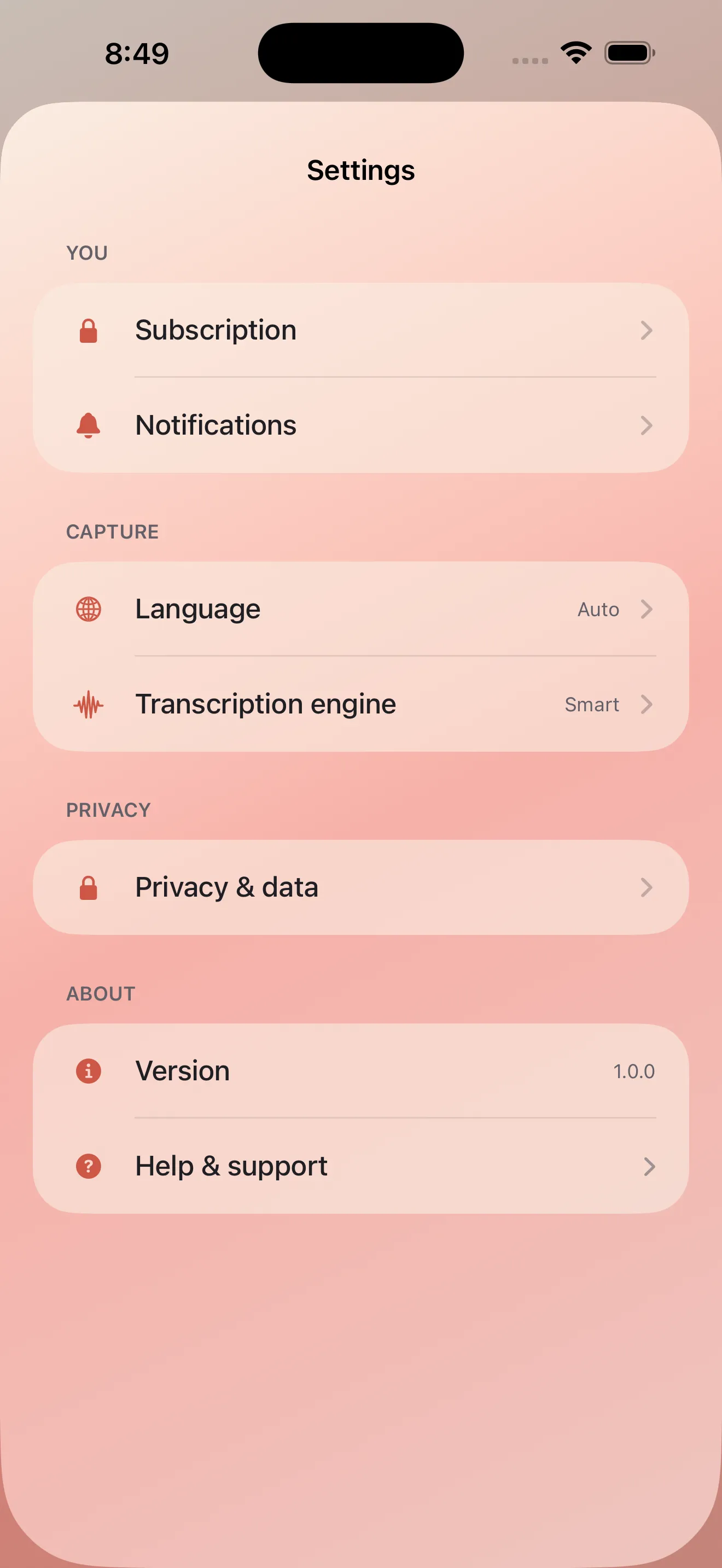
Echo processes audio on your device first, not on remote servers. Your voice notes remain yours. Privacy isn't a feature to turn on; it's how the app is built. You can speak freely into your phone without worrying about your thoughts being logged elsewhere. If privacy is a dealbreaker for voice note apps, Echo removes that concern.
These tips work best when you treat Echo as an extension of your thinking, not a separate task. Speak your thoughts, let the app turn them into usable notes, and move on. For a more detailed walkthrough of Echo's core features, see Echo voice notes for beginners.
This article was drafted with AI assistance and reviewed by a human editor before publishing.