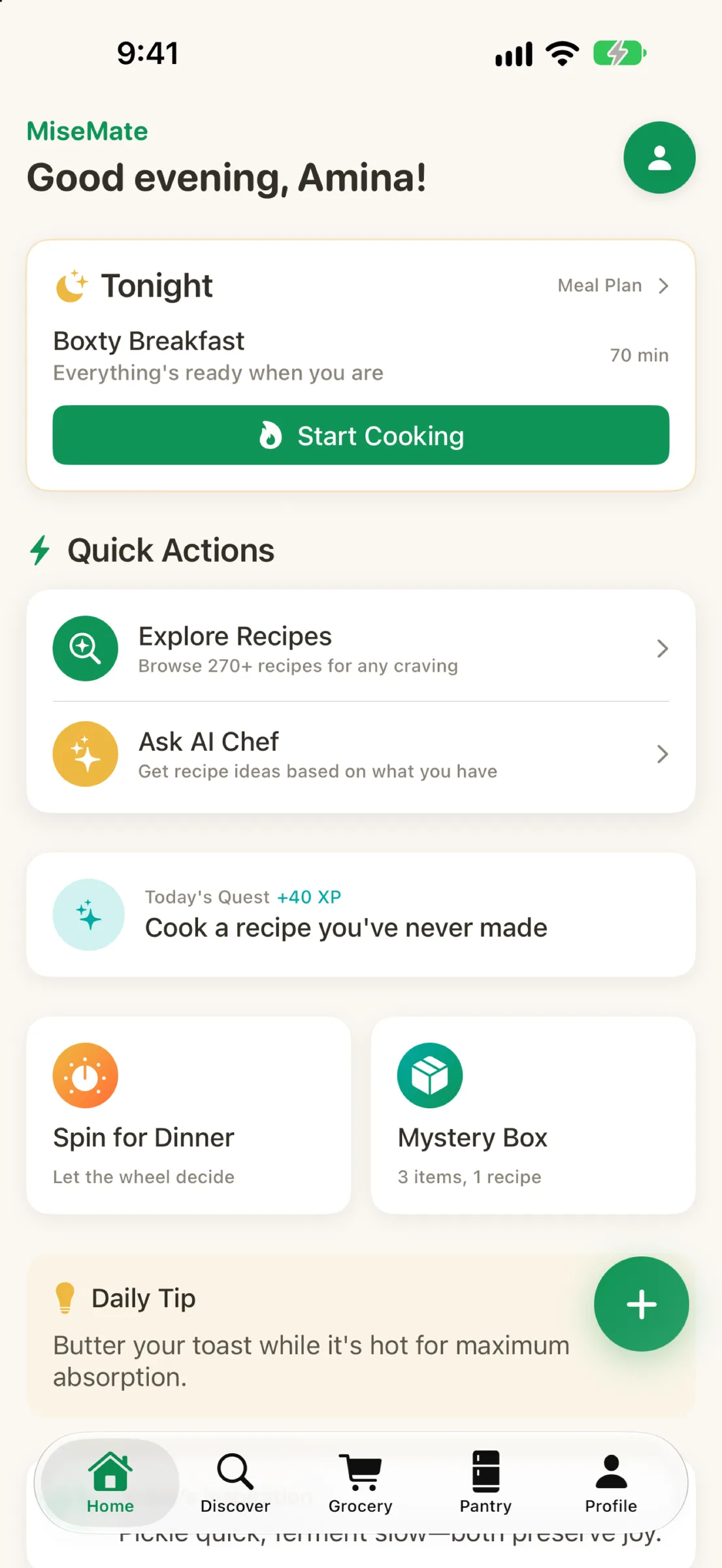
MiseMate is built to work best when it knows who you are and what matters to you. Before you browse recipes or build your first grocery list, take fifteen minutes to configure your kitchen profile. This checklist walks you through the essentials—and shows you why each step unlocks features that actually save you time and money.
Profile & Preferences Setup
Your dietary preferences and household details let MiseMate personalize recipe suggestions and ingredient scaling. Start here when you first open the app.
- Tap your profile icon and choose Dietary Preferences
- Select all diets that apply—vegan, keto, paleo, gluten-free, or leave blank if you're flexible
- Confirm your household size (1, 2, 4, 6+) so ingredient amounts scale correctly
- Add any allergies you want the app to flag (nuts, shellfish, dairy, soy, etc.)
- Set your cooking skill level (beginner, intermediate, advanced) for recipe recommendations that match your comfort zone

Discover Your Recipe Library
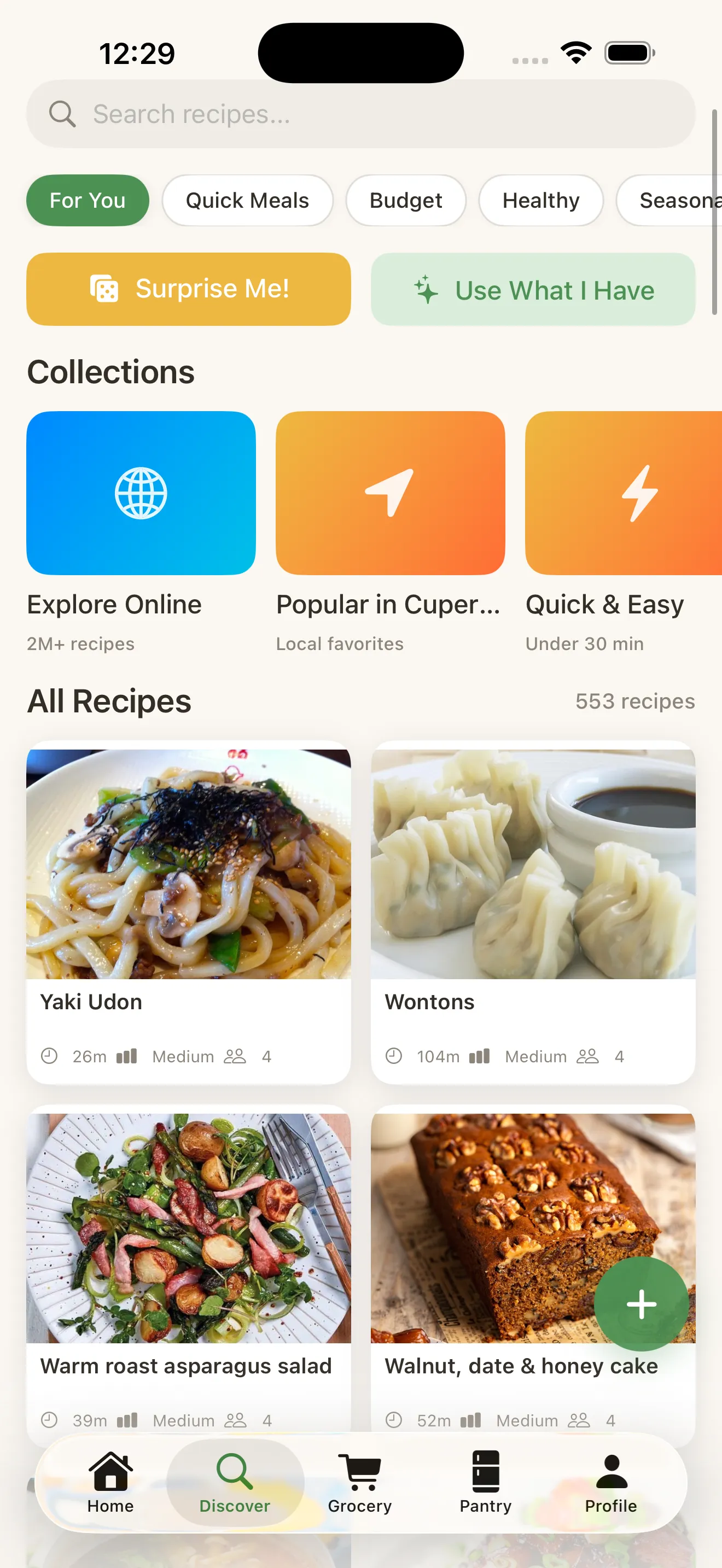
MiseMate gives you access to 276 hand-picked recipes plus 2 million searchable recipes online. Spend a few minutes exploring what's available.
- Open the Discover tab and browse curated collections by cuisine or meal type
- Use search to find a recipe you know you like—verify it scales correctly and includes nutrition data
- Favorite 3–5 recipes you want to cook this week by tapping the heart icon
- Check the AI kitchen assistant suggestions based on your dietary preferences—these update as you cook
- Read one recipe's full ingredient list and instructions to get familiar with the interface
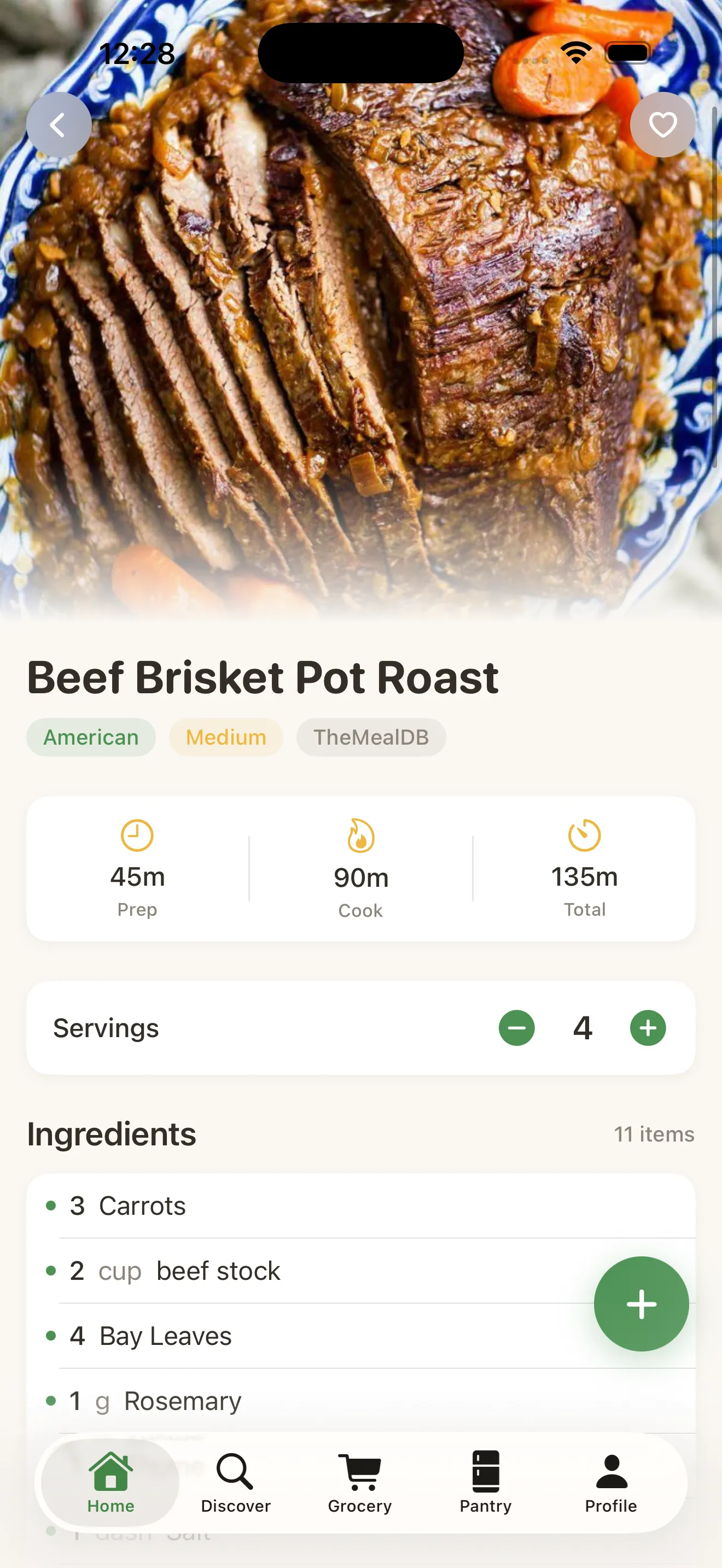
Scaling ingredients manually is a kitchen chore. Let MiseMate do it—just change the serving size and every ingredient adjusts instantly.
Build Your First Smart Grocery List
One of MiseMate's core strengths is turning recipes into grocery lists without the busywork. This is where meal planning stops being abstract and becomes actionable.
- Open a recipe you want to cook and tap Add to Grocery List
- Adjust the serving size if needed—watch ingredients scale in real time
- Add 2–3 more recipes to the same list (ingredients from overlapping recipes merge automatically)
- Go to your Grocery List tab and review: tap any item to edit quantities or remove duplicates
- Check off items as you shop—the app remembers what you bought for future meal planning
Master Cook Mode & Timers
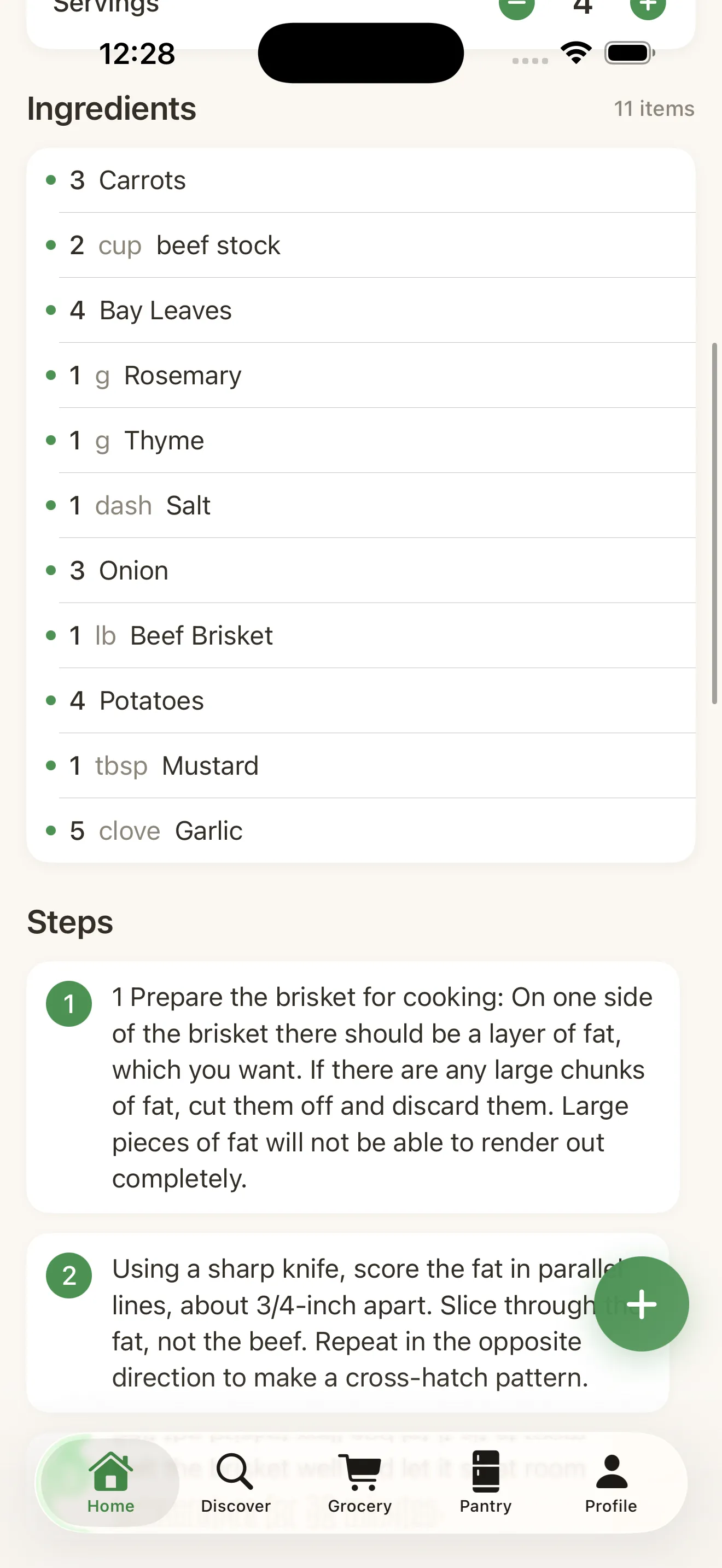
When you're actually cooking, Cook Mode is where MiseMate becomes your hands-free kitchen partner. The interface is designed for quick glances and voice commands, not screen-long scrolling.
- Open a recipe and tap Cook Now to enter Cook Mode
- Start the built-in timer for the first step by tapping the timer icon
- Swipe between steps with one hand—the text is large and easy to read from arm's length
- If a step needs a timer, the app starts a countdown automatically and notifies you when time's up
- Use voice commands to advance steps or set custom timers (hands-free cooking reduces fumbling)
Optional: Activate AI & Meal Planning
MiseMate's free tier includes recipe browsing, scaling, grocery lists, and Cook Mode. Premium unlocks the AI kitchen assistant and meal planning calendar. If you want to turn recipe chaos into kitchen confidence, premium is where you'll find it.
- AI Kitchen Assistant: Ask Claude to suggest recipes from your pantry, rewrite dishes for different diets, or coach you through a cooking problem in real time
- Meal Planning Calendar: Drag recipes onto days to auto-build your grocery list and track what you're eating
- Cooking Streaks & Stats: Track your cooking habit and unlock badges based on meals prepared

One More Thing: Save Your Favorites
The favorites system helps you build a personal recipe collection and feeds the app data about what you actually want to cook. As you use MiseMate, the home dashboard will recommend recipes you're likely to enjoy—but only if you favorite recipes as you discover them. For a deeper dive on how to use recipes strategically for meal prep, see our guide on building smart grocery lists from recipes.
- Heart recipes while browsing to build your saved collection
- Review favorites regularly and remove old ones so recommendations stay fresh
- Use the favorites section as your shortcut to recipes you've already tested and liked
This article was drafted with AI assistance and reviewed by a human editor before publishing.