What You'll Have When You're Done
Follow this checklist once and you'll walk away with a fully itemized, fairly split bill — everyone's exact total, tax and tip included — shared with the group in under two minutes. This is the exact sequence SplitSnap is built around, whether you're splitting a quick lunch for two or a twelve-person dinner.
What You Need Before You Start
- Your iPhone with SplitSnap installed
- The paper receipt in hand, or a photo of it already saved in Photos
- Decent lighting if you're scanning live at the table
- The names of everyone splitting the bill
- About two minutes of uninterrupted time
The Step-by-Step Checklist
Step 1: Open SplitSnap and start a new scan
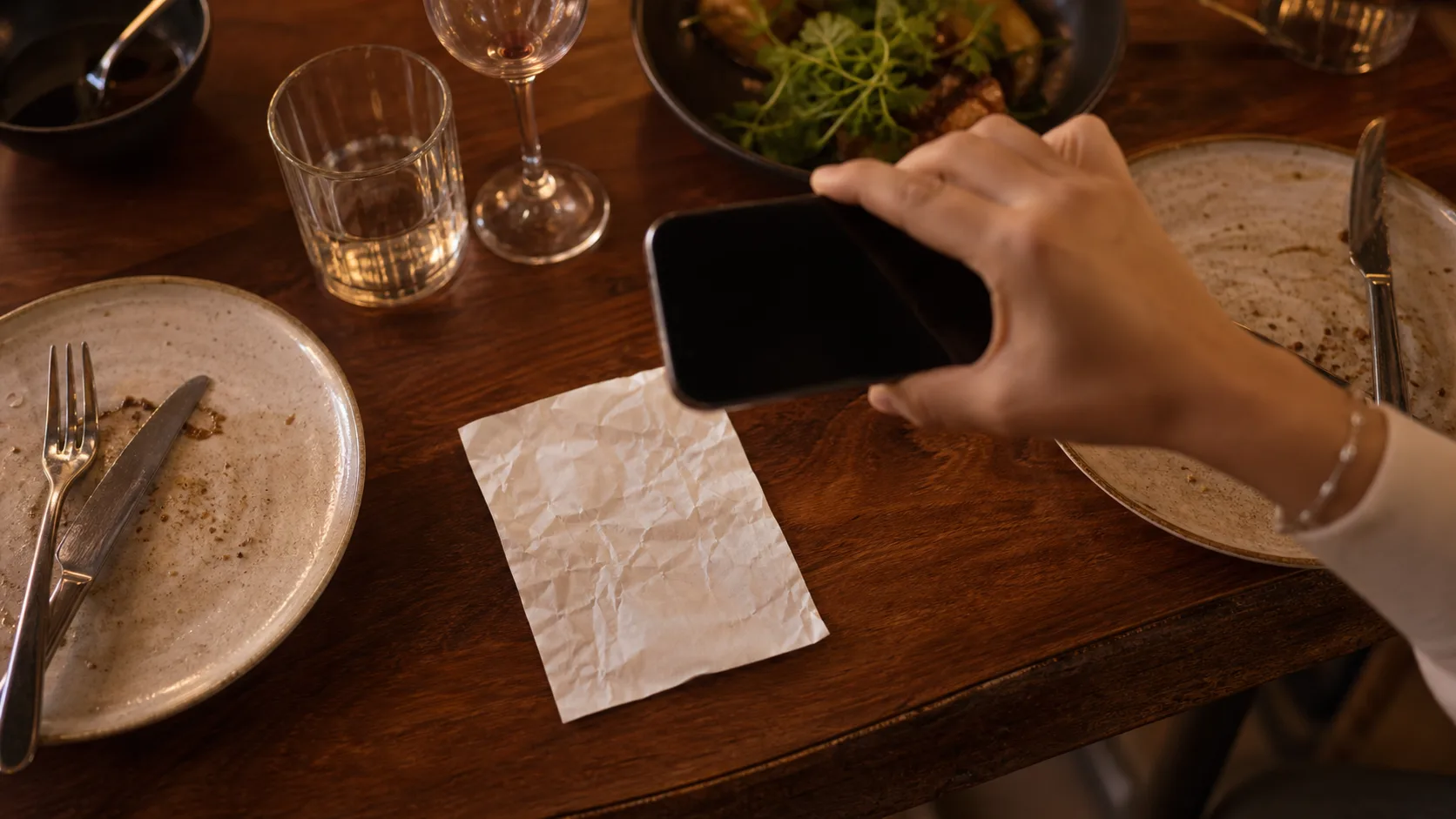
Tap Scan a Bill on the home dashboard, then choose to snap a live photo or import one from your camera roll. Either way you land on the same scan screen, ready to capture the receipt in one shot.
Step 2: Review the items the AI pulled
SplitSnap's item review screen shows every line the AI found — dish names, quantities, prices — read straight off the receipt in one to three seconds. Scan the list once and fix anything that looks off, like a smudged price or a merged line item, before moving on.
Step 3: Add everyone splitting the bill
Tap into the people setup screen and add a name for each person at the table. Type names fresh, or pull from your saved friends list if this is a group you split with often.
Step 4: Assign each item to the right person
Tap an item, then tap the colorful name chip for whoever ordered it. Shared plates can go to multiple people at once, and SplitSnap divides that item's cost evenly between them. This is the step that ends any debate about who had the calamari — see how to split a bill fairly when everyone ordered differently for edge cases like shared appetizers or someone who only had a drink.
Step 5: Confirm tax and tip are distributed correctly
Before you finalize, glance at how SplitSnap spread the tax and tip across the group — it distributes both proportionally based on what each person ordered, not evenly by headcount. If your group prefers an even split instead, check splitting a restaurant bill on iPhone with fair tax and tip for how to adjust it.
Step 6: Share the split summary with the group
Once everything looks right, generate the shareable split card. It lists each person's exact total — items, tax, and tip included — ready to drop straight into your group chat. No one has to take your word for it or do mental math.
Step 7: Save the split and reuse the group later
Every scan lands in your history tab automatically, so you can reopen it if someone forgets to pay. If this is a group you split with regularly, save them as friends so next time you skip straight from scanning to assigning.
Common questions
What happens if the AI misreads an item or price?
Tap the item on the review screen and edit it manually — nothing is locked in until you move to assigning. SplitSnap still saves you the typing on everything else on the receipt.
Does this work for receipts in other languages or currencies?
Yes. SplitSnap reads receipts in over 30 languages, and Pro adds live multi-currency conversion, which is handy if you're splitting a bill on a trip abroad.
How many scans can I do for free?
The free tier includes 5 receipt scans per month with full item assignment, tax, tip, and a shareable split card. If your group splits bills more often than that, Pro removes the cap.
Do I have to assign every single item, or can I just split evenly?
You can skip item assignment and split the total evenly if that's easier. But assigning items is what makes the split accurate when people ordered differently — for the full walkthrough, see how to split any bill in seconds with SplitSnap.
This article was drafted with AI assistance and reviewed by a human editor before publishing.