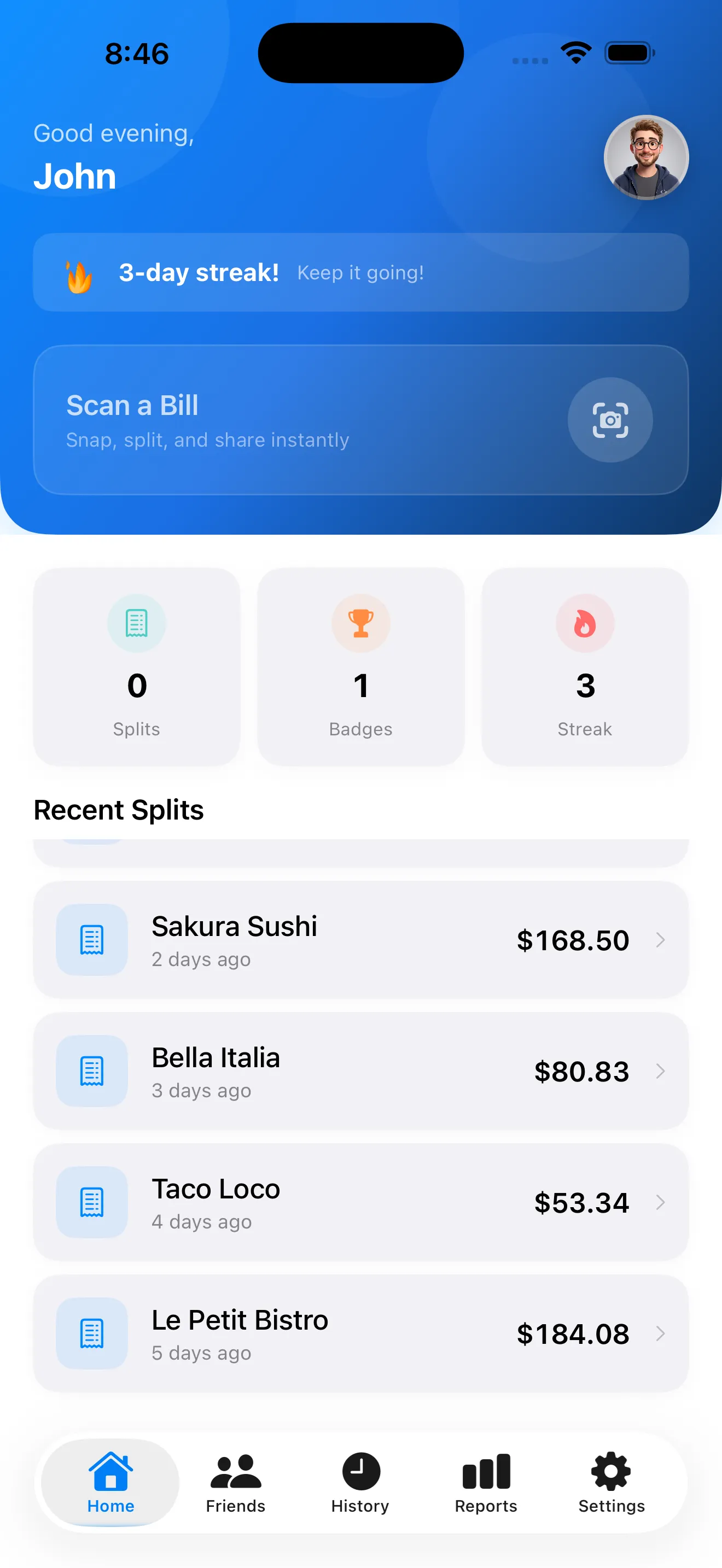
SplitSnap turns receipt chaos into fair splits in seconds. But like any powerful tool, a few smart moves make the difference between a quick tap and a genuinely frictionless experience. Whether you're splitting a casual lunch or a complicated group dinner, these tips will help you capture receipts accurately, assign items faster, and share totals without back-and-forth.
Get a clean receipt photo on the first try
The foundation of a fast split is a clear, well-lit receipt photo. Before you tap the scan button, hold your phone steady and aim for even lighting across the entire receipt. Avoid shadows from your hand or body, and try to keep the receipt as flat as possible. A slightly angled shot is fine—Claude Haiku Vision is smart enough to read text at various angles—but the clearer your photo, the fewer corrections you'll need to make after the scan.
If your receipt is crinkled or faded, try different angles or adjust your phone's distance from the paper. Getting the photo right the first time saves you from manually editing items later.
Review and correct items before you assign
After SplitSnap reads your receipt, you'll see every item the AI extracted. Spend a moment here verifying prices and item names. If something looks off—a typo, a missed discount, or a split item—fix it now. This step takes 10 seconds and prevents confusion when you're assigning items to people.
Fixing items early saves you from reassigning things later.
Add people before you start assigning
Before tapping into the item assignment screen, set up your group. Add everyone who's splitting the bill by name or from your contacts. SplitSnap will remember these people for future splits, so you'll only need to name them once. Once your people are in the list, assigning items becomes a simple color-coded process.
Use the quick-tap item assignment
Once people are added, the assignment screen shows each item with colorful name chips. Tap an item, then tap a person's chip to assign it. You can assign multiple items to one person in seconds. If someone ordered more than one thing, just keep tapping their chip—SplitSnap tallies it all up. This visual, tactile approach beats typing or mental math every time.
Share the split card instead of typing numbers
Once the split is calculated, SplitSnap generates a shareable split card showing everyone's total. Send it via text, email, or your messaging app. Your friends see exactly what they owe, no ambiguity. If someone questions the math, the card shows the itemized breakdown right there. This eliminates the back-and-forth that usually follows a bill split. Learn more about capturing receipts perfectly to ensure your shares are as smooth as possible.
Keep a split history for expense tracking
SplitSnap saves every split you make. Visit the History tab to see past bills, who paid what, and how much you've spent over time. This is invaluable if you're splitting expenses with the same group regularly—roommates, friends, travel buddies. You can quickly re-share an old split or reference it if there's ever a question about past expenses. For longer trips or recurring group expenses, having a clear record eliminates disputes.
Use the friends list for faster re-splits
If you regularly split bills with the same group, add them to your friends list. The next time you scan a receipt with those same people, SplitSnap suggests them automatically. You skip the setup step entirely and jump straight to scanning and assigning. The more you use SplitSnap with a group, the faster the process becomes.
Import receipts from your photo library if you forgot to scan
Can't scan in the moment? SplitSnap lets you import a photo from your camera roll. Snap a photo of the receipt with your regular camera, and feed it into SplitSnap whenever you're ready. The AI reads it just as accurately as a live scan. This is especially handy if you've already left the restaurant but realized you need to settle up.
Try manual entry for unusual receipts
Most receipts scan perfectly, but if you encounter a handwritten bill or a receipt that's too worn, SplitSnap lets you type items in manually. It's not as fast as AI scanning, but it's still faster than calculating splits by hand. Type the item name and price, add people, and assign—you're done in under a minute.
Point. Scan. Split. No typing, no math, no arguments.
This article was drafted with AI assistance and reviewed by a human editor before publishing.