How to Free Up iPhone Storage From Photos Without Losing Memories
A practical order of operations for iPhone photo storage: large videos first, duplicates second, screenshots third, then daily swipe piles. On-device cleanup with Phlash.
Check what is actually eating space
Open Settings → General → iPhone Storage and tap Photos. You will often find a few long screen recordings and burst sequences dominating the chart while thousands of small JPEGs barely register.
Start with the biggest files. Removing five large videos can free more space than deleting hundreds of thumbnails—and it takes less decision fatigue.
Work in layers, not one giant purge
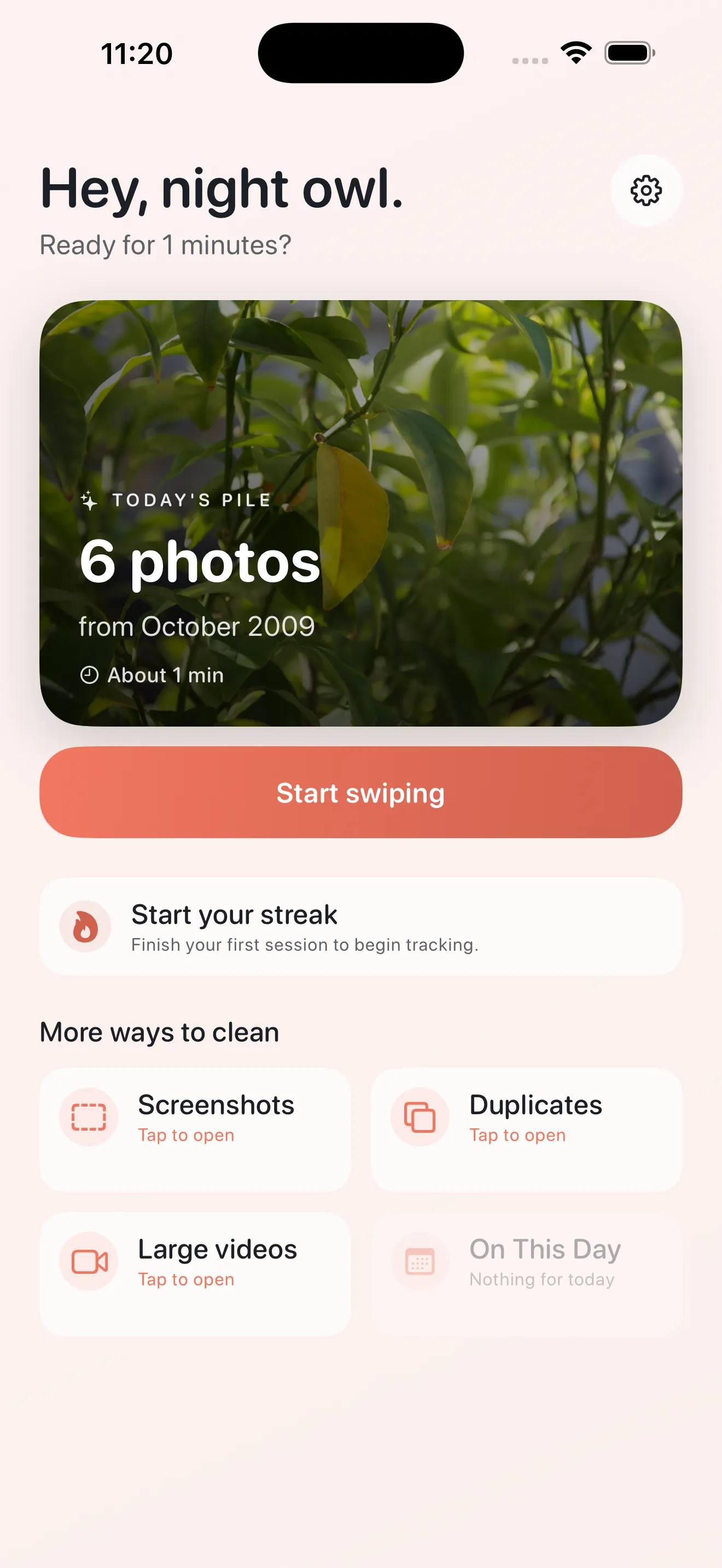
Layer 1 — Large videos: Sort by file size and delete the obvious ones (accidental pocket recordings, duplicate exports). Phlash Large Videos mode is built for this pass.
Layer 2 — Duplicates: Let perceptual hashing cluster near-identical shots from burst mode or retakes. Keep the sharpest frame per cluster.
Layer 3 — Screenshots: OCR previews help you batch-delete expired codes, old tickets, and chat captures you no longer need.
Layer 4 — Daily swipes: Finish with short oldest-first piles so the remaining library stays manageable week to week.
Keep a safety net
Anything you delete in a cleaner app should land in Recently Deleted first, not vanish instantly. Phlash adds undo toasts and a review strip before confirmation.
If a photo matters, swipe to keep or skip—never delete on autopilot. Cleanup is maintenance, not minimalism for its own sake.
Make it a habit
Ten minutes twice a week beats a four-hour session you dread repeating. Phlash structures finite piles and optional reminders so progress compounds without guilt-driven copy.
When storage pressure drops, keep the rhythm anyway—new screenshots and duplicates arrive constantly on any active camera roll.