Filler word counter — Record, count, retake — Nothing leaves your iPhone
UnfillerFind out how many times you say “um”. Then watch the number drop.
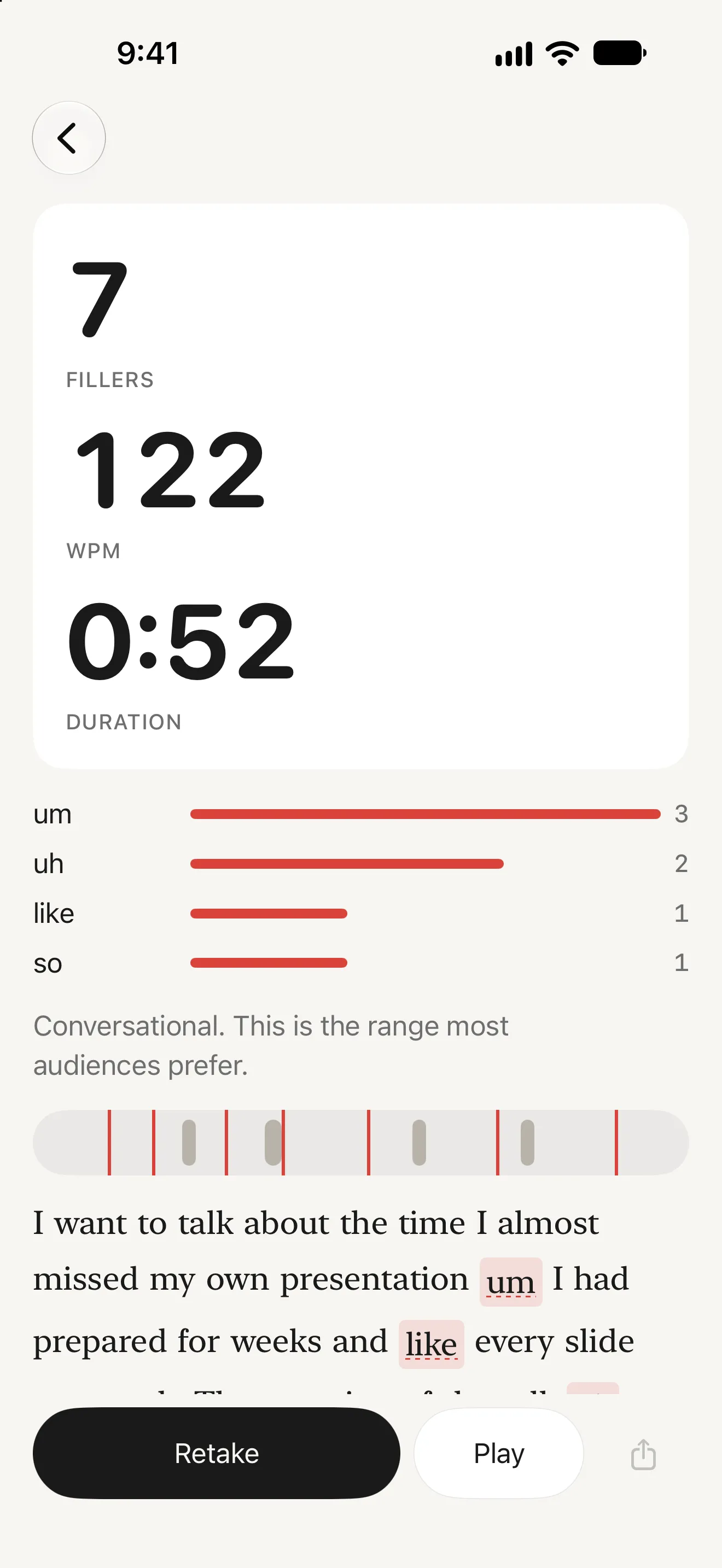
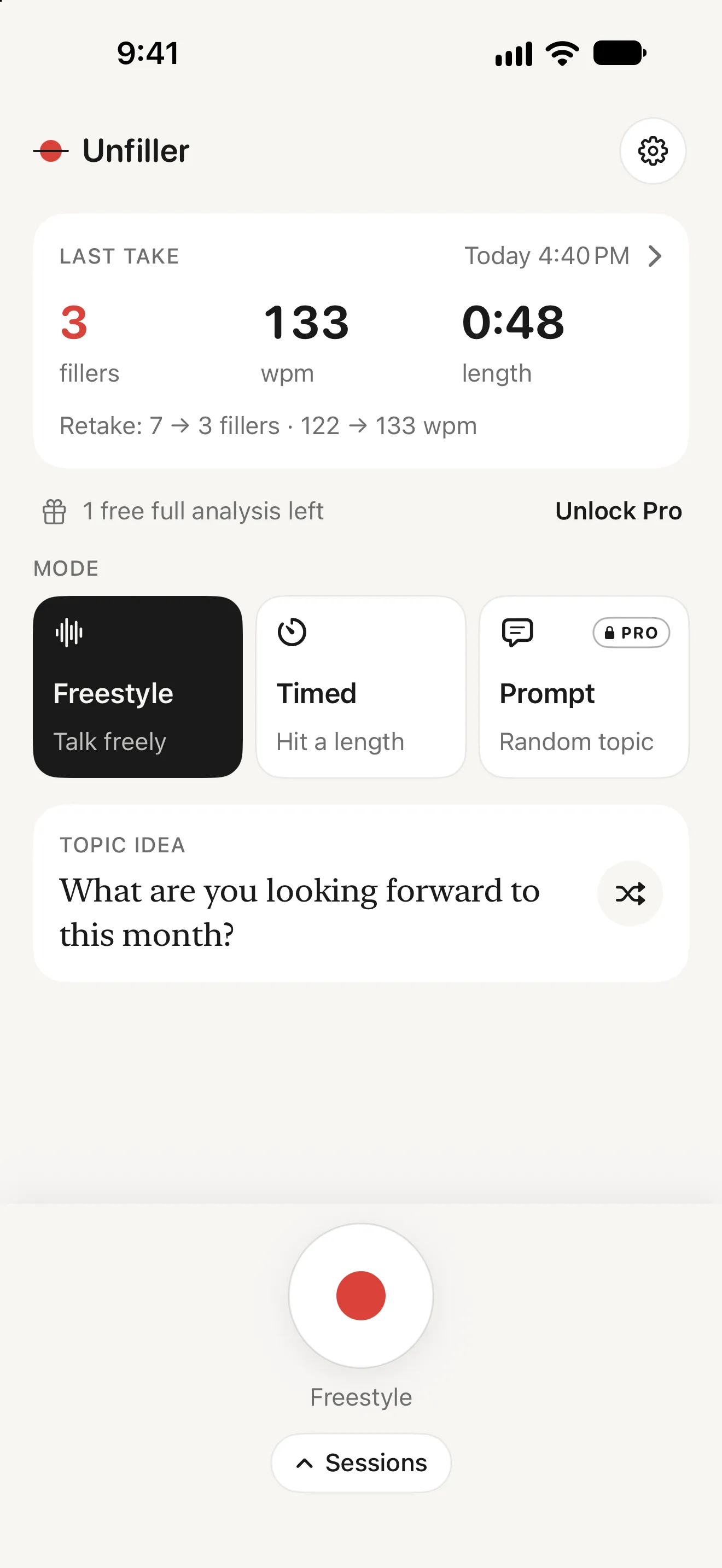
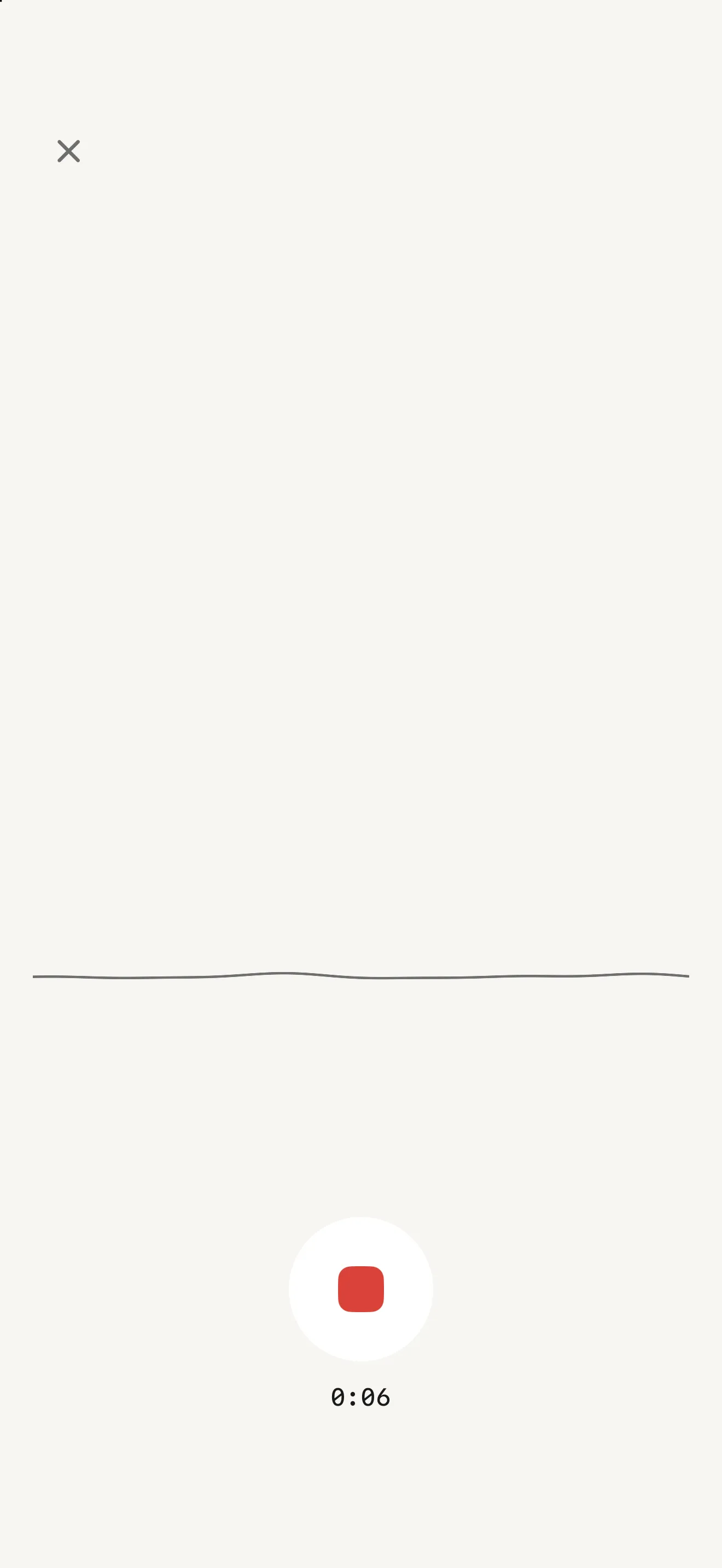
Unfiller is a practice tool for anyone with a talk, an interview, a pitch or a toast coming up in the next few weeks who wants to stop saying “um”. You tap one big button and talk. There are three ways to do it: Freestyle, about anything, for up to ten minutes; Timed, to a target length of 30 seconds, one, two or five minutes or your own, with a gentle haptic ten seconds before the end; and Prompt, which hands you a random topic for impromptu practice. While you speak the screen shows a quiet waveform and the elapsed time and nothing else — no live counter, because watching the number climb mid-sentence makes people freeze. The moment you stop, the results appear: filler count, words per minute and length, large, with the filler count as the number that matters. Underneath, a bar list of which fillers you used and how often — tap one to jump to it — and a one-line read on your pace, from “Slow. Fine for emphasis, tiring over 5 minutes” through “Conversational. This is the range most audiences prefer” to “Rushing. Listeners will drop words.” The pause map lays the whole take out as a timeline, pauses as grey gaps and fillers as red ticks, and it usually shows the same thing: the ums cluster right before a pause, because the um is you buying time. Replacing it with the pause itself is the habit Unfiller is built to teach. Your full transcript sits below with every filler highlighted; tap any word to play from there, or tap a filler to hear the three seconds around it. Then Retake starts another take with the same mode and timer, and a delta strip compares it with the one before — 7 → 3 fillers, 122 → 133 wpm. That is the whole loop. There are no streaks, no reminders, no progress charts and no lessons; past takes sit in a plain session list for playback, and when your event is over the app expects you to stop opening it. Detection covers fifteen fillers by default — um, uh, er, ah, like, you know, so, basically, actually, literally, right, okay so, I mean, kind of and sort of — and words like “like” and “so” only count when they are used as fillers, judged by where they fall and the pauses around them. Recording, transcription and analysis all run on your iPhone with Apple’s on-device speech recognition; there is no account and no server, and no audio is ever uploaded. English only, iOS 18.2 or later. Your first three analyses are free and complete, and after that free recordings stop at 20 seconds; Pro is a single $12.99 purchase, not a subscription, for recordings up to ten minutes, every practice mode, your own filler list and transcript export, with Family Sharing on.
Filler word counterStop saying umSpeech practice appWords per minutePublic speaking practiceInterview practiceWedding speech rehearsalOn-device, no account
0seconds of audio leave your iPhoneRecording, transcription and analysis all run on the device with Apple’s on-device speech recognition. There is no account and no server, and Settings can exclude your recordings from iCloud backup or delete them all.
15filler words counted by defaultum, uh, er, ah, like, you know, so, basically, actually, literally, right, okay so, I mean, kind of and sort of. “Like” and “so” only count when they are used as fillers, and Pro lets you switch any word off or add your own.
$12.99once, not a subscriptionThree complete analyses free, then free recordings run to 20 seconds. Pro unlocks recordings up to ten minutes, every practice mode, your own filler list and transcript export. No trial, no renewal, Family Sharing on.
Education
Feedback after, not during
Most people have no idea how often they say “um” until they hear it played back, and then they cannot stop hearing it. Unfiller is built around that moment and not much else. The first take should produce a real result in under a minute, so the welcome screen is one sentence and one button, and the microphone permission is asked for at the moment you tap Record rather than on a carousel. There is no counter on screen while you talk, because a number ticking up mid-sentence makes people freeze; you get the number the instant you stop. The results lead with one figure, the filler count, and the most useful thing on the screen is a tap: touch a highlighted “um” in the transcript and you hear yourself say it, which teaches more than any statistic. The pause map exists to make one point visible — the fillers bunch up right before the pauses, because the um is you buying time, and the fix is to let the pause stand on its own. Comparison is deliberately narrow: each retake is measured against the take before it and nothing else, because a progress chart turns practice into grading. There are no streaks, no reminders and no “you haven’t practised today” notifications. People use an app like this for two weeks before an interview, a wedding or an all-hands, and then they are done, which is the point. The free tier gives three complete analyses before anything is asked of you, and after that keeps working at 20 seconds a take. Pro is $12.99 once, the paywall restates your last take rather than promising anything, and everything — audio, transcript, analysis — stays on your iPhone.
Key features
What Unfiller does
01
Three numbers the moment you stop
Fillers, words per minute and length, large, as soon as you tap Stop. The filler count leads, because it is the one you came for. Underneath, a bar list shows which fillers you lean on — um 3, uh 2, like 1 — and tapping any of them jumps to where it happened.
02
Hear exactly where each um landed
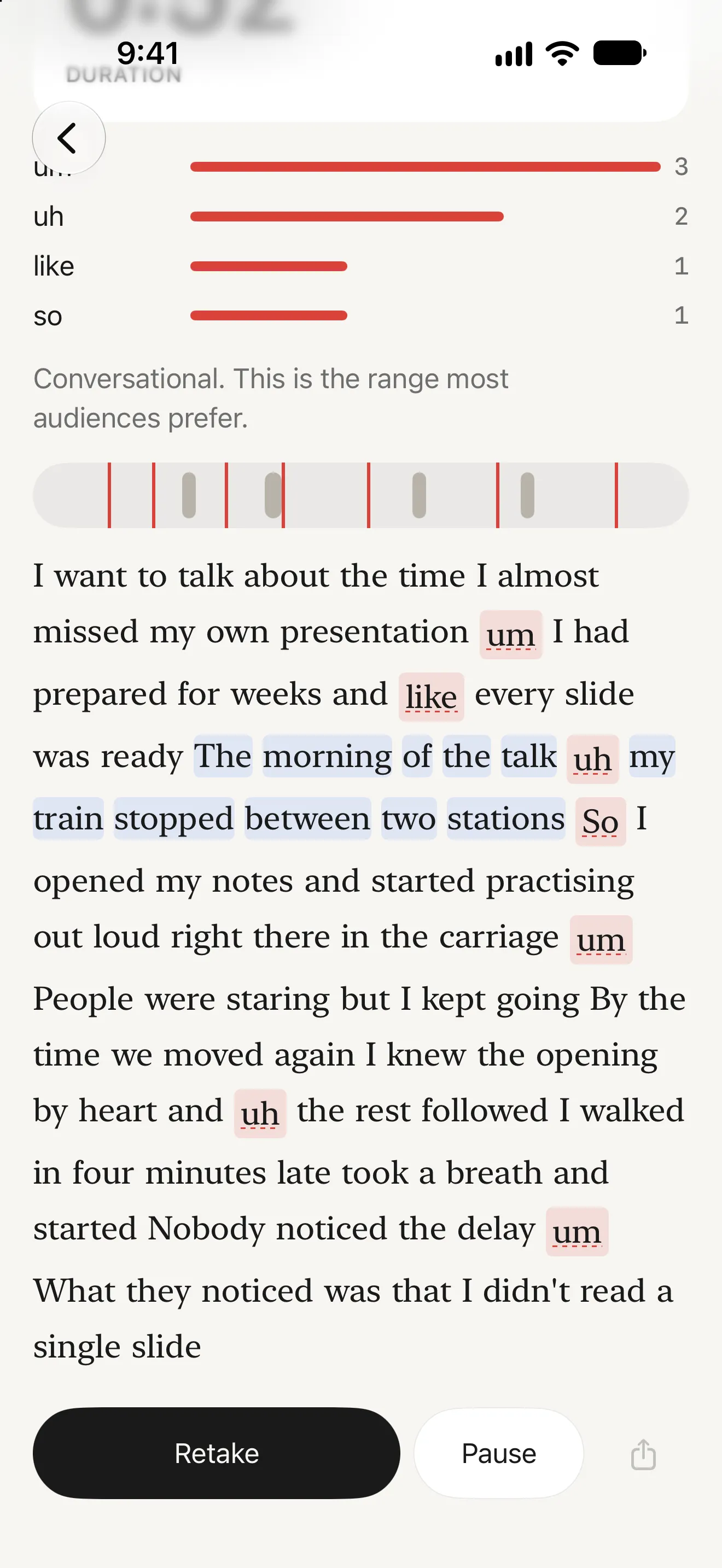
Your full transcript, with every filler highlighted. Tap any word to play the recording from there, or tap a filler to hear the three seconds around it. Hearing yourself say it is what makes it stick — far more than a number on its own.
03
Retake, and watch the number drop
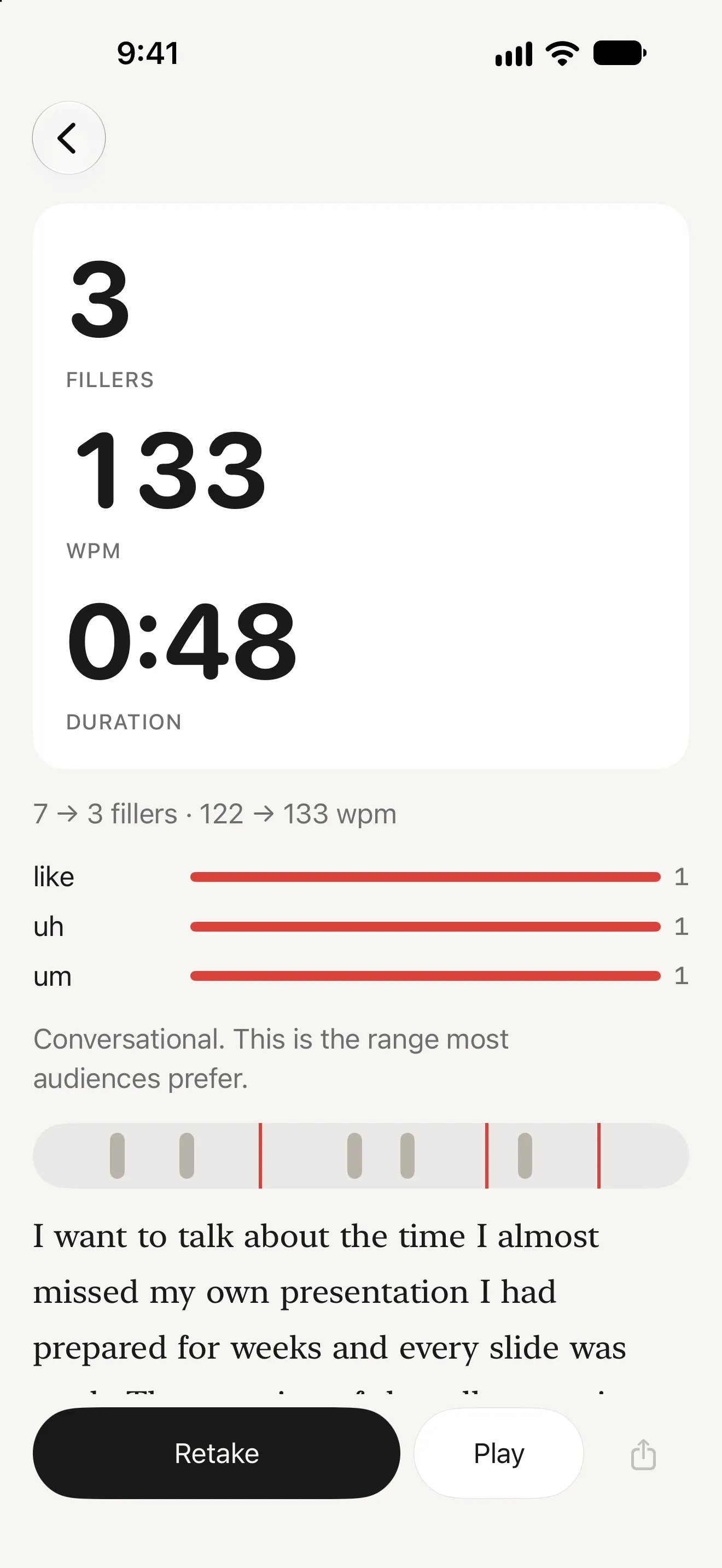
Retake starts a new take with the same mode and timer, and a delta strip compares it with the one before: 7 → 3 fillers, 122 → 133 wpm. Each take is measured against the previous one only — no chart, no grade, just whether this one was better than the last.
04
A pause map that shows why you um
The whole take laid out as a timeline: pauses as grey gaps, fillers as red ticks. It usually shows the same pattern — the ums bunch up right before you stop to think, because the um is you buying time. Let the pause stand on its own and the filler goes with it. The pause threshold is yours to set at 0.5, 0.7 or 1 second.
05
A pace read you can act on
Words per minute with one plain line underneath. Under 110: slow, fine for emphasis, tiring over five minutes. 110 to 160: conversational, the range most audiences prefer. 160 to 190: fast, add pauses. Over 190: rushing, listeners will drop words. Fillers and pauses are taken out before the pace is worked out.
06
Freestyle, Timed or Prompt
Freestyle for talking about anything, up to ten minutes. Timed for practising to a length — 30 seconds, one, two or five minutes, or your own — with a gentle haptic ten seconds before the end. Prompt hands you a random topic for impromptu practice. Home shows your last take and one big record button.
07
Nothing on screen while you talk
While you record you see a quiet waveform, the elapsed time and a stop button. No live counter, because watching the number tick up mid-sentence makes people freeze. Takes under eight seconds are discarded rather than counted, and Unfiller never records in the background.
08
Pay once, keep it
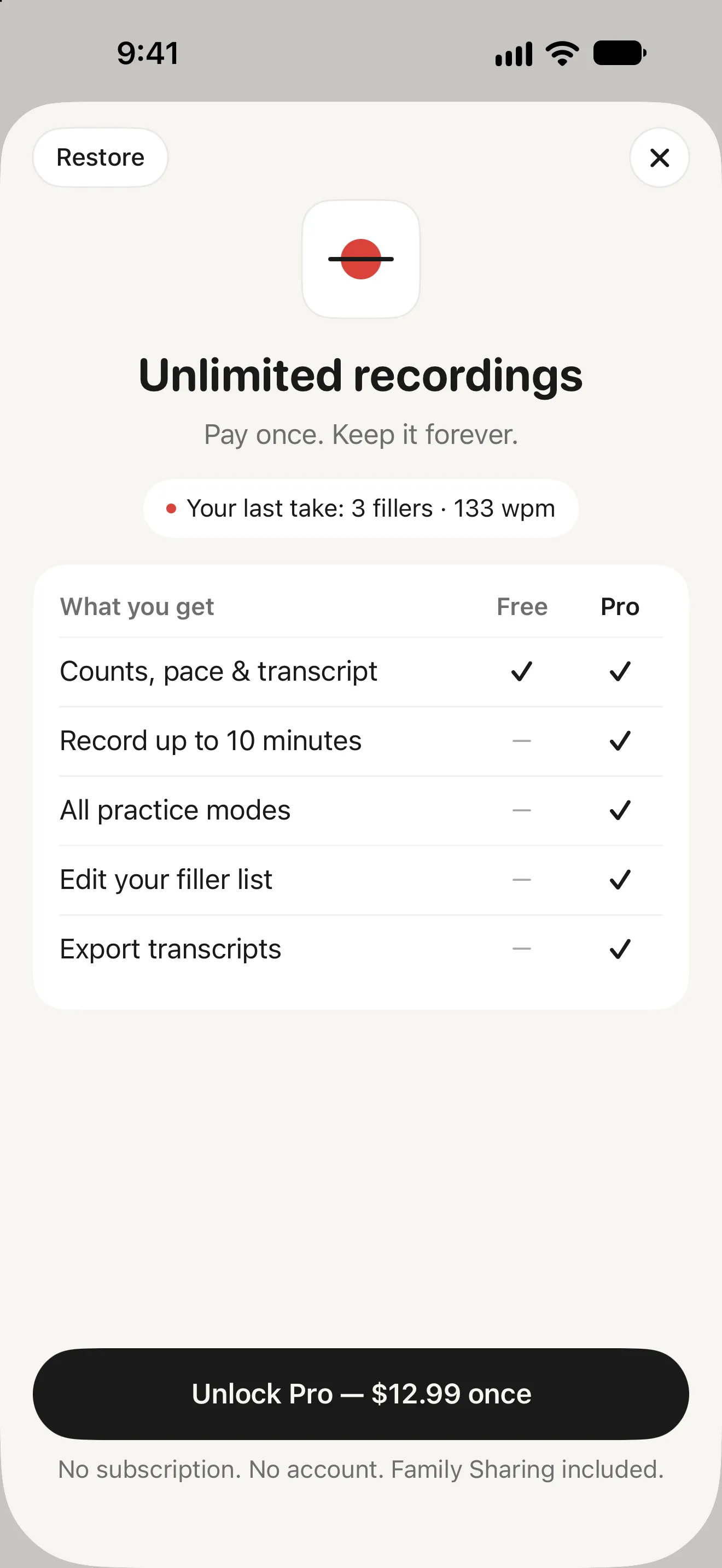
Your first three analyses are complete and free, with no paywall in the way. After that, free recordings stop at 20 seconds. Pro is $12.99 once for recordings up to ten minutes, every practice mode, your own filler list and transcript export. The paywall shows your last take, not a countdown.
09
Your voice stays on your iPhone
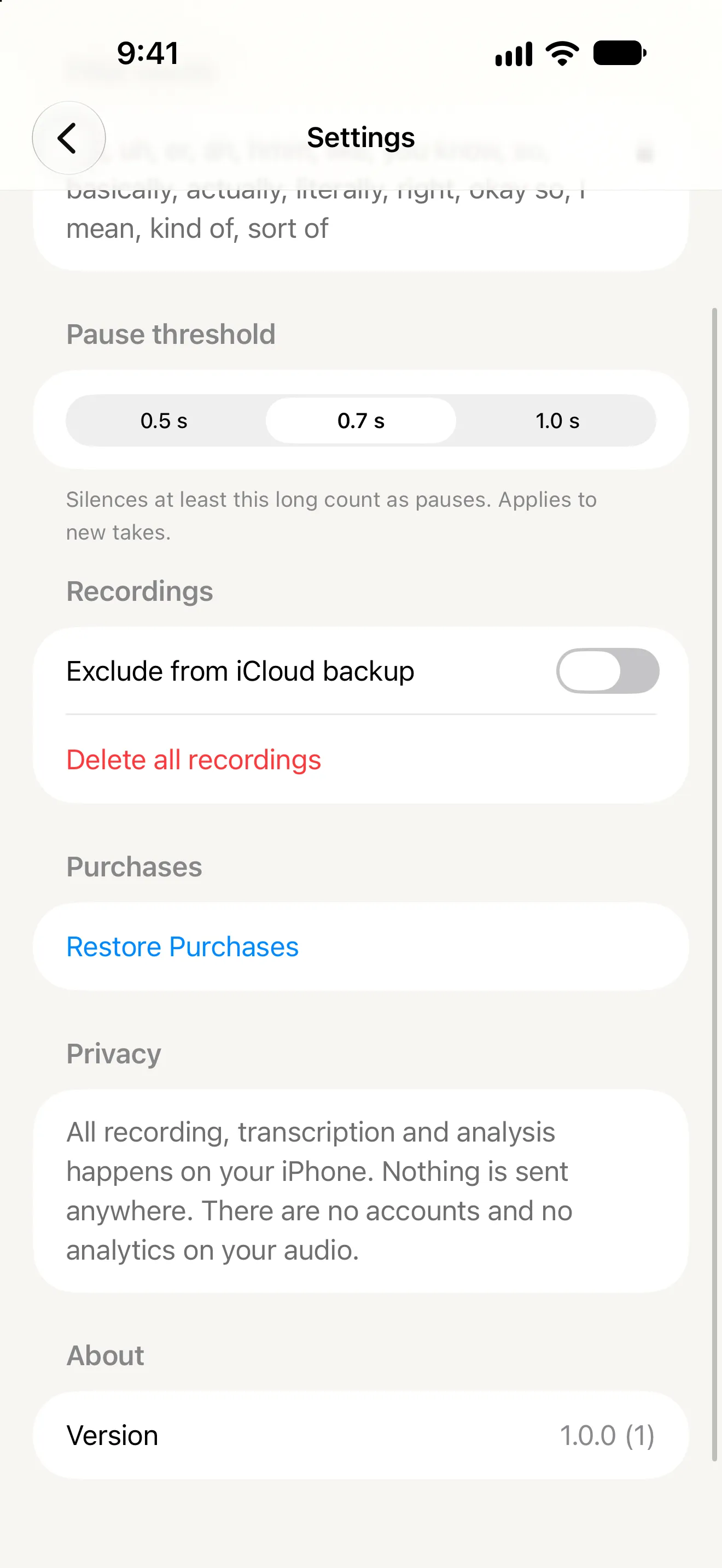
Recording, transcription and analysis all happen on the device, with Apple’s on-device speech recognition. There is no account and no server. Settings lets you exclude recordings from iCloud backup, change the pause threshold, edit the filler list, and delete every recording in one tap.
Who it's for
When people reach for Unfiller
Interview answers in the week before
Record a two-minute answer, hear where the “like”s and “you know”s land, and retake it until the count drops. A delta strip after every retake shows whether this take beat the last one, which is the only comparison that matters the night before.
A wedding speech you have never given before
Rehearse the whole four minutes with a Timed take and find out whether you are rushing — the pace line tells you plainly when you hit 170 words a minute — then add pauses where the ums were and run it again.
A talk or all-hands presentation
Run the full ten minutes, check your pace and the pause map, and tap the highlighted fillers to hear exactly where you lose the thread. Export the transcript with pauses and fillers marked to mark up in your notes.
Pricing
What Unfiller costs
Free
$0
no account, nothing leaves your iPhone
Three complete analyses to start
Then unlimited 20-second recordings
Filler count and breakdown
Pace, pause map and transcript
Tap any filler to hear it
Retake and compare
Freestyle and one-minute Timed takes
Recommended
Pro
$12.99
one-time purchase — not a subscription, no trial
Recordings up to ten minutes
Every practice mode: Freestyle, Timed and Prompt
Edit your own filler list
Export transcripts
Family Sharing included
Everything in Free
No renewal, no expiry
Guides & resources
Unfiller guides
Step-by-step answers to the questions people ask most about Unfiller.
Fifteen by default: um, uh, er, ah, like, you know, so, basically, actually, literally, right, okay so, I mean, kind of and sort of. “Like” and “so” are only counted when they are used as fillers rather than as ordinary words — Unfiller judges that from where they fall and the pauses around them, so it will occasionally miss one or over-count. With Pro you can switch any word off if it is noisy for your speaking style, or add your own. Short non-word sounds like “mm” or “ehh” are picked up from the audio and show as “uh”.
Does my audio go to a server?
No. Recording, transcription and analysis all happen on your iPhone, using Apple’s on-device speech recognition. There is no account, no server and no upload. Recordings and transcripts live in the app on your phone; iCloud backup of the app follows your normal iOS settings, and Settings has a switch to exclude your recordings from it.
How much does it cost?
Your first three analyses are free and complete — filler breakdown, pace, pause map, transcript and retake comparison. After that, free recordings stop at 20 seconds and keep working. Pro is a single $12.99 purchase, not a subscription, and unlocks recordings up to ten minutes, every practice mode, your own filler list and transcript export. There is no trial to cancel, Pro never expires, and Family Sharing is on.
Why is there no live counter while I speak?
Because watching the number climb mid-sentence makes people worse, not better — they start thinking about the counter instead of what they are saying. You see a waveform and a timer while you talk, and the full result appears the moment you stop.
Do I need an account?
No. There is no sign-up, no email and no name field. You open the app and record.
Can it analyse a recording I already have?
Not yet. Unfiller analyses takes you record in the app. Importing from Files or Voice Memos is planned for a later version.
Does it work with AirPods?
Yes. Wired and Bluetooth microphones both work. The iPhone’s own microphone is usually cleaner for picking up short, quiet fillers, so for the most accurate count hold the phone 30 to 40 centimetres away in a quiet room.
Will it give me feedback on what I said?
No. Unfiller measures delivery — filler words, pace and pauses. What you say is your job; how cleanly you say it is what it helps with.
Which languages does it support?
English only. Recognition will run in other languages, but filler detection is tuned for English and will not be reliable. Unfiller needs iOS 18.2 or later and the on-device English dictation pack, which it will prompt you to download if it is missing.
The transcript is missing words. What do I do?
On-device recognition needs the English dictation pack. Go to iOS Settings › General › Keyboard › Dictation and make sure English is enabled and downloaded — Unfiller shows a one-tap banner when it is missing. If a short, quiet “um” was not counted, hold the phone a little closer and record somewhere quieter.
Will it remind me to practise?
No. There are no streaks, no reminders and no notifications. Most people use Unfiller for a couple of weeks before an interview, a speech or a presentation, and then stop — that is the app doing its job, not failing at it. Your past takes stay in the session list for whenever you come back.
How do I delete my recordings?
Swipe any take in the session list to delete it, or use Settings › Delete all recordings to remove every one. Because nothing is stored anywhere but your iPhone, there is no server copy to request. Deleting the app removes everything too.