
How do you clean your iPhone camera roll fast?
How do you clean a camera roll without deleting the wrong photos?
You avoid mistakes by reviewing one photo at a time instead of bulk-selecting hundreds and hoping you tapped correctly. Swipe-based sorting forces a single decision per image, which is slower per photo but far less risky than a mass delete. Pairing that with a safety net that holds deleted items before they're gone for good means a wrong swipe costs you nothing but a second look.
Step 1: Open your daily pile
Step 2: Swipe with intention
Step 3: Trust the safety net
What's the fastest way to find and delete duplicate photos?
The fastest way is letting perceptual-hash detection surface near-identical shots for you, instead of scrolling and comparing them by eye. This catches burst shots, slightly cropped repeats, and re-saved copies that look different at a glance but are functionally the same photo. You still make the final call, but the app does the tedious matching.
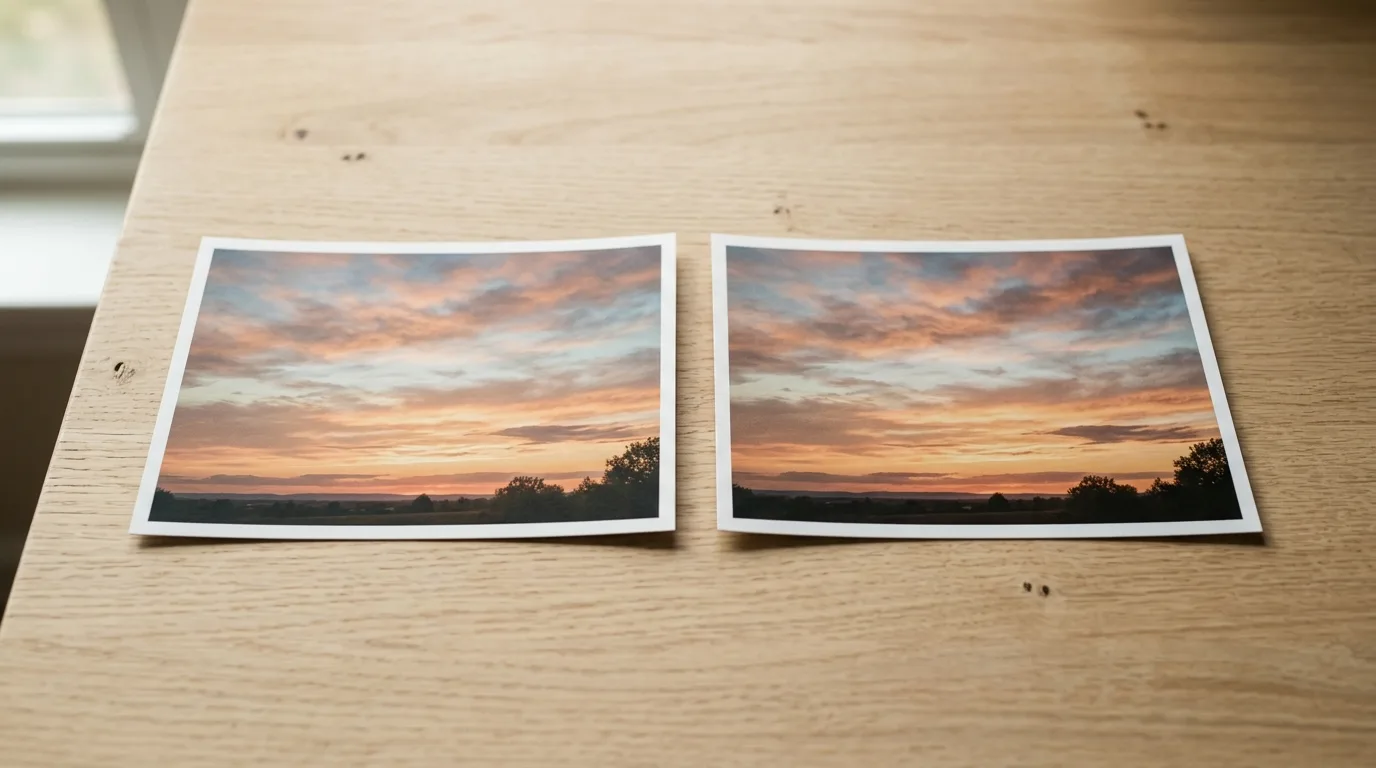
Step 4: Turn on duplicate mode
Step 5: Review matches side by side
How do you clear storage from large videos without watching them all?
You don't need to watch anything—sort by file size instead and let the biggest space users surface first. Most large videos are old screen recordings, duplicate takes, or clips you forgot you had, and a quick glance at the thumbnail and length is usually enough to decide.

Step 6: Sort by size automatically
Step 7: Swipe through the large-video pile
How do you clean up hundreds of screenshots quickly?
On-device OCR reads the text inside your screenshots so you're not stuck squinting at tiny receipts, memes, and chat logs one by one. It surfaces enough context at a glance to decide fast, and because the recognition happens locally, none of that text ever leaves your phone. For a deeper walkthrough on this specific pile, see how to clean up iPhone screenshots without deleting the important ones.
Step 8: Let OCR read your screenshots
Step 9: Swipe by content, not guesswork
How long should a photo-cleaning session take?
Aim for about five minutes—long enough to make real progress, short enough that you'll actually come back tomorrow. Piles are deliberately small so a session ends before it feels like a chore, and the daily habit compounds faster than one occasional deep clean ever could.
- Manual scroll-and-delete
- Slow, error-prone, no duplicate or size detection—easy to delete the wrong photo
- Storage-only cleaner apps
- Fast bulk deletion by file size, but little regard for sentimental value or context
- Phlash swipe sessions
- Short daily piles, OCR, duplicate and large-video detection, plus a safety net—on-device throughout
A camera roll doesn't get cleaned in one sitting. It gets cleaned in a habit.
If you want a broader look at how different cleanup methods stack up, Photo Cleaning Approaches Compared walks through the trade-offs in more depth. And if you're setting up for the first time, this first-session walkthrough covers exactly what to expect.
Common questions
Will cleaning my camera roll delete photos from iCloud too?
Is it safe to let an app scan my screenshots for text?
How do duplicate photos even end up in my camera roll?
What if I accidentally delete a photo I wanted to keep?
Do I need to clean my whole camera roll in one session?
Can I rediscover old photos while cleaning instead of just deleting?
This article was drafted with AI assistance and reviewed by a human editor before publishing.