When you open Phlash for the first time, you're not walking into a confusing maze of settings or aggressive deletion warnings. Instead, you meet a calm, focused interface designed to turn camera-roll cleanup into something you'll actually want to do. This walkthrough takes you from first tap through your first meaningful session, showing you exactly where the value lives.
The onboarding: what Phlash is, in 90 seconds
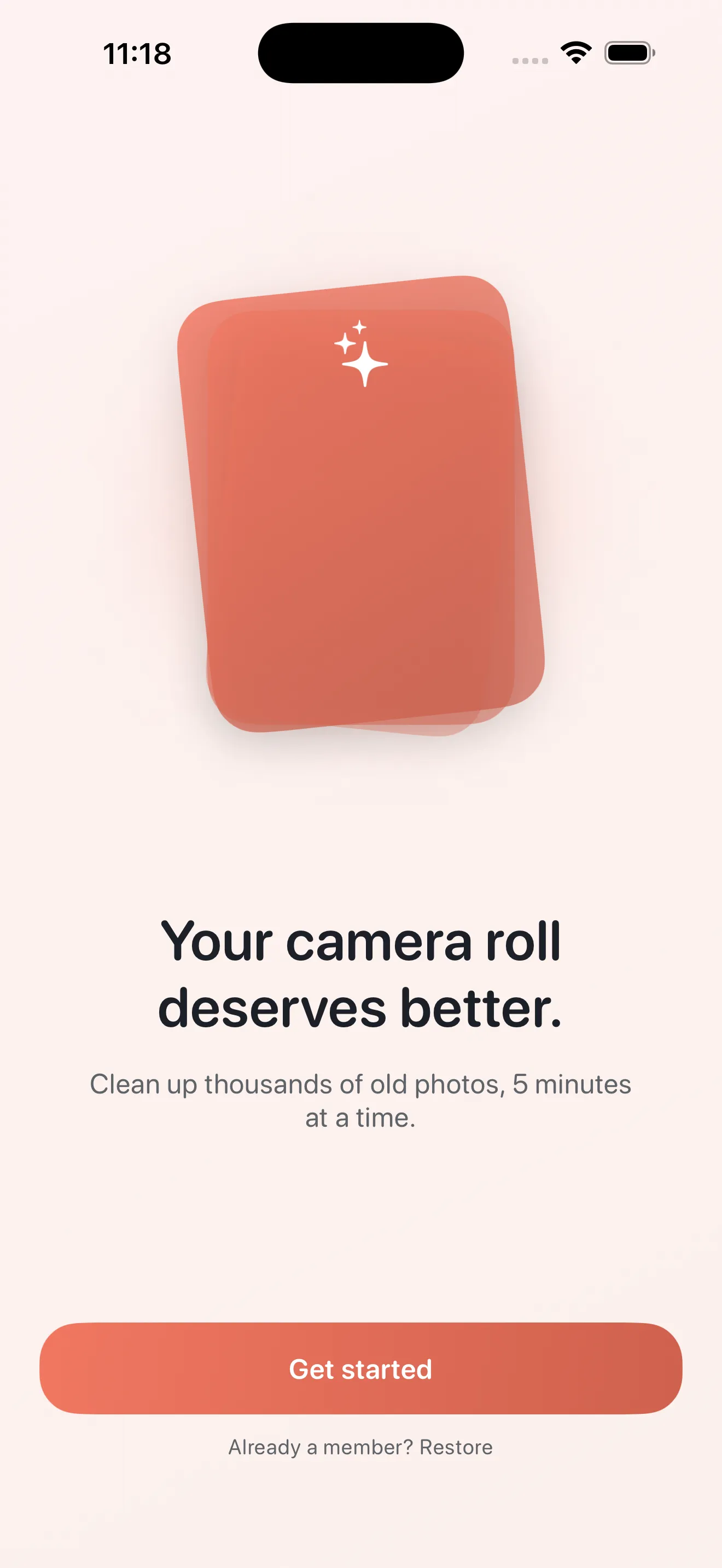
Phlash opens with a warm welcome that explains the core idea: you swipe through photos in short bursts, keeping or deleting as you go. The onboarding doesn't overwhelm you with features—it shows you the single most important gesture: the swipe. Left to delete. Right to keep. That's the heartbeat of the whole app.
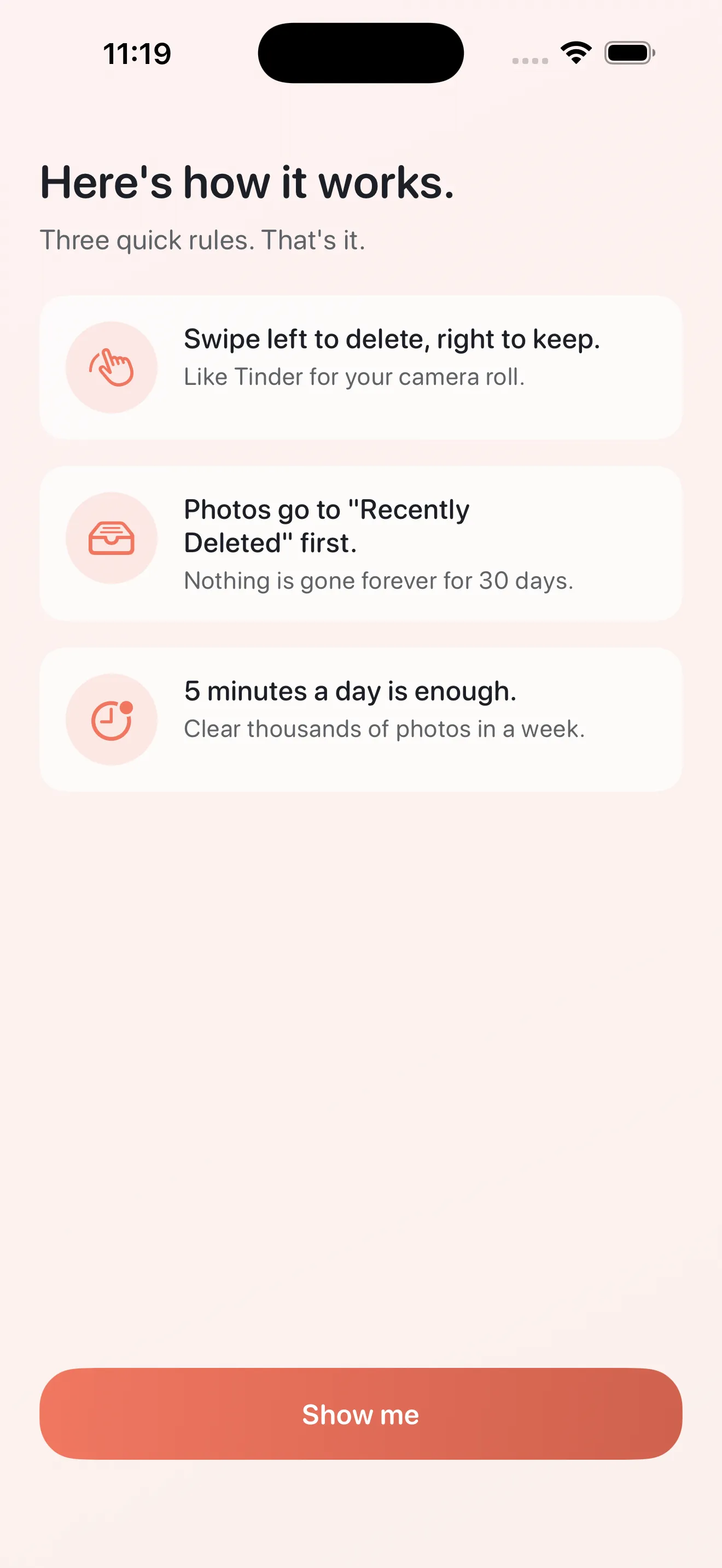
Once you tap through the intro, you'll set up basic permissions—Phlash needs access to your photos to work, and it explains why. Everything runs on your device. Your photos never leave your iPhone. This matters enough that Phlash doesn't bury it in legal text; it's part of the onboarding promise.
Landing on the home hub
After onboarding, you land on the home screen. This is where Phlash shows you your options without overwhelming you. At the top, you'll see Today—a curated pile of photos Phlash has prepared for your session today. Below that are four focused cleaning modes: Screenshots, Duplicates, Large Videos, and On This Day.
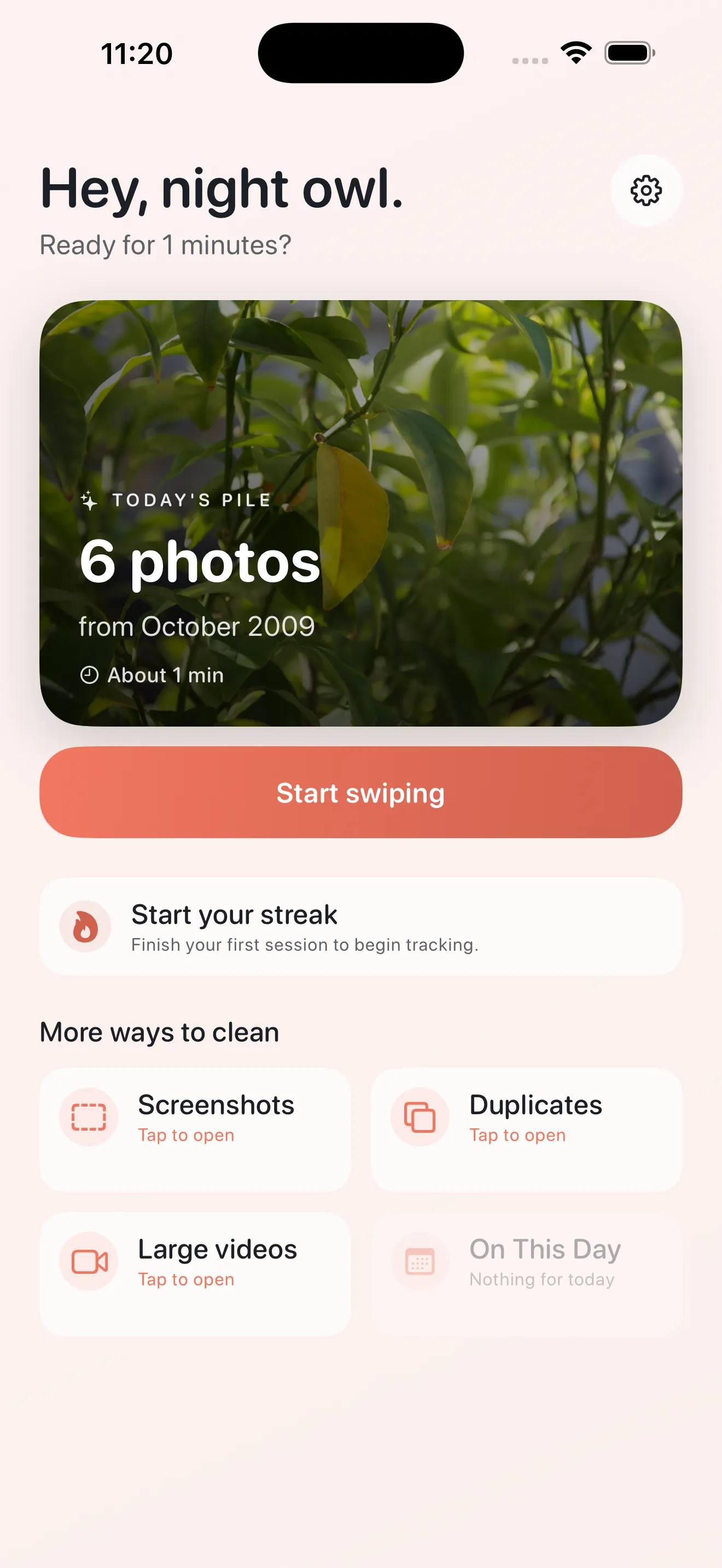
The beauty here is choice without chaos—you pick where to focus your energy, or let Today's pile guide you.
For your first session, start with Today. It's the gentlest entry point. Phlash has already sorted through your library using on-device OCR, perceptual hashing for duplicates, and file-size detection. Today's pile is a small, manageable batch—exactly the kind of thing you can finish in five minutes without decision fatigue.
Your first swipe session
Entering the swipe flow
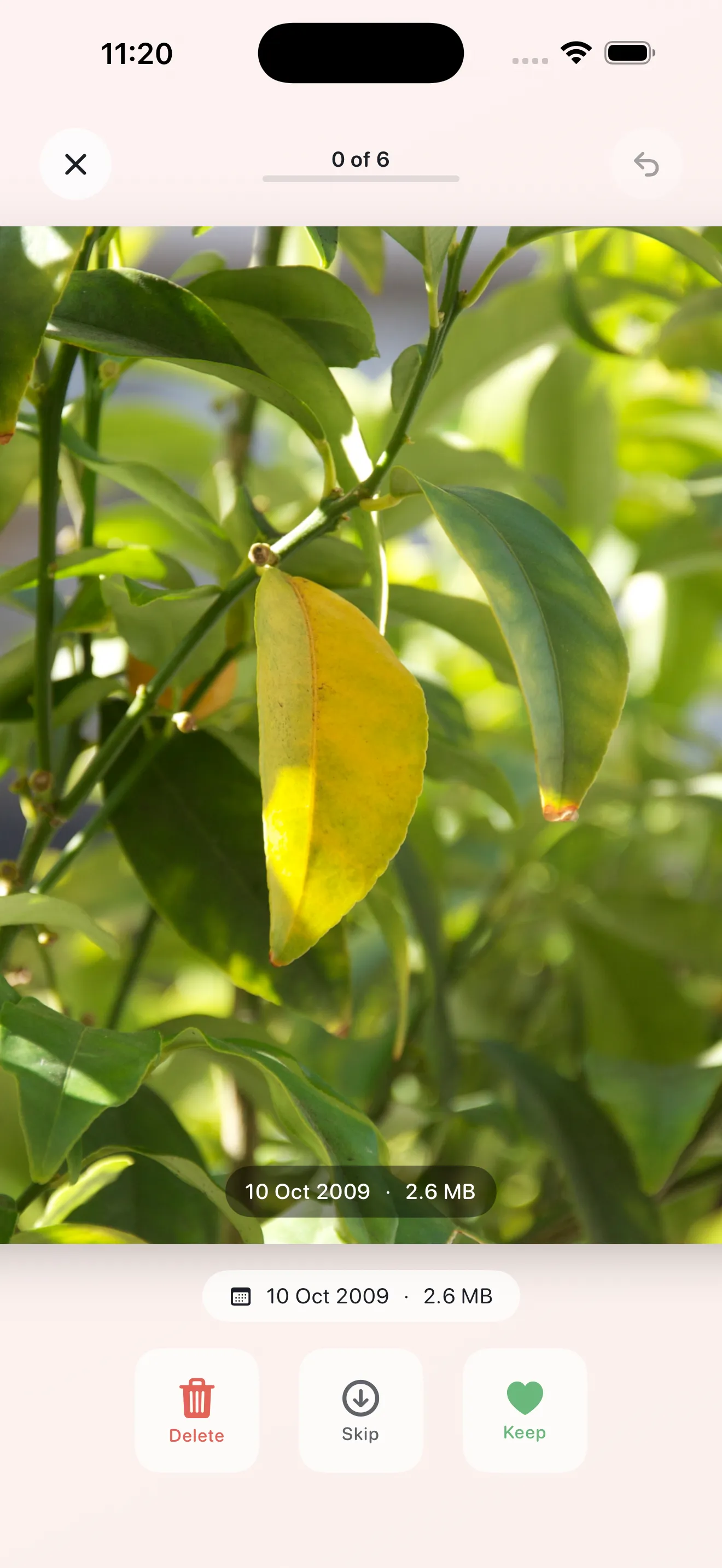
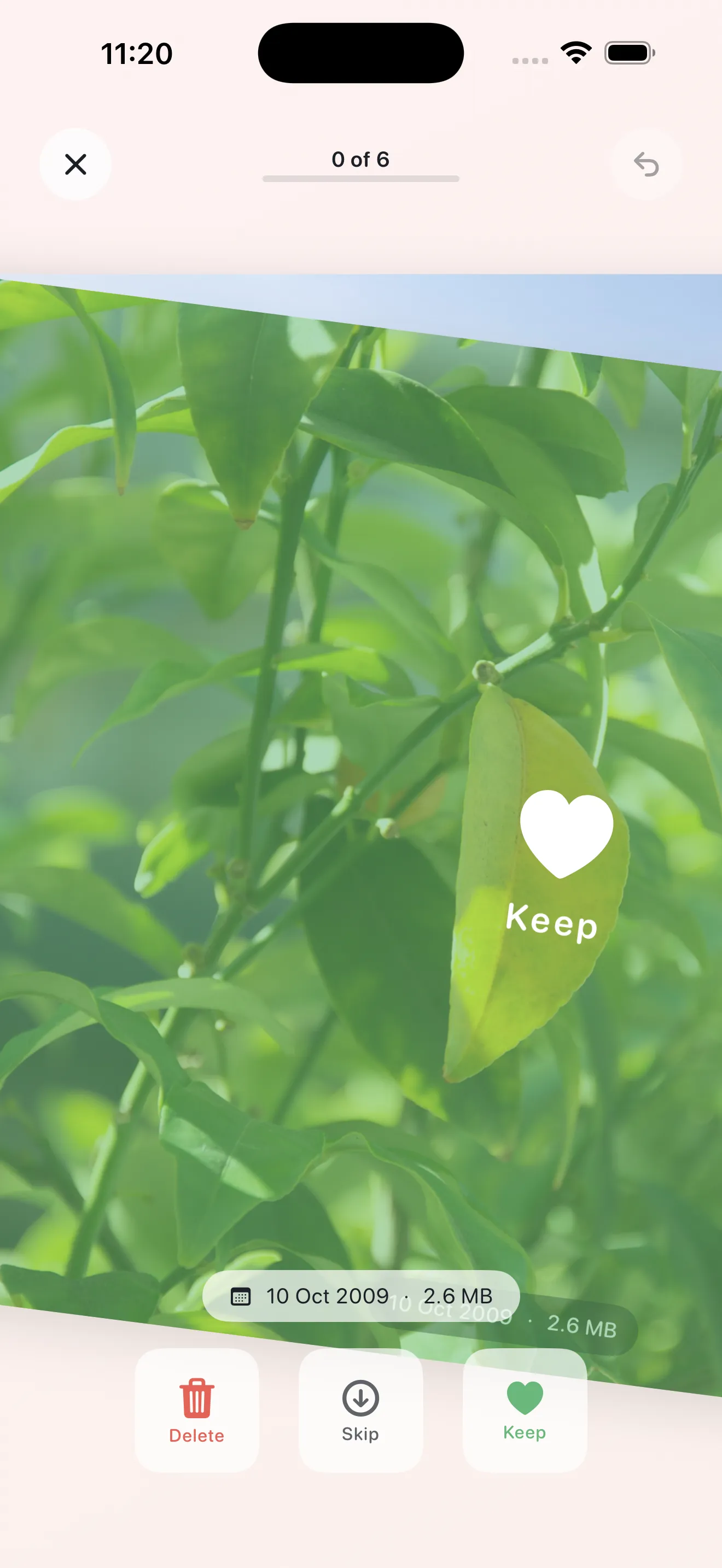
Tap into Today's pile, and the app shifts into a zen-like state. One photo. Full screen. Nothing else. This is where the design philosophy reveals itself: Phlash removes every distraction so you can focus on a single decision: keep or delete.
The swipe itself
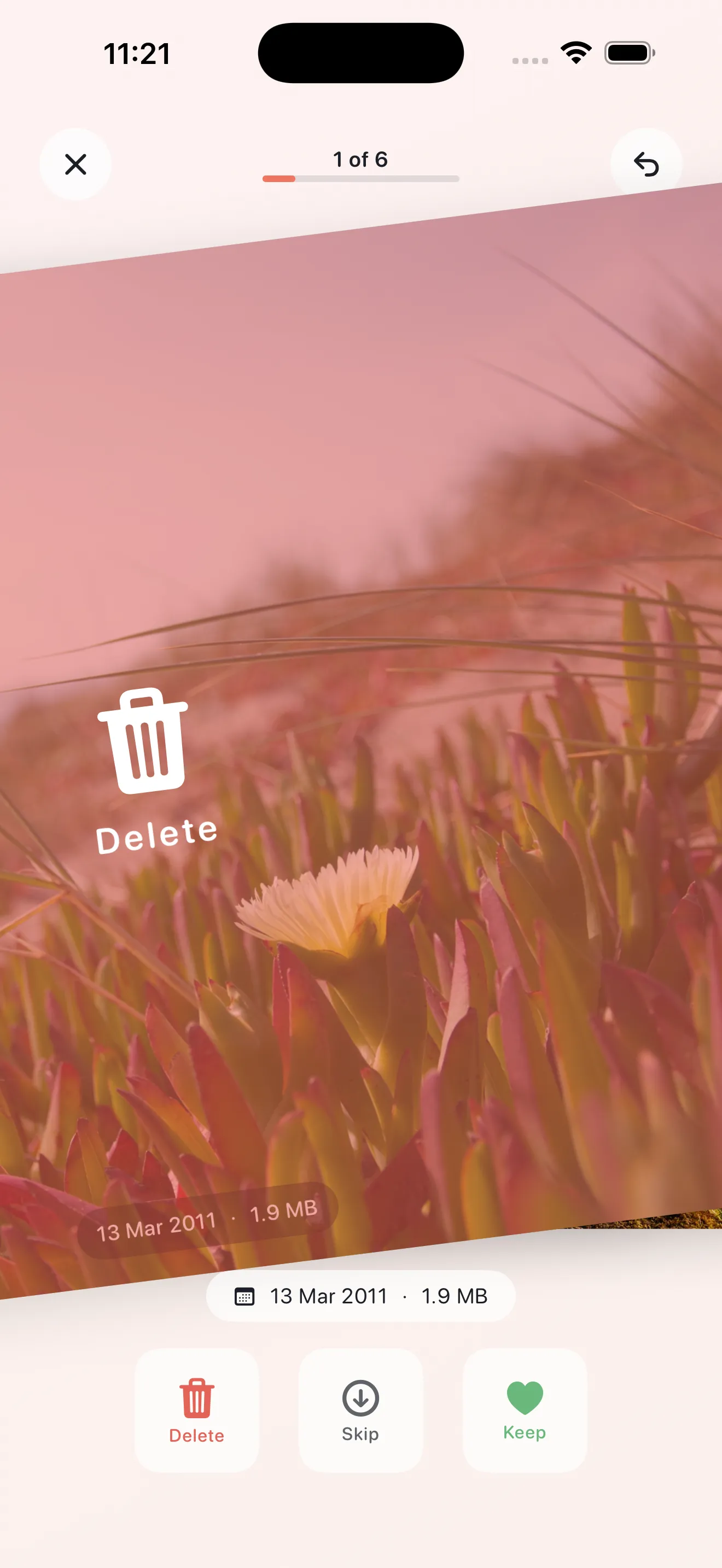
Swipe right to keep. Swipe left to delete. Tap the middle to skip and come back later. The feedback is soft—a subtle haptic pulse, a gentle color shift—not aggressive or guilt-inducing. You're building a habit, not rushing through a chore.
Before the final delete: the safety net
Once you've worked through your pile, Phlash shows you a summary of what you've marked for deletion. This is your moment to review. If you swiped left on something by accident, you can tap to restore it. Nothing is permanently gone until you confirm. This two-step process means you'll never accidentally nuke an important photo in the heat of the moment.
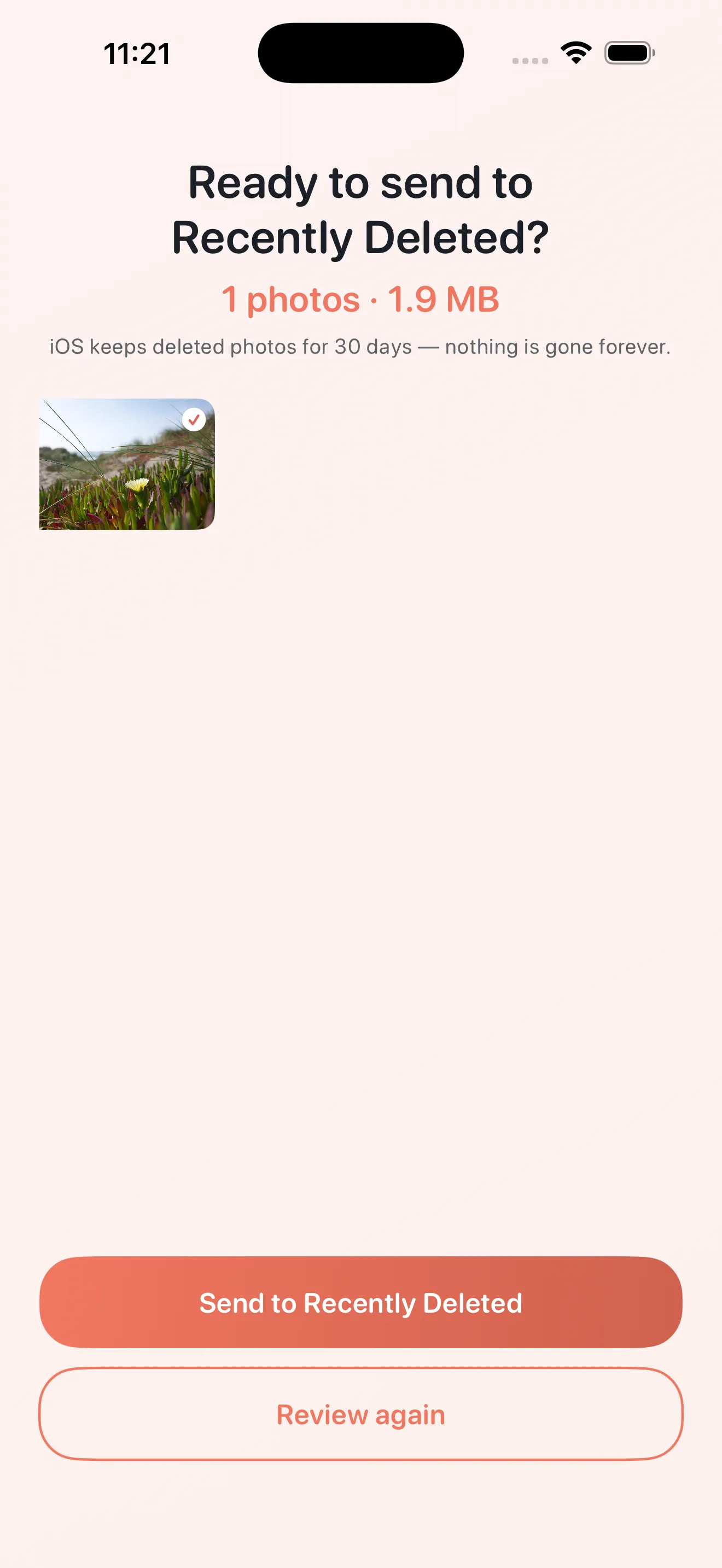
Hit confirm, and those photos are gone. But your deleted items live in your phone's native trash for 30 days, so recovery is still possible if you change your mind later.
Exploring the focused modes
Now that you've tried Today, you're ready to dive into a specific mode. Each one solves a real problem. Screenshots are often the easiest to start with—they pile up fast and you rarely look back at them. Duplicates use on-device perceptual hashing to find near-identical photos so you can keep your favorite version. Large Videos identify the biggest files eating your storage. On This Day surfaces older photos you might have forgotten, letting you rediscover and clean at the same time.
Pick whichever feels most urgent to you. If you're drowning in blurry shots and camera tests, hit Duplicates. If storage is the issue, start with Large Videos. Each mode is its own short session, designed to take less time than a coffee break. For more detailed cleanup strategy, our guide on mastering Phlash cleaning sessions digs into when to use each mode.
Customizing your experience
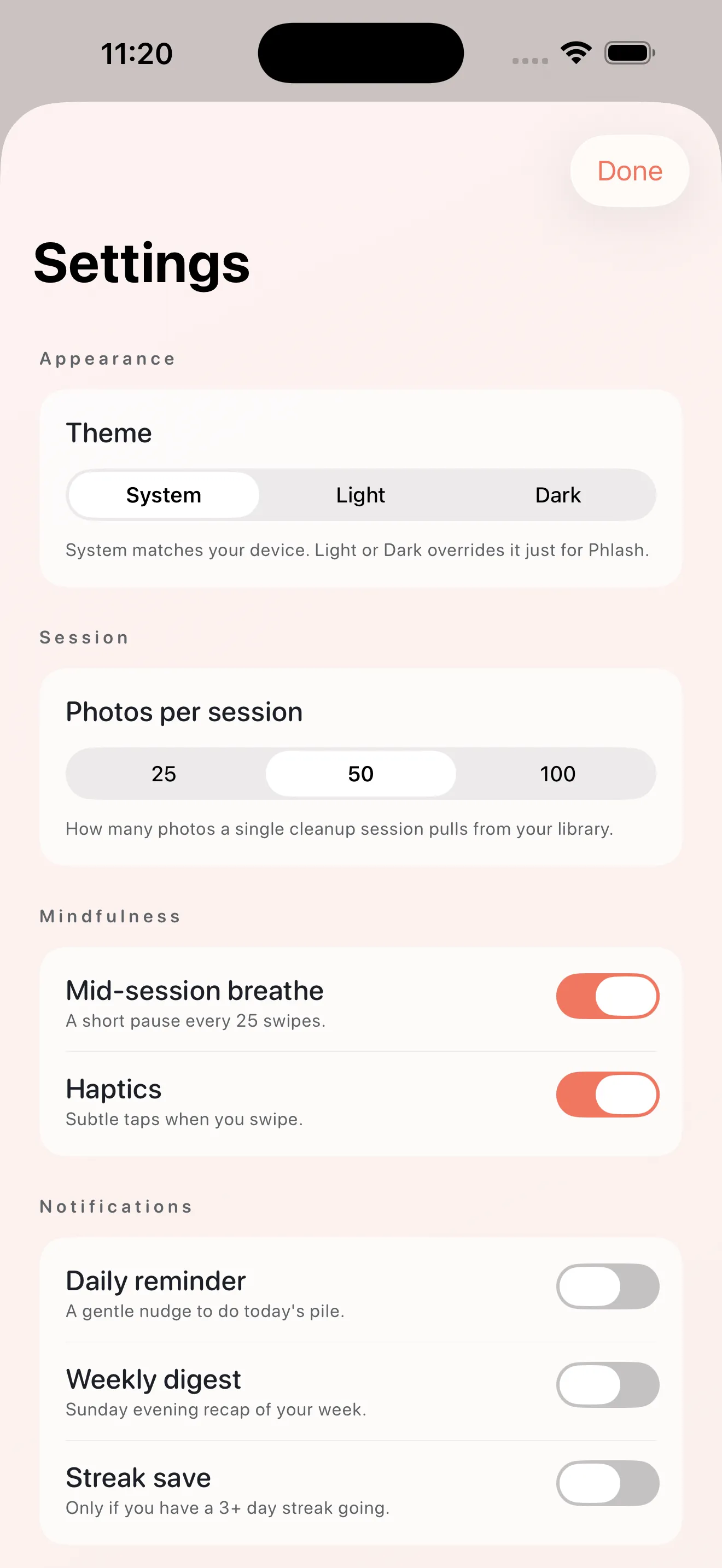
Once you're comfortable with the core flow, tap into Settings. You can toggle dark mode, adjust the sensitivity of haptic feedback, or change how Phlash sorts photos. These are small tweaks, but they're worth exploring after your first few sessions. If you decide Phlash is indispensable, Phlash Pro unlocks unlimited cleanup sessions and removes session limits—though the free version lets you do plenty.
Building your rhythm
After your first session, the real power of Phlash emerges: the daily habit. Come back tomorrow and Today's pile will have a fresh batch of photos ready. The app doesn't nag or send push notifications. It just sits there, inviting you. If you spend five minutes a day swiping, in a month you'll have liberated gigabytes and rediscovered photos you forgot existed. If you want to go deeper, check out our photo cleanup checklist for a structured approach.
The magic isn't in any single feature. It's in removing the friction so cleanup becomes something you look forward to, not dread.
This article was drafted with AI assistance and reviewed by a human editor before publishing.