Bills don't have to feel like a panic attack. Crashout Calendar is built for people who want to know what they owe, when they owe it, and how much breathing room they have until payday — without logging into their bank or triggering dread every time they open the app. This checklist walks you through setup, your first bills, and the features that make Crashout different.
Before You Start
- Gather your recent bank or credit card statements (or open your email for subscription confirmations)
- Have your app open on your iPhone — iOS only for now
- Set aside 15 uninterrupted minutes
- Grab a notebook or notes app if you want to jot down subscription renewal dates as you go
Step 1: Add Your First Bills (3 Minutes)
Crashout Calendar learns as you type. Smart categorization and recurrence detection means you won't spend forever filling out forms.
- Tap the plus button to add a new bill
- Type the name (e.g., 'Netflix', 'Rent', 'Phone Bill')
- Enter the amount you pay
- Select or confirm the category — Crashout suggests it based on what you typed
- Pick the frequency (monthly, weekly, yearly, or custom)
- Set the due date or day of month
- Tap save
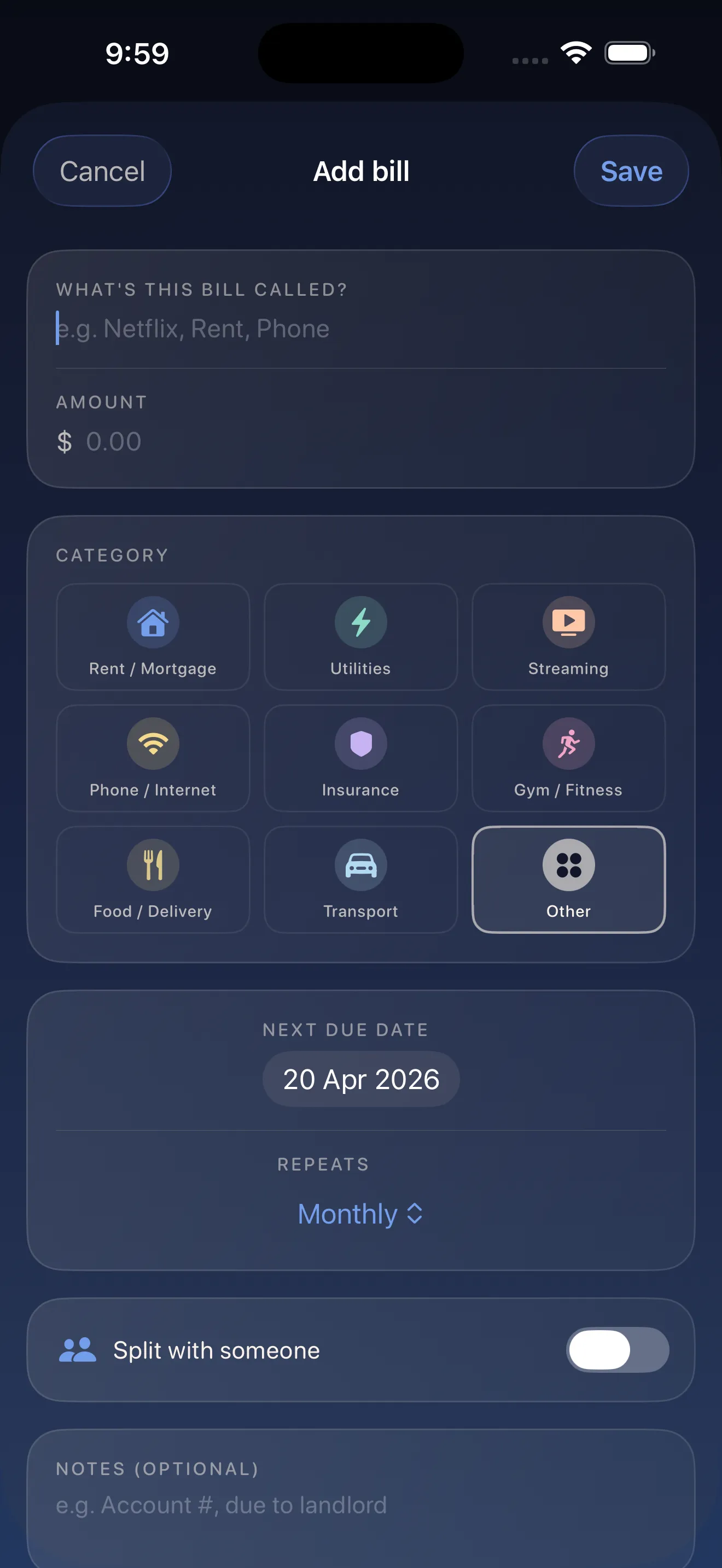
Repeat this for your subscriptions, utilities, insurance, rent, and any recurring payment. Start with the biggest ones; you can add the rest later.
Step 2: Check Your Breathing Room
The calendar view shows you exactly when each bill lands. The breathing room counter tells you how many days until your next payment hits — so you know if you have a week or five days to recover after payday.
- Swipe through the calendar to see the full month
- Look at the breathing room indicator at the top
- Notice which days have multiple bills (these are the tough days)
- Identify the quietest week — this is your safety margin
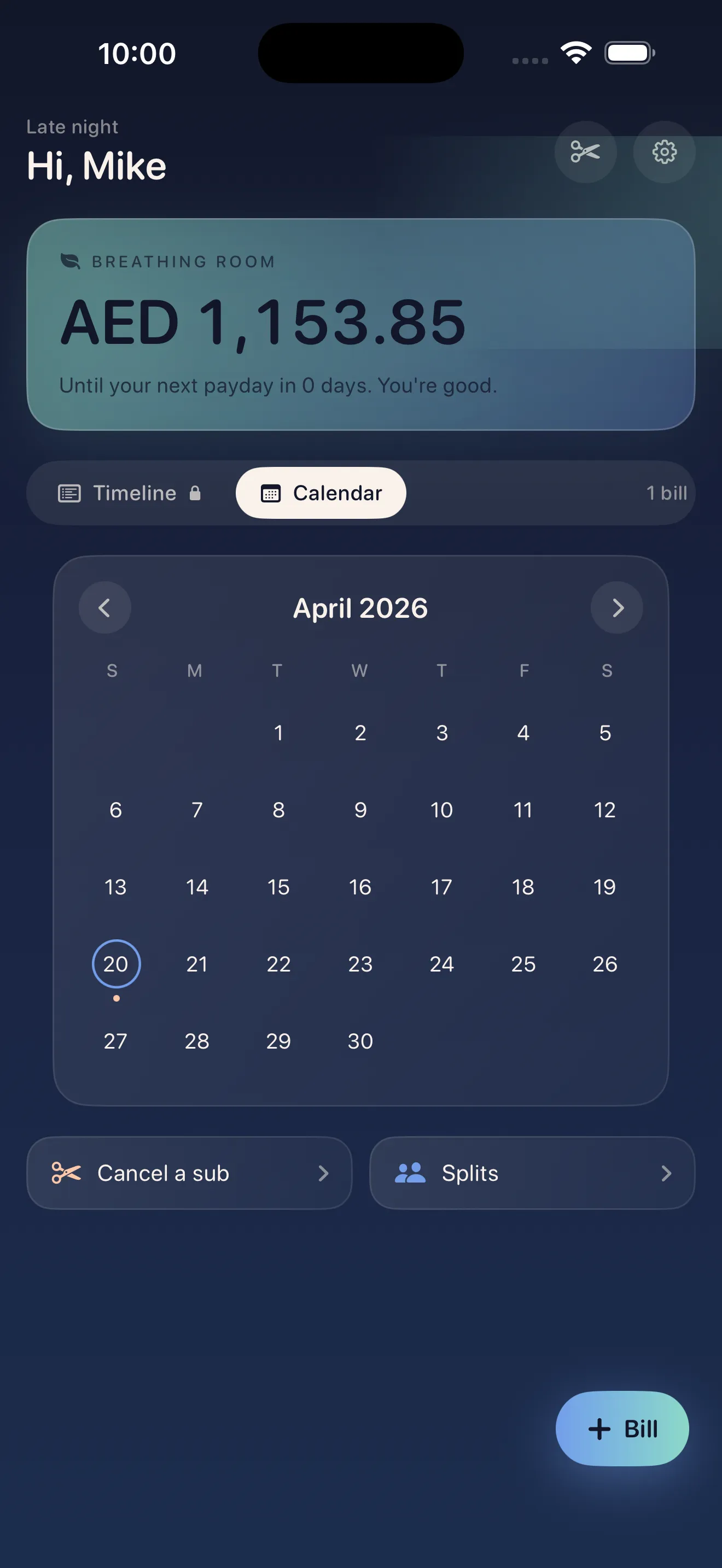
Breathing room isn't just a number. It's the difference between panic and planning.
Step 3: Cancel What You Don't Use (2 Minutes Each)
Subscription creep is real. Crashout Calendar comes with built-in step-by-step cancellation guides for 20+ services. No phone calls. No customer service runaround.
- Scan your bills in the calendar view
- Identify one subscription you don't use or want to pause
- Tap on it and look for the cancel guide (if available)
- Follow the steps — they walk you through exactly where to click
- Remove it from Crashout once cancelled
- Netflix, Spotify, Hulu, HBO, Disney+ covered
- 15+ additional guides (Apple Music, Audible, Peloton, Grammarly, etc.)
- No concierge fees or third-party charges
Step 4: Set Up Splits (Optional, 1 Minute per Split)
If you share rent, utilities, or streaming accounts with roommates, Crashout lets you split bills without the awkwardness. Add roommates, split the bill, and see who owes what.
- Open a shared bill (like rent or utilities)
- Tap the split option
- Add your roommate's name and email
- Choose how to split (equal, custom amount, or percentage)
- Send the split invitation
- They'll see their portion in their own Crashout Calendar
Step 5: Trust Your Privacy
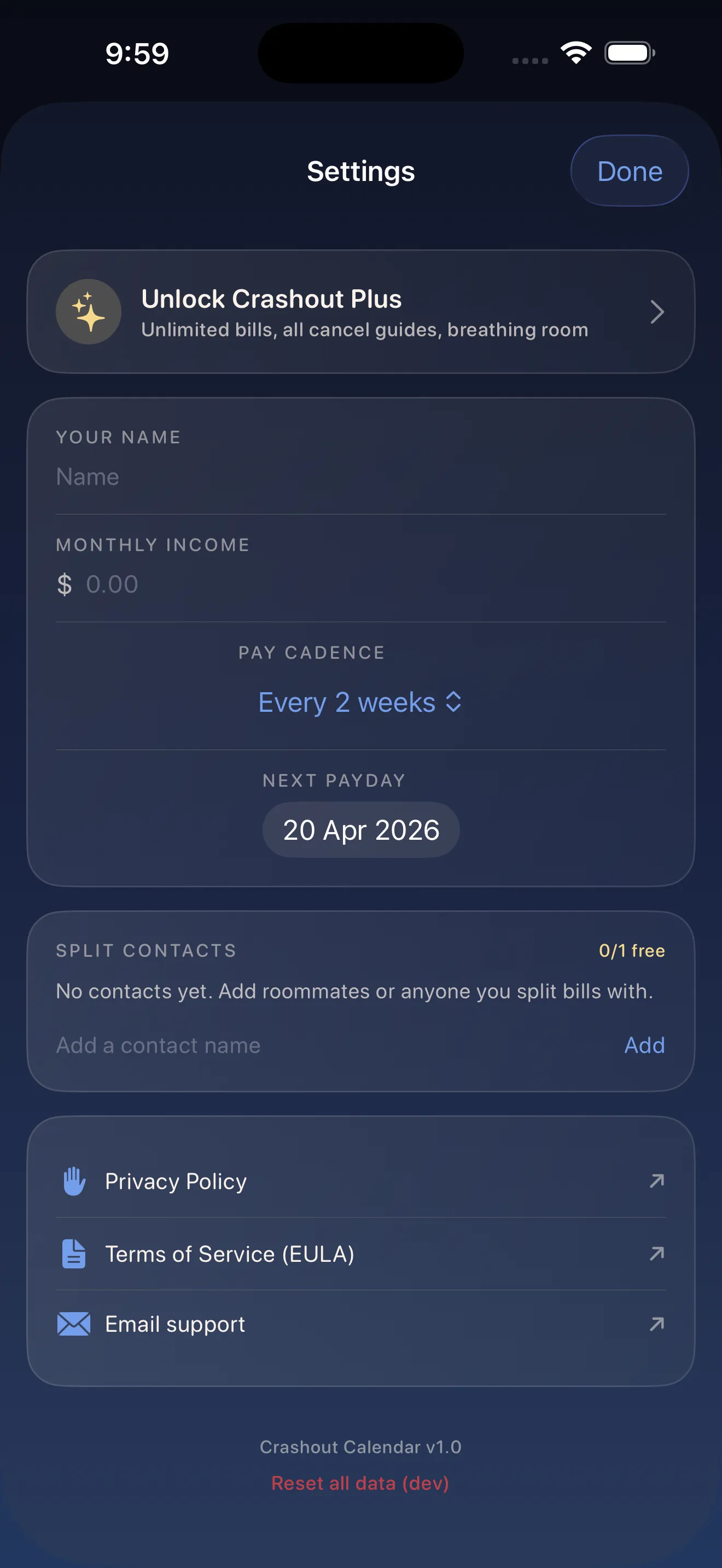
How Crashout Calendar makes bills feel less scary starts with privacy by design. No bank login. No Plaid integration. No credentials stored in the cloud. Everything stays local on your device.
- You type in your bills manually — Crashout never touches your bank account
- All data lives on your iPhone only
- No ads, no tracking, no selling your data
- You control what you share (only split partners see their portion)
What Happens Next
Once you've added your bills and seen your breathing room, you're done with setup. Master Crashout Calendar with tips for calm bill tracking to unlock habits like setting reminders before payday, tracking one-time expenses, or fine-tuning your categories. But honestly, most people just open the app once a month, see their calendar, and feel better.
This article was drafted with AI assistance and reviewed by a human editor before publishing.