Cleaning your camera roll doesn't have to feel like a chore. Phlash breaks it into 5-minute sessions that actually feel good. This checklist walks you through setup, your first swipe session, and how to build a cleanup routine that sticks. Everything runs on your device—your photos never leave.
Before You Start
- Download Phlash from the App Store
- Open the app and allow photo library access when prompted
- Grant permission for on-device OCR and analysis (this keeps your data local)
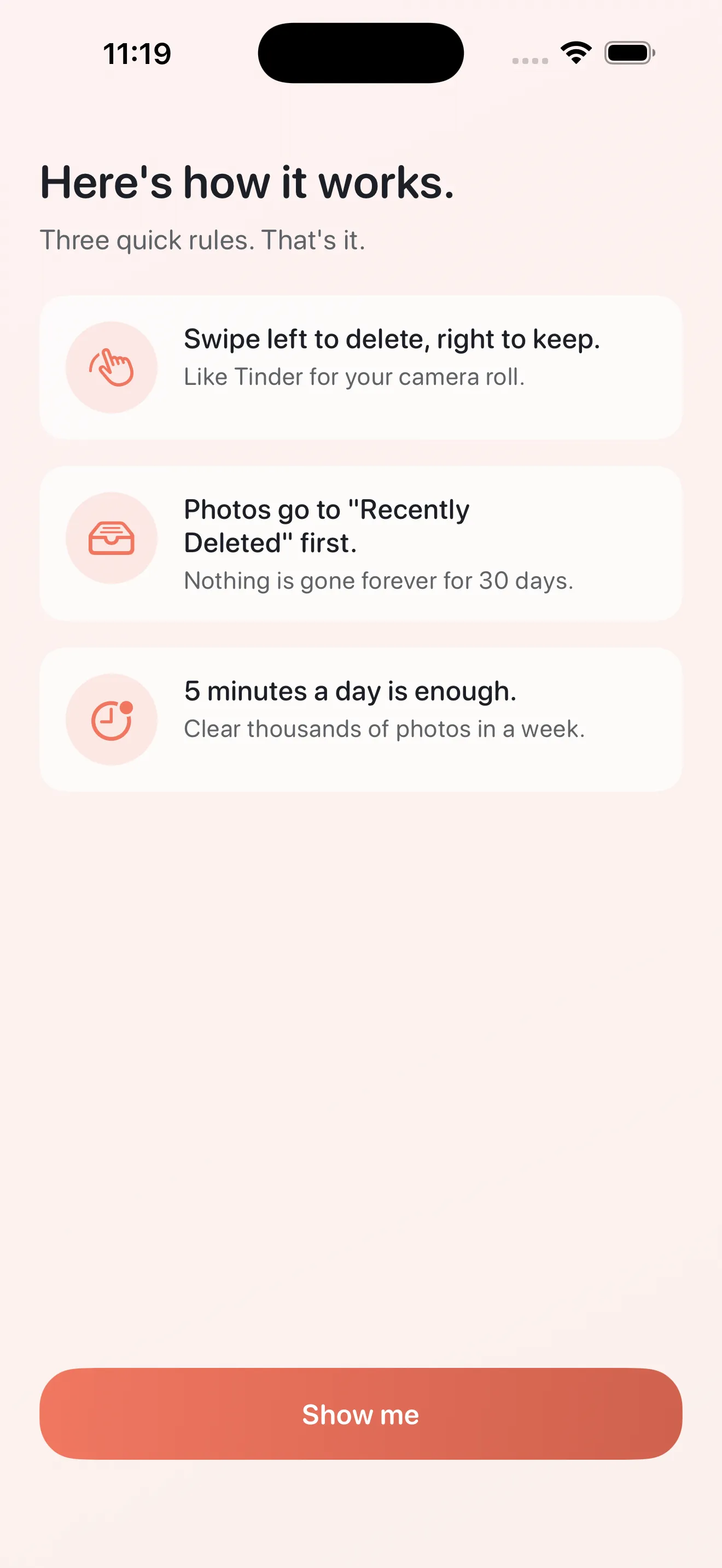
- Read the onboarding screens—they explain the swipe mechanics
Your First Session Setup
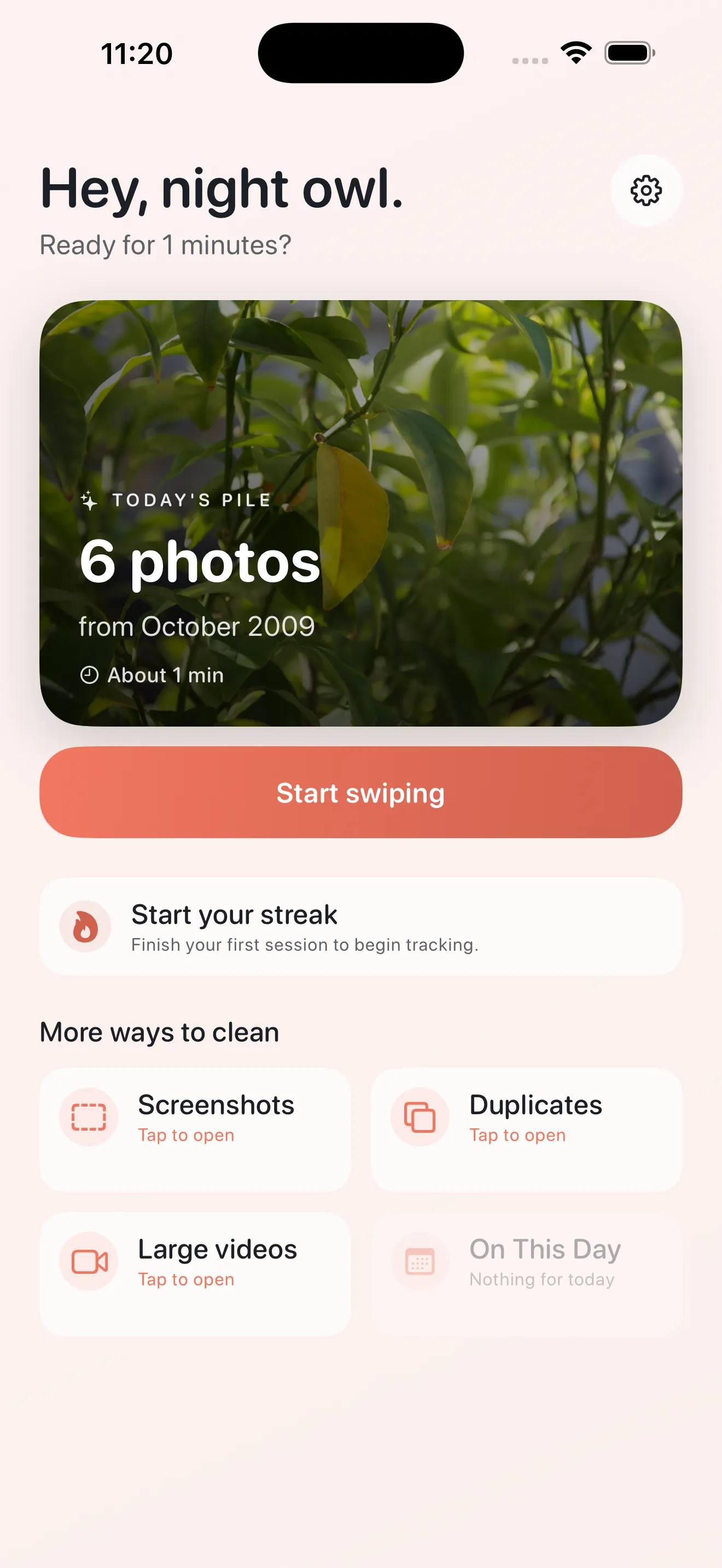
- Open the Home tab and look at Today's cleanup pile (usually your most recent photos)
- Tap into the pile to start swiping
- Glance at the gesture guide if you're unsure: swipe right to keep, left to delete, up to skip
- Set a 5-minute timer on your phone if you like structure (optional, but helpful for your first time)
During Your Swipe Session
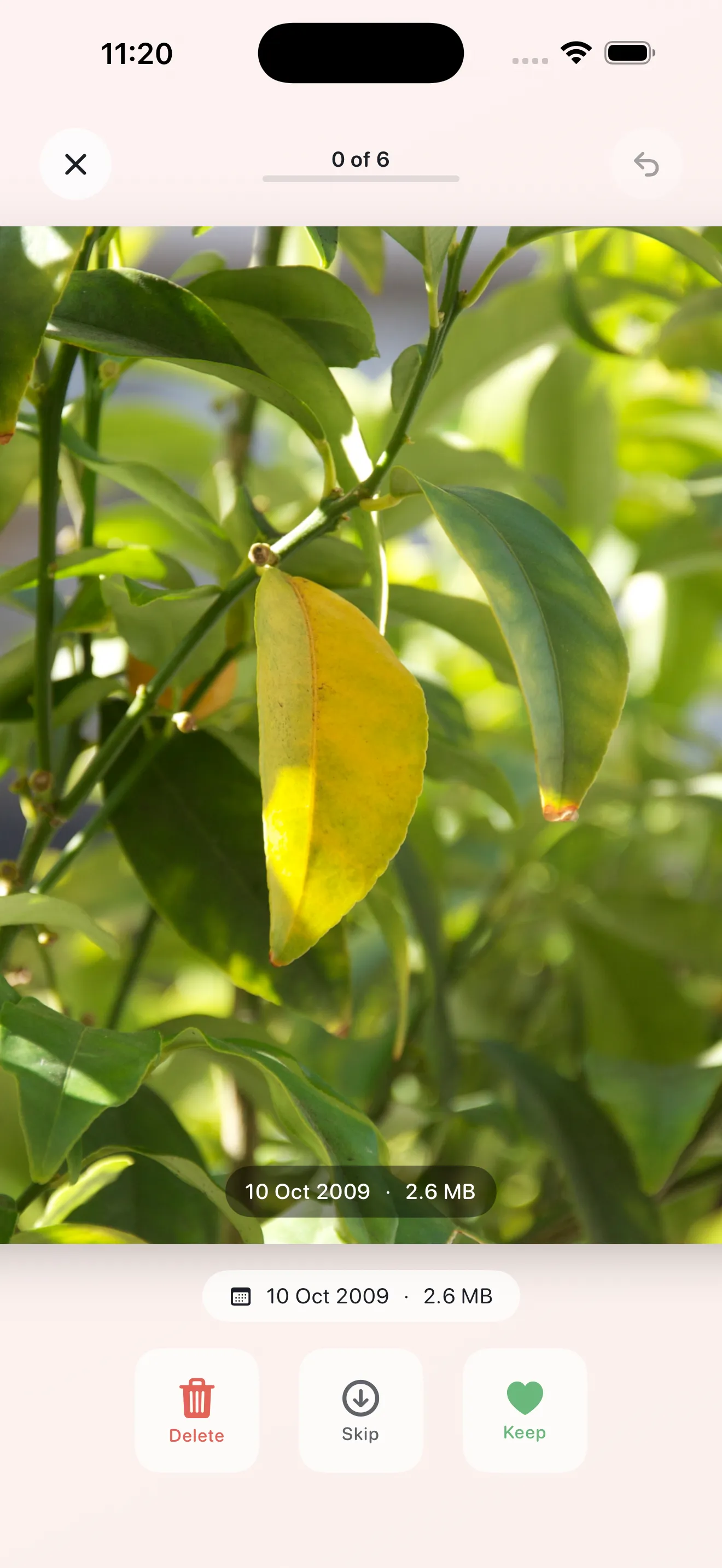
The core experience is simple. You'll see one photo at a time and make a quick decision. Trust your gut—if you're unsure, skip it and move on. Phlash is designed to build momentum, not perfectionism.
- Swipe right (or tap the keep button) for photos you want to save
- Swipe left (or tap the delete button) for photos you're ready to remove
- Swipe up (or tap skip) if you need more time to decide on a photo
- Watch the soft feedback as you swipe—it confirms your action is registered
- Stop when the pile is done or when your 5 minutes are up
The goal isn't to delete everything. It's to be intentional about what stays, in sessions short enough to feel good.
Review Before You Delete
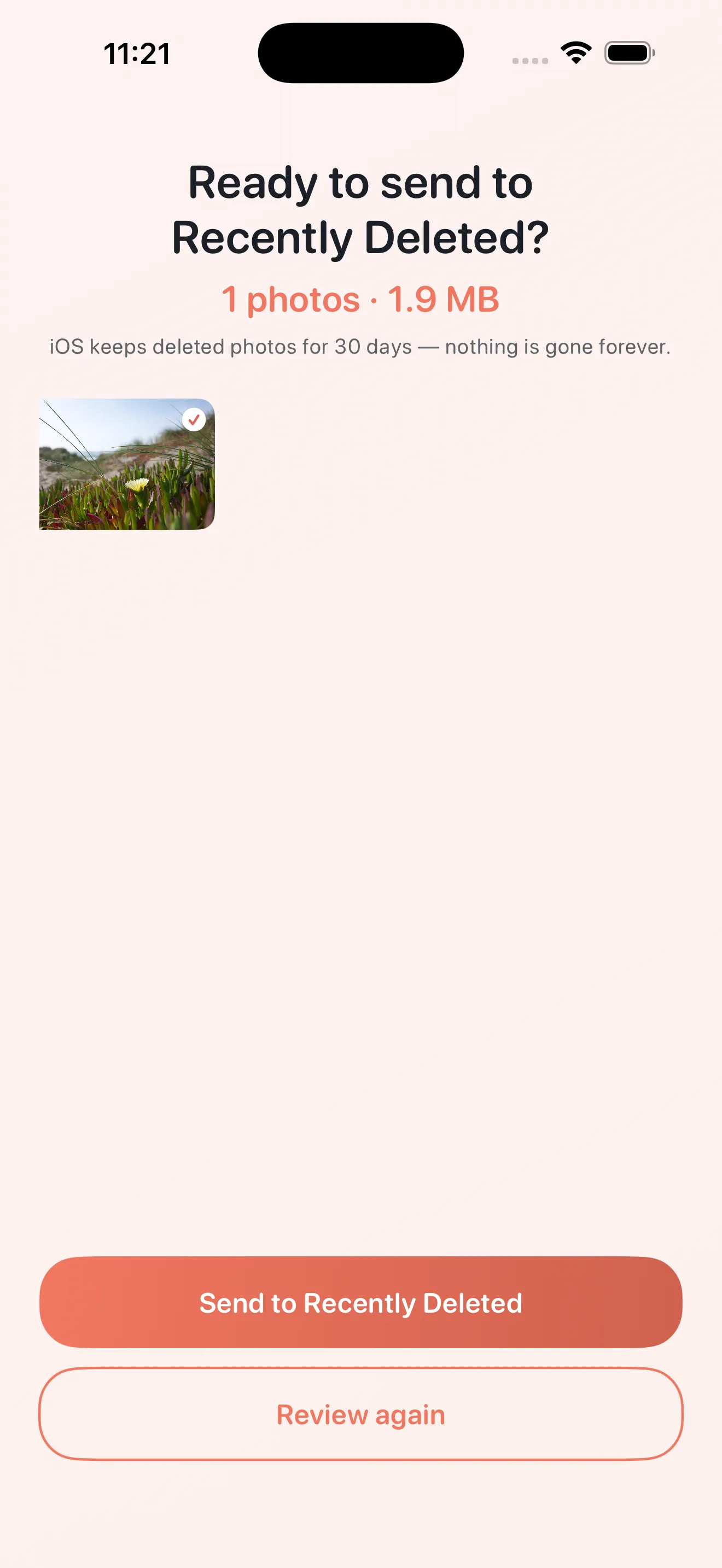
After you finish swiping, Phlash shows you all the photos marked for deletion. This is your safety net.
- Review the delete preview screen carefully
- Tap any photo if you want to undo your decision and keep it instead
- When you're confident, tap the final delete button to remove them permanently
- If you're not ready, skip this step—your deletes are saved for later
Use Focused Cleanup Modes
Beyond Today's pile, Phlash includes four specialized modes. Each one tackles a specific camera-roll problem. Visit the Modes tab to access them, and pair them with your daily routine for thorough cleanup over time.
- Screenshots: Find and review all screenshots with OCR. Easily spot text-based ones you no longer need.
- Duplicates: Phlash uses perceptual hashing to find photos you took twice (or zoomed variants). Delete redundant versions.
- Large Videos: Spot videos consuming the most storage. Decide which ones to keep or trim.
- On This Day: Rediscover old memories. Swipe through photos from past years and relive them—or clean them out if they're no longer meaningful.
Upgrade to Phlash Pro
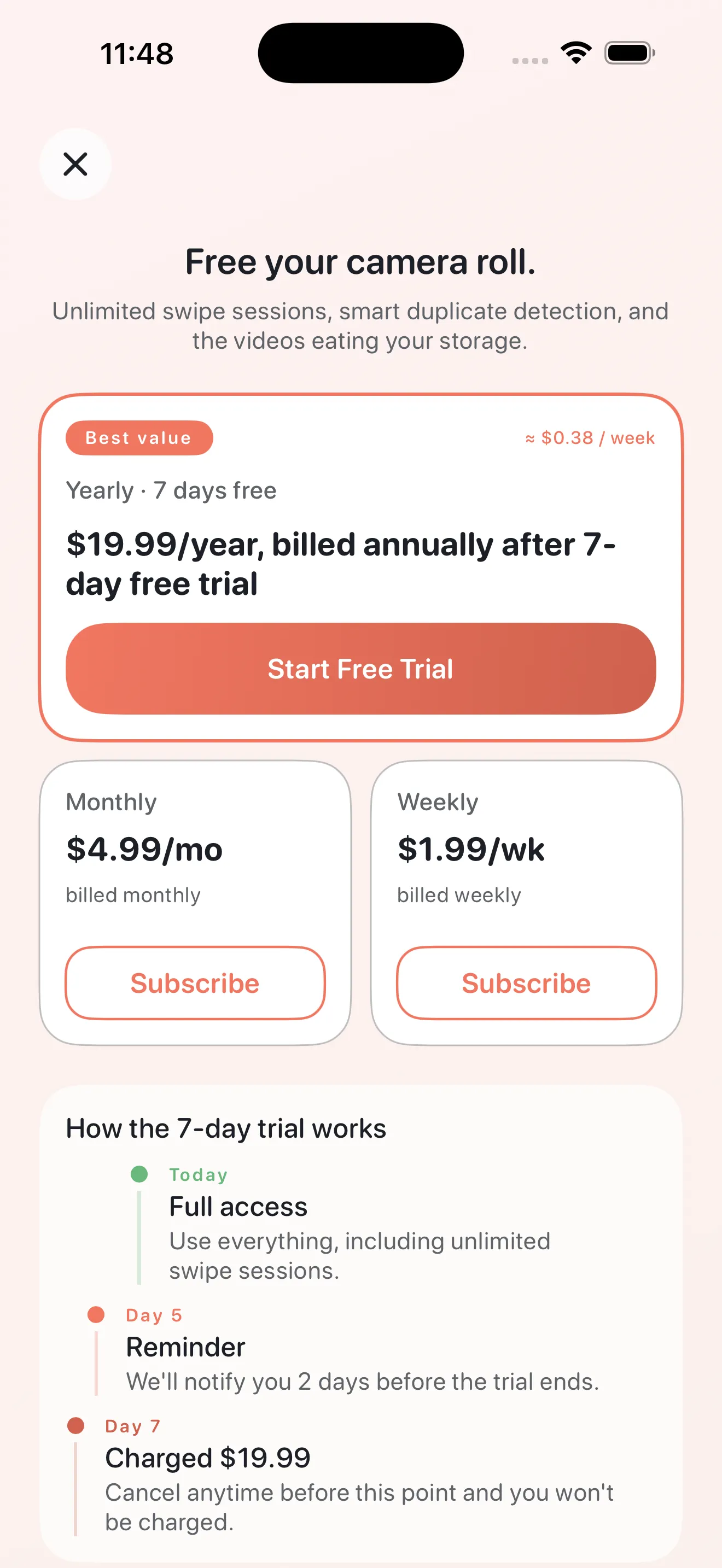
Phlash works great on the free tier, but Pro unlocks unlimited cleanup sessions, priority mode access, and other perks. You can see the full list in Settings.
- Open Settings (bottom-right icon in the app)
- Tap on Phlash Pro to view available subscription plans
- Review the features and pricing
- Tap Subscribe if you want to upgrade
- Confirm with Face ID or your device passcode
Customize Your Settings
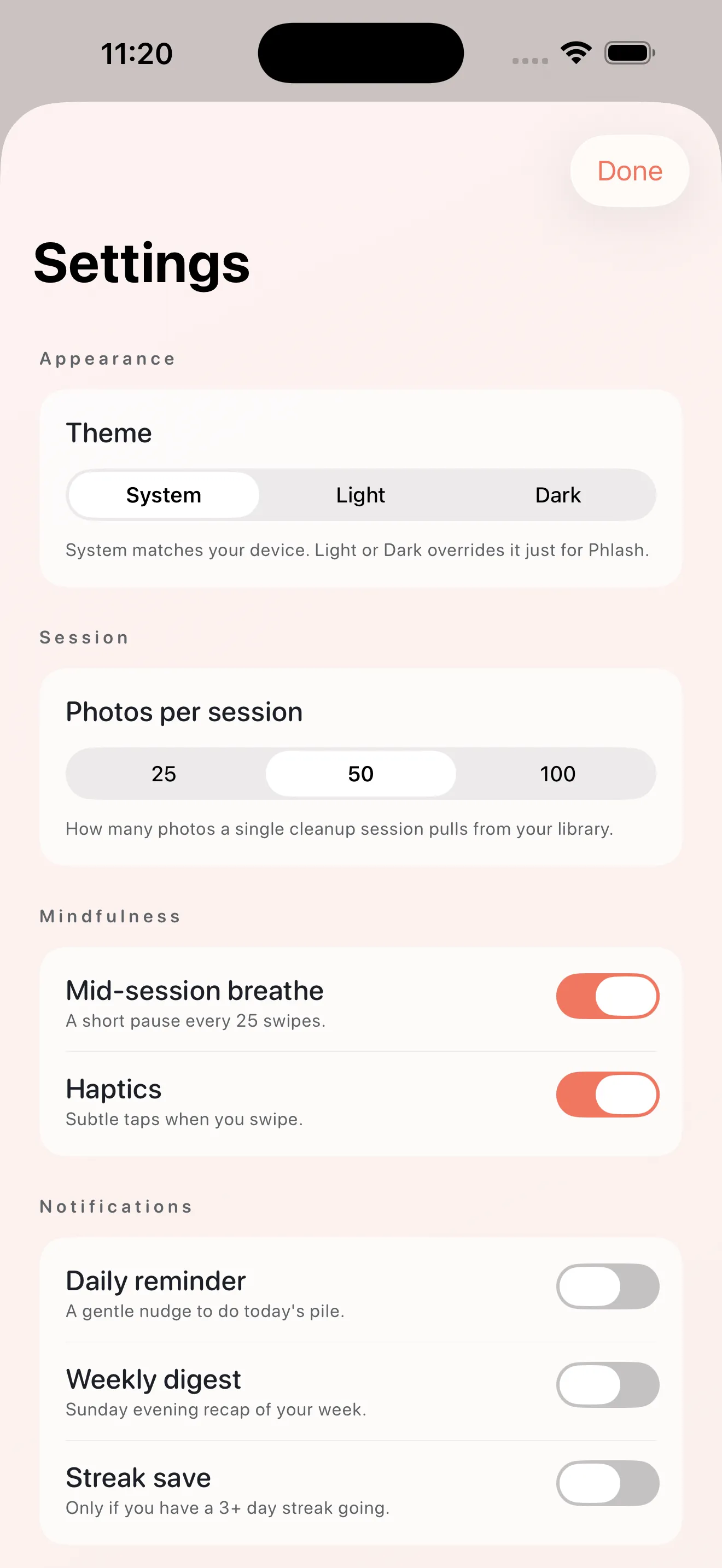
- Open Settings and explore appearance options (light, dark, or system mode)
- Check notification preferences to get reminders for your daily cleanup pile
- Review your photo library status—Phlash shows how many photos and videos you have
- Look at the Safety Net section to see pending deletes and permanently remove them when ready
For deeper guidance, check out Phlash tips and tricks or explore how Phlash compares to other cleaning approaches.
This article was drafted with AI assistance and reviewed by a human editor before publishing.