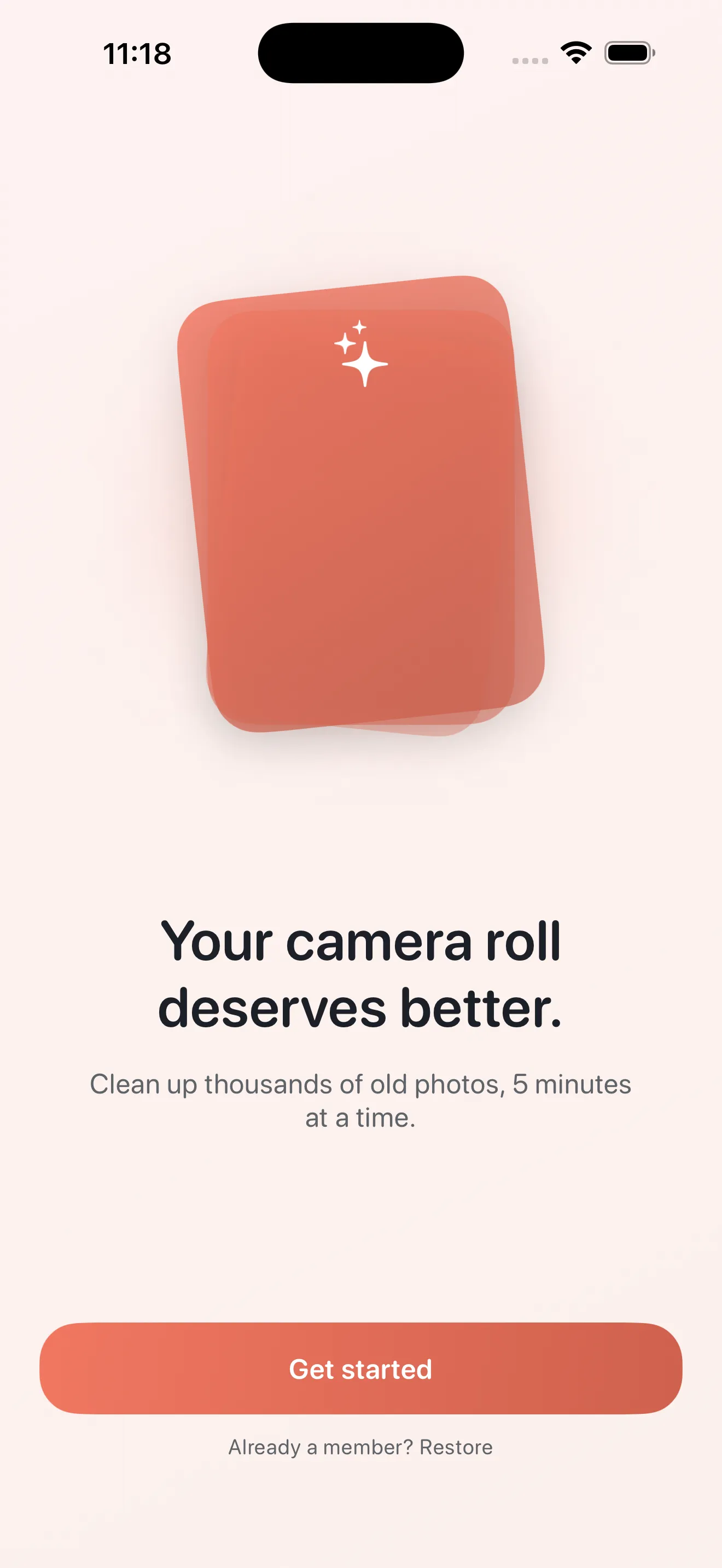
Your camera roll is probably full of blurry shots, duplicate photos, and screenshots you forgot about. Phlash helps you clean it up without the guilt or anxiety—in short, focused sessions that fit into your day. This guide walks you through what Phlash does, how to use it, and what to expect when you start.
What is Phlash, really?
Phlash is a photo cleaner built for people who want to stay in control. Instead of algorithms deciding what stays, you swipe through photos and decide: keep, delete, or skip. It's that simple. The app handles the tedious stuff—finding duplicates, spotting screenshots, flagging massive videos—but you make the final call. Everything happens on your device. Your photos never leave your iPhone.
The core feature: swiping
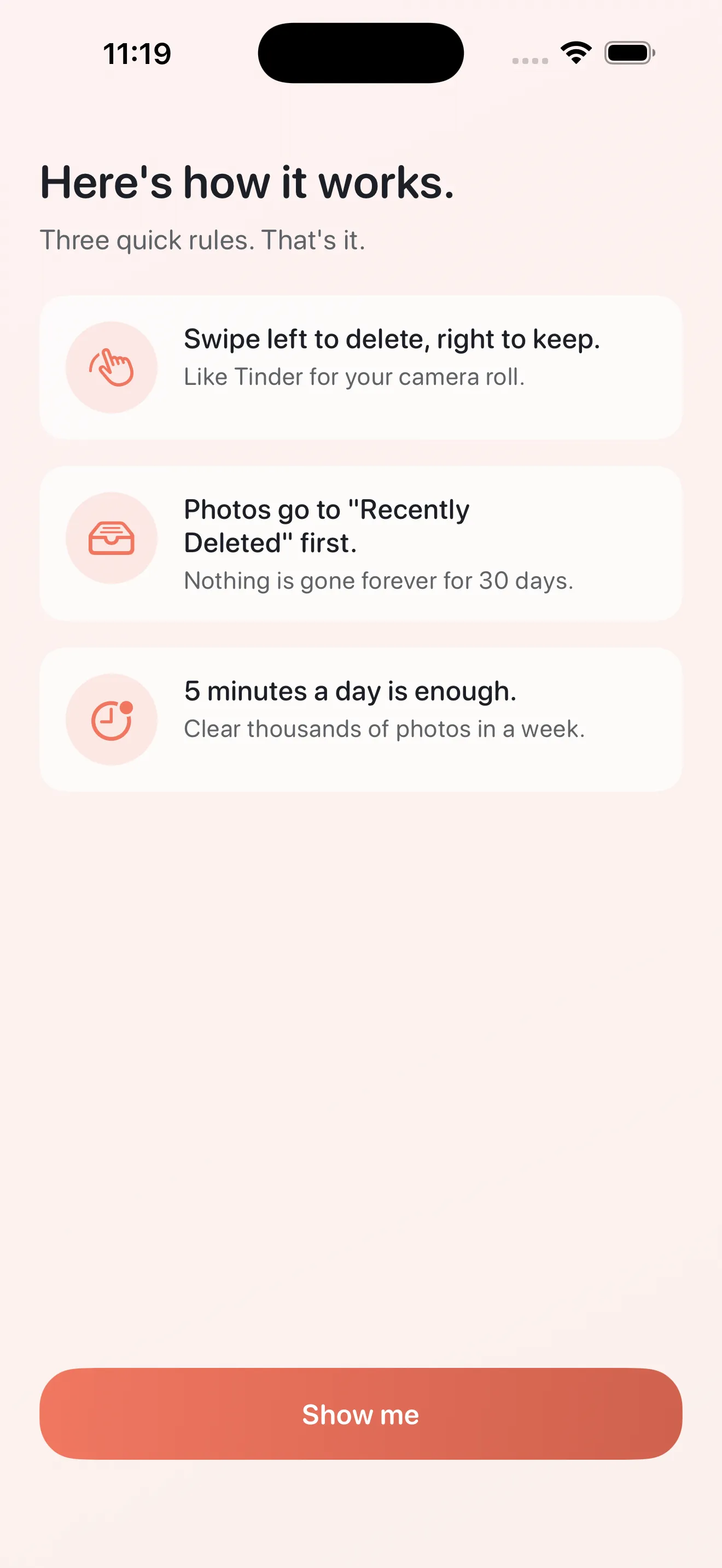
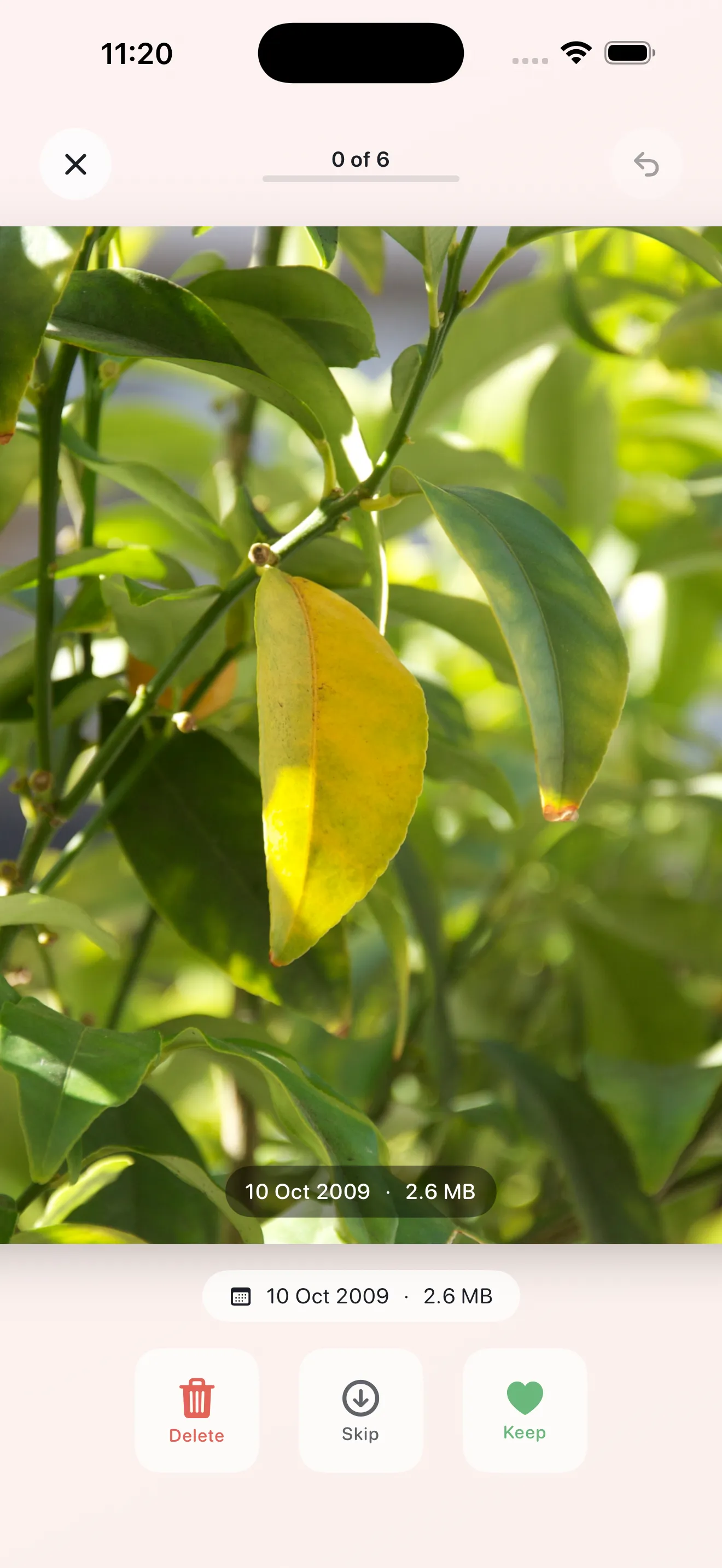
Phlash organizes your photos into small piles—usually 5 to 15 images at a time. You swipe right to keep a photo, left to delete it, or up to skip it for now. Each session takes about 5 minutes. The idea is to build a daily rhythm: a quick cleanup that compounds over time instead of a single marathon session that never happens.
Phlash turns camera-roll cleanup from a dreaded chore into something you can actually finish.
Smart modes that do the heavy lifting
Phlash identifies specific types of photos and groups them into focused modes. Screenshots get their own pile—the app uses on-device OCR to read text and help you remember what they were for. Duplicates are detected using perceptual hashing, so even if one photo is slightly cropped or edited, Phlash spots it. Large videos get flagged separately because they eat up storage fast. And if you want a mood boost, the On This Day mode shows you photos from years past.
Screenshots
Most people take screenshots without thinking. Phlash's screenshot mode reads the text in each screenshot and displays it beneath the image, so you remember why you saved it. Once you've reviewed it, delete it with confidence.
Duplicates
Phlash finds near-identical photos using perceptual hashing—a technique that recognizes the same image even if it's been slightly cropped or color-adjusted. You review each cluster and delete the ones you don't need.
Large videos
Videos can swallow gigabytes. Phlash surfaces your largest video files so you can decide which ones deserve to stay.
On This Day
Instead of just deleting, this mode reminds you of moments from your past. It's a lighter way to engage with your library and rediscover photos you'd forgotten about.
What to expect in your first week
Day 1: onboarding and your first session
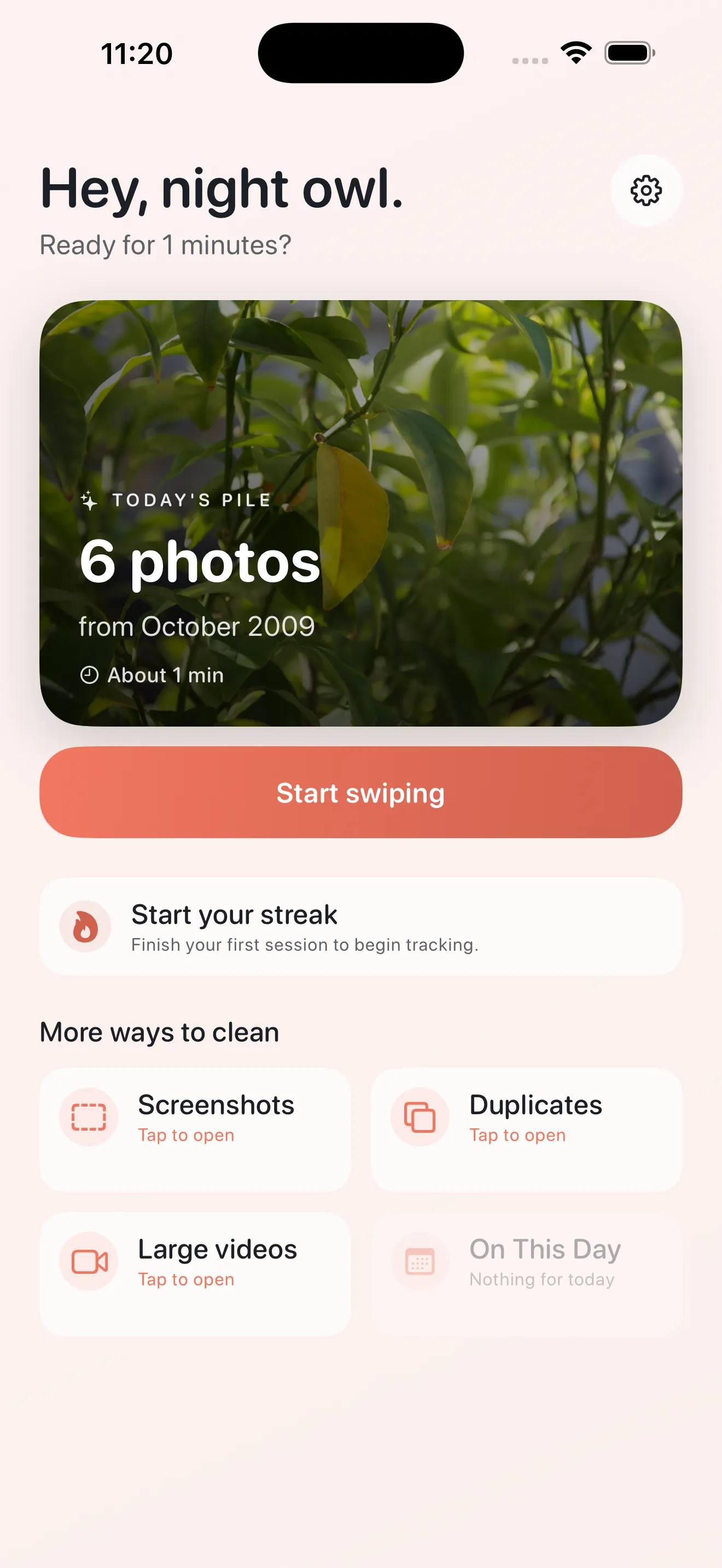
You'll see a warm, clear onboarding that explains how swiping works. It takes a couple of minutes. Then Phlash assembles Today's pile—a curated mix of deletable photos to get you started. Your first session might feel slow because you're learning the rhythm. That's normal. Swipe through a few, delete what doesn't spark joy, and stop. Don't try to clean your entire roll on day one.
Days 2–4: building the habit
Come back each day and swipe through Today's pile. Each session is short—often done before your coffee gets cold. You'll start recognizing patterns in what you delete and what you keep. The app learns your rhythm too.
Days 5–7: exploring modes
Once the daily pile feels natural, dive into the other modes. Try screenshots first—it's satisfying to clear them out. Then tackle duplicates or large videos. You don't have to do all of them in one week. Just pick one mode and spend a session on it.
Privacy and safety
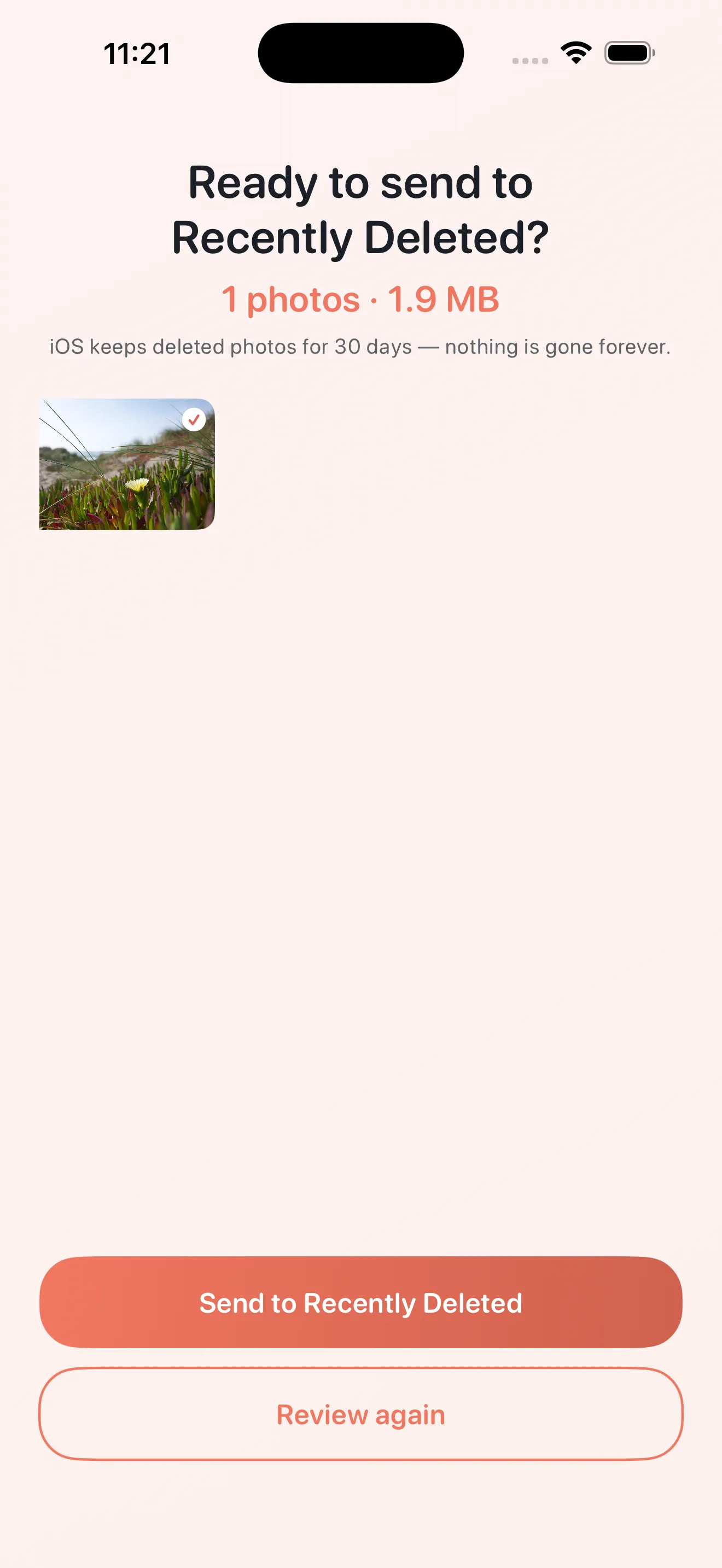
Every tool Phlash uses—OCR for text recognition, hashing for duplicate detection—runs entirely on your device. Your photos never leave your iPhone, and they're never sent to any server. You're in complete control. And if you panic after hitting delete, Phlash gives you a review step to confirm before anything is permanently removed from your library.
Free and Pro
Phlash is free to download and use. The free tier includes Today's daily pile, screenshots, duplicates, and large videos. Phlash Pro unlocks unlimited sessions and the On This Day mode, plus a few other refinements. Most people find the free version plenty to get started. If you love the experience after a week or two, Pro is there if you want it.
For deeper strategies on managing your library, check out Master Phlash: Photo Cleaning in Calm Sessions or Your Phlash Photo Cleanup Checklist for a step-by-step approach.
First steps
- Download Phlash and open it. You'll see the onboarding right away.
- Swipe through Today's pile. Aim for one 5-minute session—not more.
- Delete what feels right. Use the skip button liberally; there's no pressure.
- Come back tomorrow. The app will have a fresh pile waiting.
- After three days, try the screenshots mode. It's the easiest win.
- Explore other modes as you feel ready. There's no rush.
This article was drafted with AI assistance and reviewed by a human editor before publishing.