Your camera roll is probably full of duplicates, blurry shots, and videos you forgot about. Cleaning it feels like a chore—overwhelming, risky, and easy to lose something you meant to keep. Phlash changes that. Instead of browsing thousands of photos at once, you work through bite-sized piles, swipe to keep or delete, and finish in a few minutes. Everything stays on your device, so you're always in control.
Why Camera Roll Cleanup Matters
A cluttered camera roll slows down your phone, makes it harder to find the photos you actually care about, and wastes storage space. Large videos, duplicate shots, and forgotten screenshots pile up faster than you'd think. But deleting photos manually is tedious—you have to scroll, tap, confirm, repeat. And the risk of accidentally deleting something important keeps most people from ever starting.
The best cleanup is one you actually do. That's why Phlash uses short sessions designed to finish in five minutes.
Start with Phlash's Warm Onboarding
When you first open Phlash, you'll see a guided introduction that explains how swiping works and what the app can do. There's no jargon, no rushed setup. You learn exactly what to expect before you make your first decision.
How to Swipe and Clean in Sessions
Step 1: Open the Home Hub
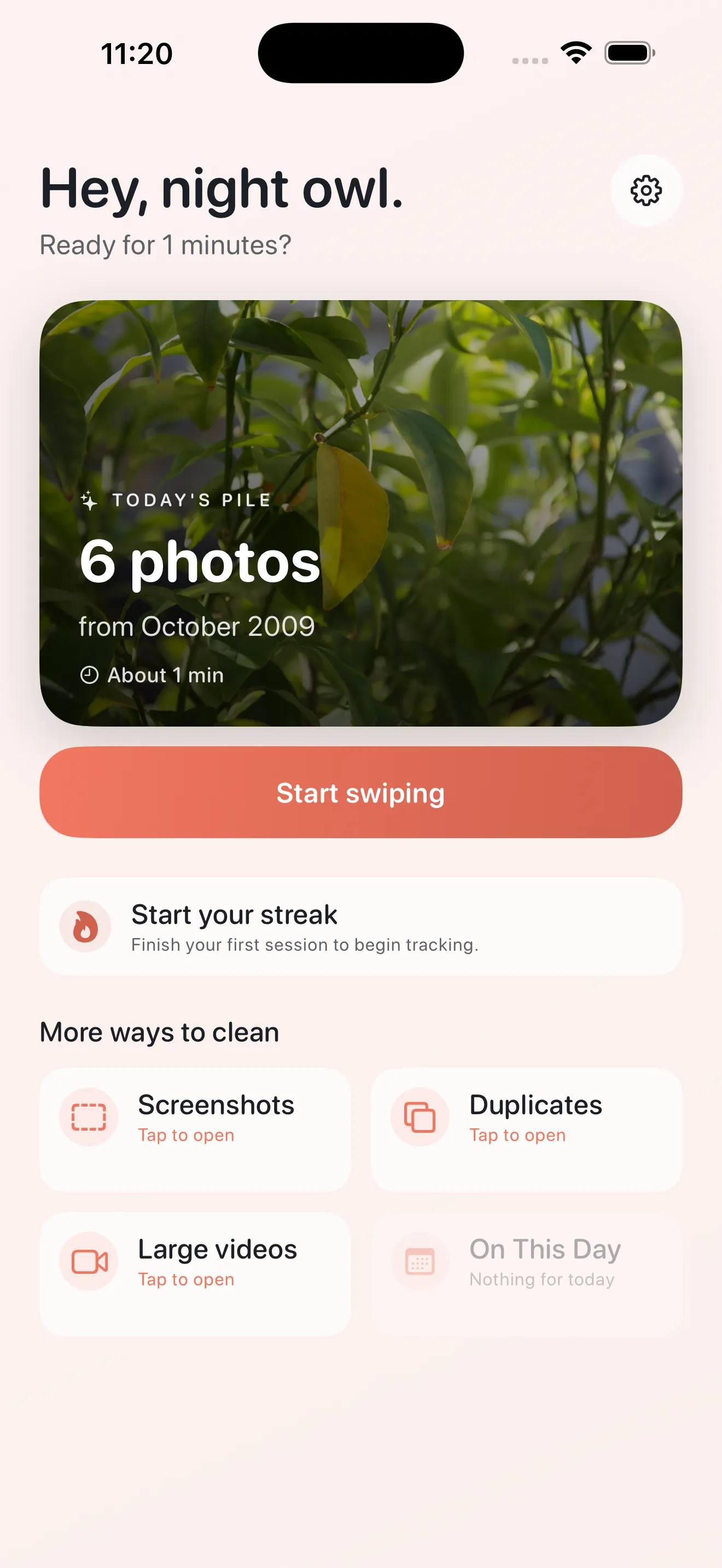
The home screen shows today's curated cleanup pile and access to focused modes. You can jump straight into Today's pile (a mix of photos to review) or pick a specific mode like Screenshots, Duplicates, Large Videos, or On This Day.
Step 2: Swipe to Decide
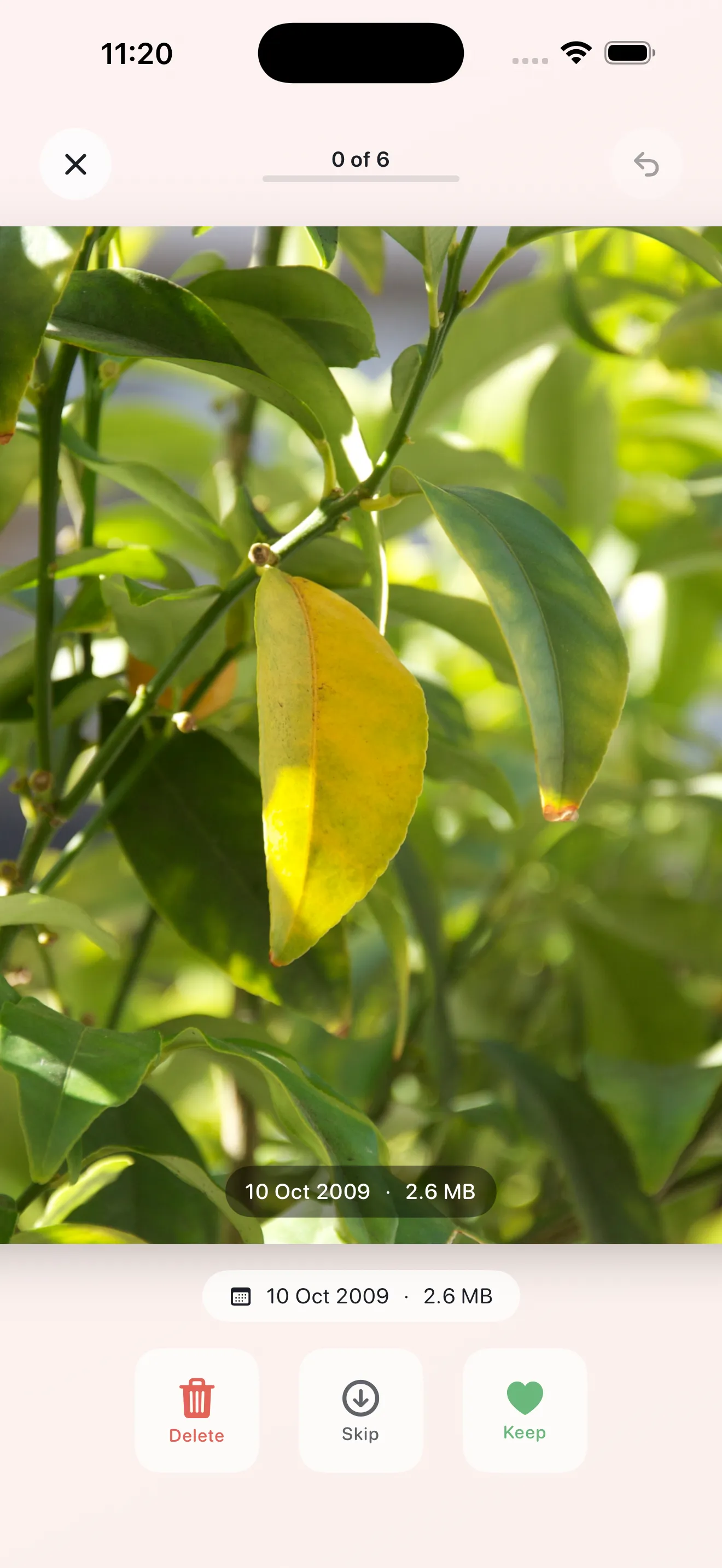
When you tap into a session, photos appear one at a time. You have three choices: swipe left to delete, swipe right to keep, or tap the middle area to skip and move on. The interface is intentionally simple so you can make quick decisions without thinking too hard.
Step 3: Review Before Deleting
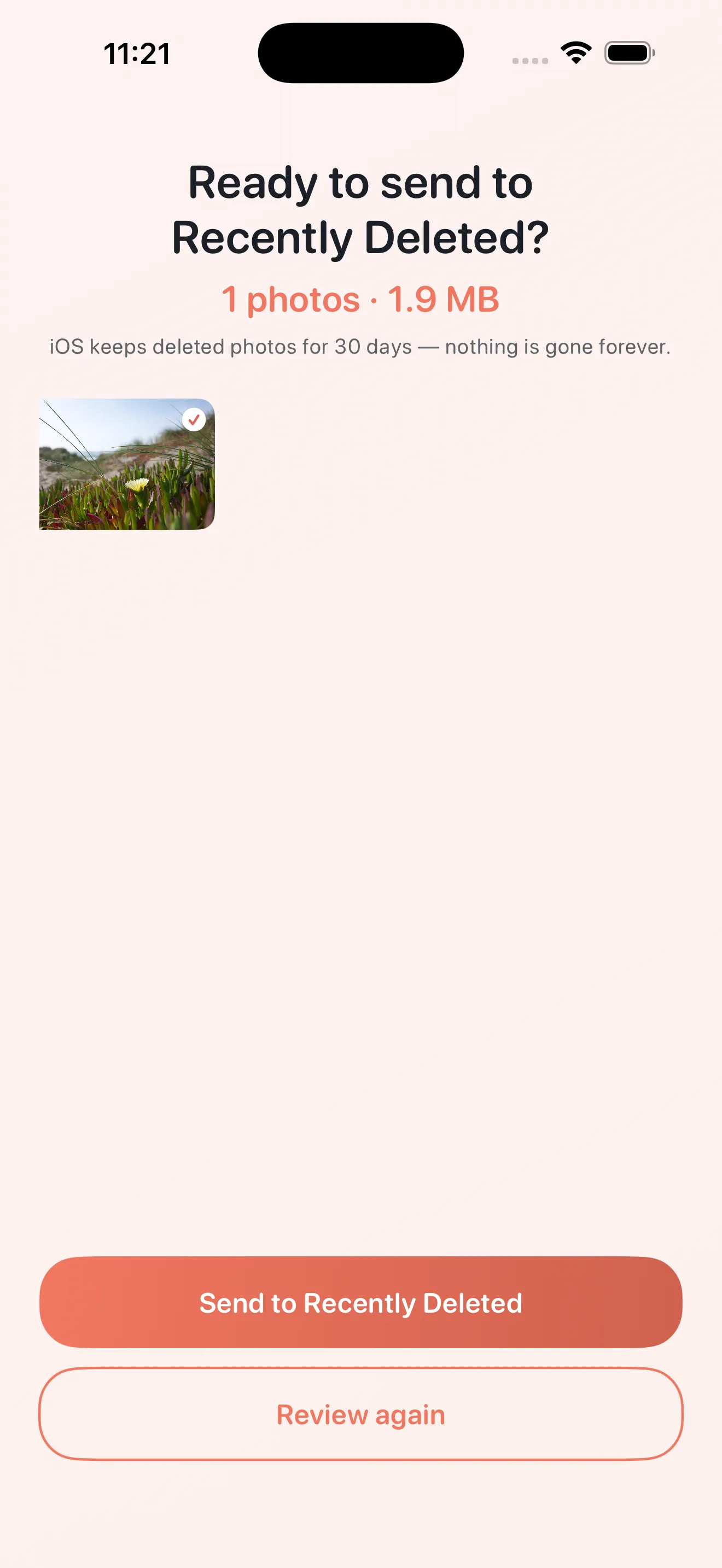
Once you've finished swiping through a pile, Phlash shows you all the photos you marked for deletion. You can review them, change your mind, and only confirm the delete when you're ready. This safety net means you'll never lose something by accident.
Use Focused Modes to Target Problem Areas
Phlash's modes handle the kinds of photos that clog most camera rolls. Each one uses on-device technology to find and organize problematic content:
- Screenshots: Uses OCR to identify and group screenshots so you can delete them in bulk.
- Duplicates: Perceptual-hash technology finds similar or duplicate photos—blurry versions, near-identical shots from burst mode, and accidental multiples.
- Large Videos: Scans for videos over a certain size so you can free up storage quickly.
- On This Day: Rediscover and review photos from past years—keep the good ones, delete the rest.
Build a Daily Cleanup Rhythm
The key to a clean camera roll is consistency, not marathon sessions. Phlash's daily pile gives you a fresh batch of photos to review each day—usually 5–15 photos that take just a few minutes to sort through. Over time, small decisions compound into a much lighter library. For more tips on staying organized, check out our guide on camera roll cleaning best practices.
Short sessions mean you're more likely to actually do the cleanup—and less likely to regret a rushed decision.
What Happens After You Delete
When you confirm a delete in Phlash, the photo is removed from your camera roll and your device—just like deleting manually through the Photos app. You get the storage back immediately. If you change your mind within 30 days, the photo sits in your iPhone's Recently Deleted folder, so you can recover it.
Try Phlash Pro for Advanced Features
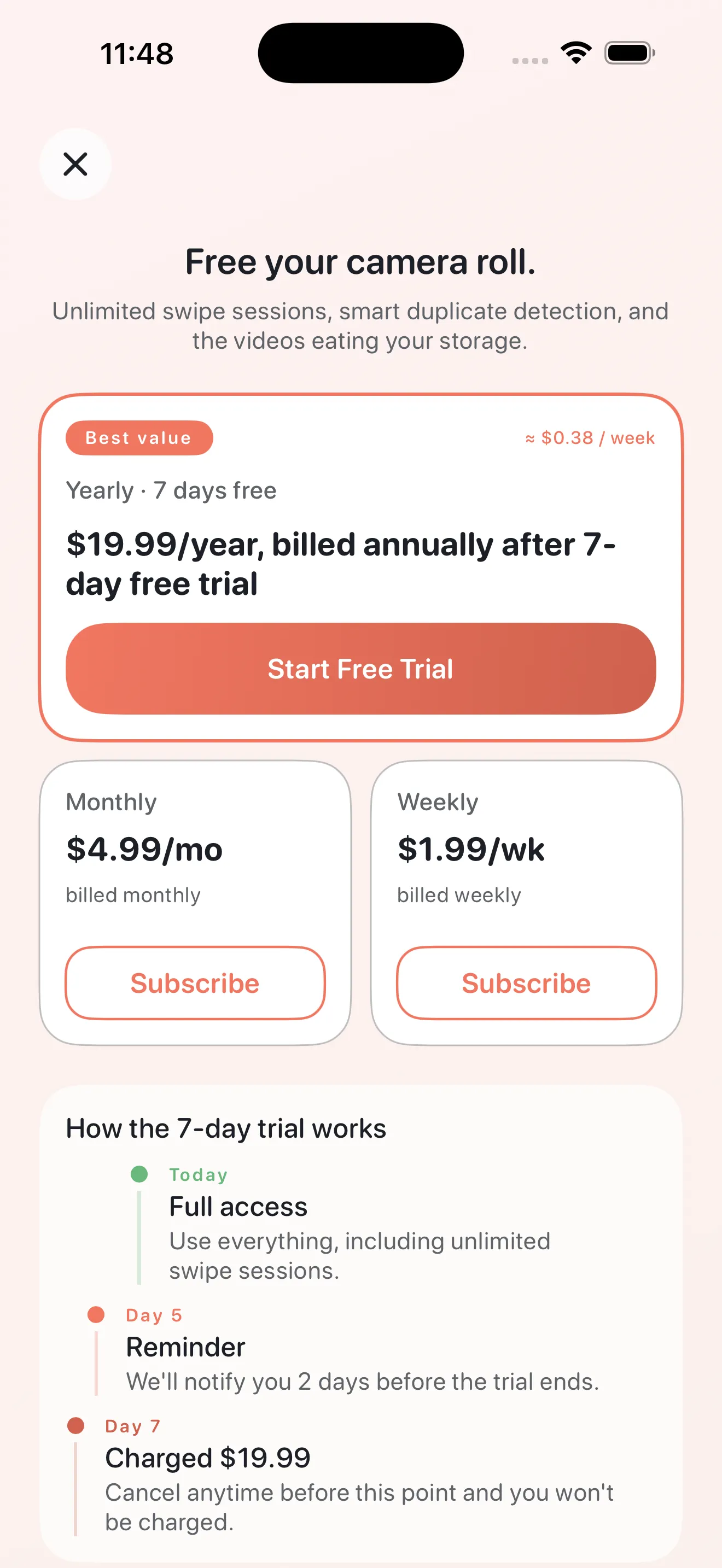
Phlash is free and handles core cleanup well. If you want unlimited daily piles, priority mode access, and early access to new features, Phlash Pro offers a paid plan. You can explore Pro features and pricing directly in the app.
If you want deeper guidance on building a sustainable photo management habit, our photo cleanup checklist walks you through a complete first session.
This article was drafted with AI assistance and reviewed by a human editor before publishing.